

FOUR AI 3D TOOLS, COMPARED BY WORKFLOW
N4D vs Tripo vs Meshy vs Rodin
Compare generation modes, topology, materials, export formats and access conditions across N4D, Tripo, Meshy and Rodin. Start with the edit or delivery task you need to complete, then test the selected workflow with your own input.
FOUR AI 3D GENERATORS
- N4D
- Tripo
- Meshy
- Rodin
FeaturesPricingWorkflows
N4D, Tripo, Meshy and Rodin at a Glance
All four provide text and image routes to 3D. The differences become more useful when you separate generation from later mesh processing, texturing and downloads.
N4D
Choose Triangle or Quad before text or image generation. Add optional Texture and PBR stages, or use Remesh and Edit Texture on eligible Studio assets. N4D-2o provides conversational refinement within its current session.
Tripo
Choose an H Series high-detail path or a P Series Smart Mesh path. P2.0 documents native Quad and Triangle options; Retopo, segmentation and texturing are separate tools. Model access and exports depend on the plan.
Meshy
Distinguish High Detail generation from T2 or T2.5 Smart Topology. Smart Topology generates triangle meshes, while separate Remesh tools offer other topology choices. AI Texturing, Texture Edit and 3D Agent cover different later tasks.
Rodin by Hyper3D
Evaluate preview-before-confirmation generation and the controls available for your selected tier. Its Gen-2.5 API documents mesh and material options; those settings should not be assumed identical to every web workflow.
Need a two-product decision? Read the N4D vs Meshy feature comparison for the full brand comparison, or continue below for a four-tool shortlist.
Tripo vs Meshy: Compare the Selected Mode
Tripo and Meshy each offer more than one geometry path. Comparing an unspecified default from one service with a selected topology mode from the other can hide the difference that matters to your project.
Tripo: H Series or P Series
Tripo separates HD Model generation from P Series Smart Mesh. P2.0 offers Quad or Triangle with a target polygon count; the older P1.0 is triangle-only. Its documentation recommends FBX when preserving Quad topology is important. Check the available version and export permission before generating.
Meshy: High Detail or Smart Topology
Meshy separates its High Detail path from T2-family Smart Topology. T2 and T2.5 produce triangle output during generation. A separate Remesh action offers Quad or Triangle afterward. Record the exact model and keep the original and remeshed assets distinct.
For editable props, compare part selection, edge flow and the faces imported into your editor. For printing, compare the actual files in your slicer. Neither a Quad label nor a higher-detail preview proves which asset will require less work.
For the narrower topology question, use our Meshy T2 topology and editing comparison. That article separates T2 and T2.5 limits and explains a repeatable export check.
Feature Comparison: Inputs, Topology, Materials and Exports
These are documented workflow options, not scores for output quality. Model, mode, source asset and plan restrictions apply.
Scroll horizontally to compare all four tools. The decision column remains visible.
| Decision point | N4D | Tripo | Meshy | Rodin |
|---|---|---|---|---|
| Generation scope | Text to 3D, Image to 3D and separate multiview generation. | H Series HD Model and P Series Smart Mesh are different paths. | High Detail and T2-family Smart Topology are different paths. | Text/image generation; Gen-2.5 API controls are identified separately here. |
| Input and model choice | Text or image in dedicated tools; use the separate multiview workflow when needed. | Text, single-image and multiview routes. Check support for the selected model. | Text and image routes; multi-image availability is model-specific. | Text or images, including multiple images in the documented Gen-2.5 API. |
| Topology and later processing | Triangle is the generation default; request Quad before generation. Separate Remesh accepts eligible generated Triangle sources, not Quad sources. | P2.0 offers native Quad or Triangle. P1.0 is triangle-only. Retopo is a separate action. | T2/T2.5 generation is triangle-only. Separate web Remesh offers Quad or Triangle. | Gen-2.5 API offers Raw (Triangle) or Quad. Default and density depend on the selected tier/settings. |
| PBR and texture sources | Texture/PBR stages are optional. AI Texture uses Studio-generated models, not external mesh uploads. | Texture and PBR workflows accept generated or uploaded models. Resolution and tool access depend on the plan. | AI Texturing accepts generated or uploaded meshes. PBR and lighting controls depend on the texture model. | Gen-2.5 API distinguishes PBR, Shaded, Hybrid and untextured material choices. |
| Editing and source limits | Edit Texture needs an already textured model. N4D-2o refines models generated in its current session. | Separate texture editing, Retopo and segmentation tools; verify access and supported inputs for the chosen action. | Texture Edit supports masked and brush edits; saving requires a paid plan. 3D Agent also documents post-processing in chat. | Geometry and material controls in generation; check the chosen web tool or API rather than assuming arbitrary model editing. |
| Documented 3D exports | OBJ, FBX, GLB, USDZ, STL, BLEND for standard text/image workflows. | FBX, OBJ, GLB, USDZ, STL, 3MF; download permission depends on the model and plan. | GLB, FBX, OBJ, USDZ, STL, BLEND, 3MF, DXF; availability depends on the asset and plan. | Gen-2.5 API: GLB, USDZ, FBX, OBJ, STL. Check the selected web workflow separately. |
| Check after export | Face layout, part structure, scale, UVs and material connections. Printing-specific downloads have their own rules. | Imported topology, material links and any rig/animation data. FBX is the documented Quad-preserving route. | Confirm which original or processed asset was exported. Inspect topology and materials in the target application. | Confirm mesh mode, material type and scale in the delivered file. API settings alone do not validate a finished asset. |
Do not compare texture pixels, geometric resolution and polygon count as one metric. Separate image or video generators are outside this mesh-workflow comparison.
Pricing and Free Access: Compare the Same Deliverable
Compare the cost of a file you can use, not only the first generated preview. Geometry, textures, edits and downloads can have separate conditions, and credits are not interchangeable across platforms.
Scroll horizontally to compare free access, downloads and billing conditions.
| Decision point | N4D | Tripo | Meshy | Rodin |
|---|---|---|---|---|
| Free evaluation | Free plan with welcome credits. Check the allowance currently shown for your account. | 200 monthly credits. Access to newer models and tools does not imply free exports. | 100 monthly credits. Free download rights are narrower than generation access. | Free exploration before result confirmation; the pricing page separately lists legacy-model exports. |
| Download boundary | The pricing page lists textured model downloads on paid plans. Confirm the file and material access you need. | Official docs restrict free exports to H2.5. Check the account limit; official pages disagree on the number. | For new Free-plan outputs: 10 monthly downloads of untextured Meshy 6 Lite models. T2.5, textured and 3D Agent outputs are excluded. | Confirm the selected result and its credit cost. A free preview does not establish free export of a new model. |
| Paid-plan structure | Go, Plus and Pro, with custom Team pricing. Review current credits, downloads and private-model terms. | Pro, Max and Team are listed on pricing. Confirm the billing total and selected model entitlement. | Individual subscriptions and team plans. Check the available tier in your region and its download limits. | Creator, Business and custom Enterprise options; billing and generation/redo allowances differ. |
| Billing and total cost | Compare monthly or annual checkout totals and the cost of geometry, textures and later operations. | Distinguish annual commitments from monthly equivalents. Check texture, processing and export conditions. | Confirm currency, billing cycle and renewal price rather than comparing a first-month offer with another provider's regular price. | Compare monthly or annual billing, result confirmation, paid credits and included redo allowances. |
| License and privacy | Public/Private visibility and commercial rights have plan conditions. Review the selected asset's applicable terms. | Pricing and product docs disagree on free commercial use. Obtain clear terms for your intended use before relying on it. | Free models use CC BY 4.0 with attribution; paid plans add private licensing. Check the applicable asset rights. | Use and export rights are plan-dependent. Check the selected subscription and asset license. |
| Official plan details | N4D pricing | Tripo pricing | Meshy pricing | Rodin pricing |
Tripo free-plan caution: its pricing page lists 15 H2.5 exports, while the Export and DCC FAQ says 25 per month. Pricing describes free outputs as non-commercial; the Pricing and Credits documentation describes attribution-based commercial use. Confirm the applicable limit and license before planning a delivery.
Set the same currency and billing cycle before comparing paid totals. Include retries and post-processing, then check whether your chosen model can actually be downloaded. N4D's official pricing page is the reference for its current offers.
For a broader shortlist organized around evaluation and download limits, read our Meshy alternatives and free plan limits.
Which Workflow Fits Your Project?
You plan to edit the mesh
Compare N4D Quad generation and eligible Remesh, Tripo P2.0, Meshy generation plus separate Remesh, or the appropriate Rodin mesh mode. Select a part and make the intended shape change in your editor. For conversational N4D refinement, generate the model inside the current N4D-2o session.
You already have an external mesh
Tripo Standalone Texture and Meshy AI Texturing document uploaded-model workflows. Check accepted files and account permissions. N4D AI Texture is for Studio-generated models; it is not an import route for retexturing an arbitrary external mesh.
You are preparing a 3D print
Inspect closure, wall thickness, dimensions and small features in your slicer. N4D supports STL and separate Multicolor and Part Split workflows for eligible assets. These prepare model files; printer setup, supports, slicing and physical validation remain separate tasks.
You need web or product visualization
Check the actual GLB or USDZ delivery in your viewer, including material response, scale and file size. All four document these formats within the scopes above. A supported extension alone does not establish that the final asset meets a viewer or client requirement.

OFFICIAL N4D WORKFLOW GUIDE
How to Create Useful 3D Prints with AI | N4D
An N4D demonstration of an AI-to-print workflow. It illustrates one product workflow and does not compare four tools under matched conditions. Inspect your own files before printing.
Test an N4D Workflow with Your Own Input
Use a reference image that makes your intended object easy to identify, then choose settings for the next task rather than the most detailed preview.
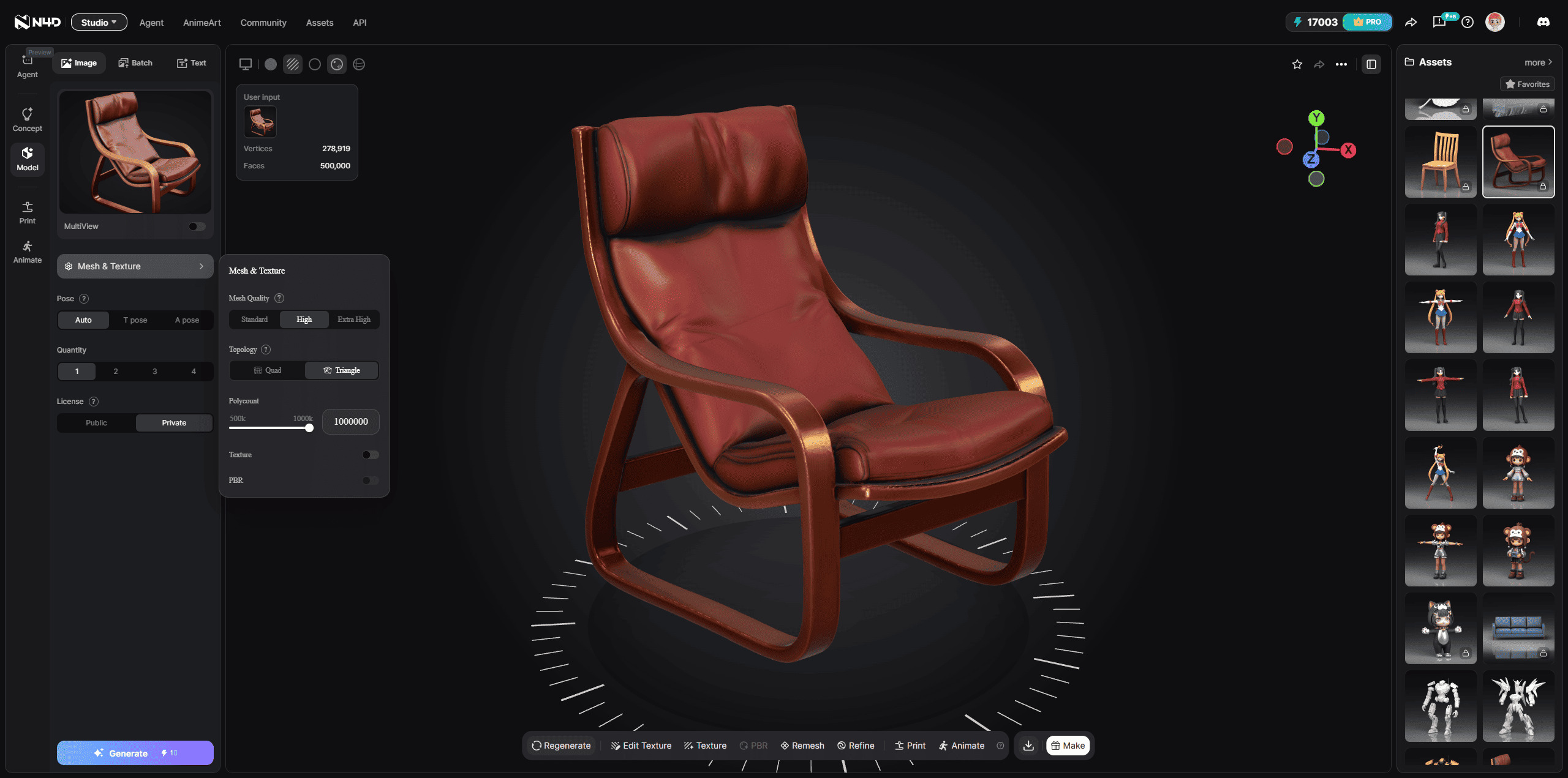
- Start from the right inputUse Image to 3D for a reference image or Text to 3D for a description. Use consistent inputs when comparing providers.
- Choose geometry and materialsSelect the available topology and density controls. Add Texture and PBR when needed, checking the credits shown before submission.
- Check the actual exportReview geometry, part structure, UVs and materials in your destination software. Record the format, any cleanup and whether the planned edit succeeds.
About This Comparison
This page is published by N4D. It compares official product documentation and public plan conditions reviewed on October 29, 2026. It does not report a controlled four-product output test or an overall quality ranking.
For your own evaluation, record the input, exact model, topology target, material steps, account entitlement, total credits and retries. Compare the files after import into the same application. Web and API controls can differ, and a documented option does not prove it is available on every plan.
Questions About Choosing an AI 3D Tool
Tripo vs Meshy: which AI 3D generator should I choose?
Compare the exact generation path and the next operation you need. Tripo P2.0 offers native Quad or Triangle, while Meshy T2-family Smart Topology produces triangles and has a separate Remesh workflow. Both offer texturing and post-processing. Check export permissions and inspect your own files before choosing.
Meshy vs Rodin: what should I compare?
Compare model choice, geometry and material controls, result confirmation, export formats and the applicable plan. Rodin Gen-2.5 settings here are explicitly API settings. Meshy also has distinct High Detail, Smart Topology and Agent workflows. These options do not establish an overall output-quality winner.
Does free generation include a free textured download?
Not necessarily. For new Free-plan outputs, Meshy limits free downloads to a monthly allowance of untextured Meshy 6 Lite models. Tripo restricts free exports to H2.5, with conflicting counts in official sources. Rodin separates free exploration from result confirmation. N4D lists welcome credits and paid textured-download benefits. Check the selected asset and current plan before relying on an export.
Which tool is best for 3D printing?
Test the exported model in your slicer. Check closure, wall thickness, scale, clearances and fine details. N4D offers STL plus separate Multicolor and Part Split workflows for eligible assets. None of these options replaces slicing, supports or a physical test, and a watertight mesh alone does not guarantee a successful print.
Can I edit any existing model in N4D?
No. AI Texture applies to Studio-generated models, Edit Texture requires an already textured model, and Remesh requires an eligible generated Triangle source. N4D-2o refines models created in its current session. These workflows are not a promise that an arbitrary external mesh can be uploaded and edited.
What export formats do the four tools support?
N4D standard text/image workflows list OBJ, FBX, GLB, USDZ, STL and BLEND. Tripo lists FBX, OBJ, GLB, USDZ, STL and 3MF. Meshy lists GLB, FBX, OBJ, USDZ, STL, BLEND, 3MF and DXF. Rodin Gen-2.5 API lists GLB, USDZ, FBX, OBJ and STL. Confirm availability for the specific model, tool and plan.
How should I compare the total price?
Use the same currency and billing cycle, then compare the cost of an accessible export with the required materials. Include geometry, texturing, edits and retries. Check renewal pricing, download limits, privacy and commercial terms. Do not treat one provider's credit or estimated model count as equivalent to another's.
Continue with a More Specific Comparison
Start with Your Own 3D Project
Bring a reference image to N4D, choose the settings that fit your next task and inspect the exported result in your own software. Review current credits and download permissions before you begin.
%22%3E%3Cg%3E%3Cpath%20d%3D%22M14.22126%2C2L16.980341%2C2L10.922359%2C8.365314L18%2C17.000000999999997L12.44585%2C17.000000999999997L8.0973005%2C11.7527676L3.1189604%2C17.000000999999997L0.35988006%2C17.000000999999997L6.7777414%2C10.1918821L0%2C2L5.6921029%2C2L9.6207924%2C6.7933583L14.22126%2C2ZM13.255582%2C15.505536L14.785071%2C15.505536L4.88837%2C3.4391145L3.2449181%2C3.4391145L13.255582%2C15.505536Z%22%20fill%3D%22%23ffffff%22%20fill-opacity%3D%221%22%20style%3D%22mix-blend-mode%3Apassthrough%22%2F%3E%3C%2Fg%3E%3C%2Fg%3E%3C%2Fsvg%3E)
%22%3E%3Cg%3E%3Cg%3E%3Cpath%20d%3D%22M17.776579953674315%2C4.238972914697266C18.530987953674316%2C2.8357112146972656%2C17.668764953674316%2C1.0000038146972656%2C17.668764953674316%2C1.0000038146972656C15.728984953674317%2C1.0000038146972656%2C14.327326953674316%2C2.2953194146972655%2C14.327326953674316%2C2.2953194146972655C13.572919953674317%2C1.8635447646972656%2C11.093512553674316%2C1.8635447646972656%2C11.093512553674316%2C1.8635447646972656C11.093512553674316%2C1.8635447646972656%2C8.614197253674316%2C1.8635447646972656%2C7.859790753674316%2C2.2953194146972655C7.859790753674316%2C2.2953194146972655%2C6.4587898536743165%2C1.0000038146972656%2C4.518257353674317%2C1.0000038146972656C4.518257353674317%2C1.0000038146972656%2C3.6561312536743165%2C2.8350313146972654%2C4.410538953674316%2C4.238972914697266C4.410538953674316%2C4.238972914697266%2C2.6862124236743163%2C5.858135714697266%2C3.332825653674316%2C9.312969214697265C3.9408041536743164%2C12.559363814697265%2C6.782133553674316%2C13.415479814697266%2C8.614197253674316%2C13.415479814697266C8.614197253674316%2C13.415479814697266%2C7.859790753674316%2C14.063154814697265%2C7.967603653674316%2C15.142524814697266C7.967603653674316%2C15.142524814697266%2C6.889853453674316%2C15.790198814697266%2C5.812196053674317%2C15.358415814697265C4.734538553674316%2C14.926723814697265%2C4.1956536536743165%2C13.847263814697266%2C4.1956536536743165%2C13.847263814697266C4.1956536536743165%2C13.847263814697266%2C3.1179590536743165%2C12.443964814697265%2C2.0402743556743164%2C12.983694814697266C2.0402743556743164%2C12.983694814697266%2C1.7169677936743164%2C13.307532814697266%2C2.9024282136743165%2C13.847263814697266C2.9024282136743165%2C13.847263814697266%2C3.7645722536743165%2C15.142524814697266%2C4.087878753674316%2C15.898144814697266C4.411195253674316%2C16.653767814697268%2C6.135446553674316%2C17.301444814697266%2C7.860446953674316%2C16.869661814697267L7.860446953674316%2C19.352327814697265C7.860446953674316%2C19.352327814697265%2C7.860446953674316%2C19.568219814697265%2C7.4293847536743165%2C19.676166814697265C6.998322453674317%2C19.784110814697264%2C6.998322453674317%2C20.000003814697266%2C7.213853853674316%2C20.000003814697266L14.974576953674317%2C20.000003814697266C15.190109953674316%2C20.000003814697266%2C15.190109953674316%2C19.784110814697264%2C14.759046953674316%2C19.676166814697265C14.327983953674316%2C19.568219814697265%2C14.327983953674316%2C19.352327814697265%2C14.327983953674316%2C19.352327814697265L14.327983953674316%2C16.869661814697267C14.327983953674316%2C16.869661814697267%2C14.337451953674316%2C15.575053814697265%2C14.327983953674316%2C15.142524814697266C14.304263953674317%2C14.057753814697266%2C13.573576953674316%2C13.415479814697266%2C13.573576953674316%2C13.415479814697266C15.405640953674316%2C13.415479814697266%2C18.246925953674317%2C12.559363814697265%2C18.854893953674317%2C9.312969214697265C19.501579953674316%2C5.858135714697266%2C17.777234953674316%2C4.238972914697266%2C17.776579953674315%2C4.238972914697266L17.776579953674315%2C4.238972914697266Z%22%20fill%3D%22%23ffffff%22%20fill-opacity%3D%221%22%20style%3D%22mix-blend-mode%3Apassthrough%22%2F%3E%3C%2Fg%3E%3C%2Fg%3E%3C%2Fg%3E%3C%2Fsvg%3E)


%22%2F%3E%3C%2Fsvg%3E)

%22%2F%3E%3C%2Fsvg%3E)