

Create a 3D model, image, or video in Neural4D Studio, then choose the next step for your asset. This guide starts with a first 3D model and shows where to refine, animate, prepare for printing, and export your work.
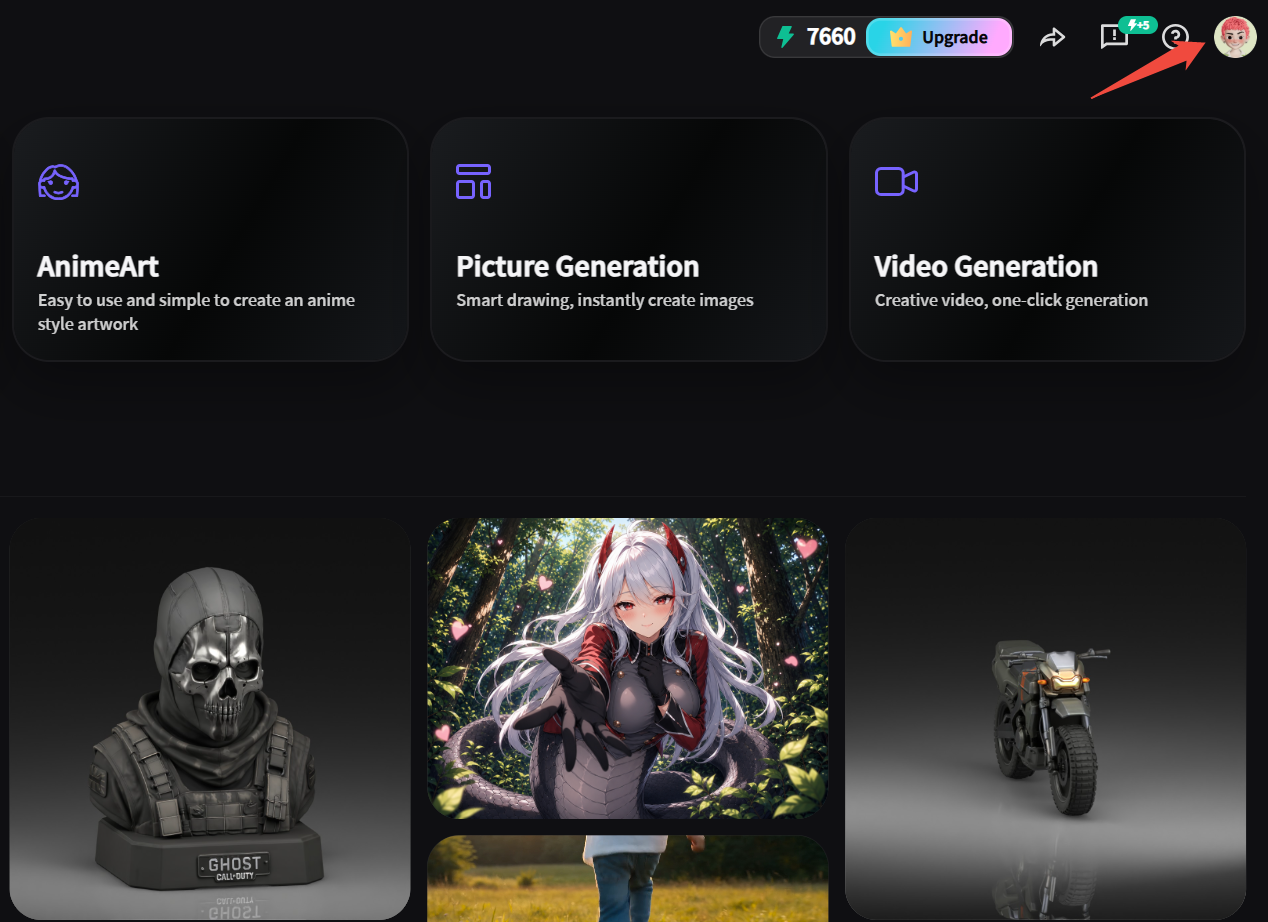
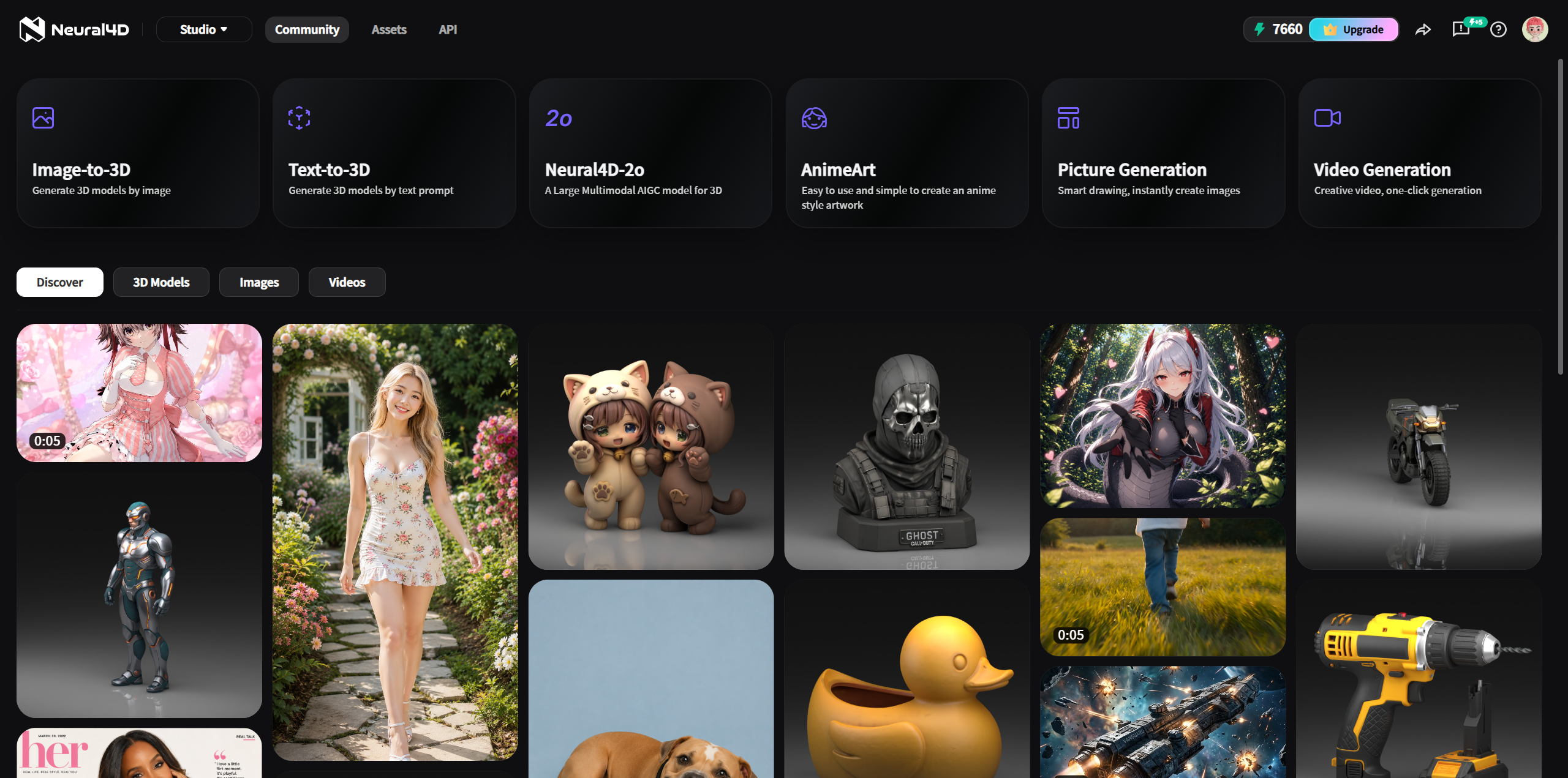
Pick the input you have and the result you want. Image and video generation are separate from the 3D workflow. An image you generate can later become the input for Image to 3D.
| Your starting point | Use | Result and key condition |
|---|---|---|
| A written description | Text to 3D | Generate a 3D model from a prompt. |
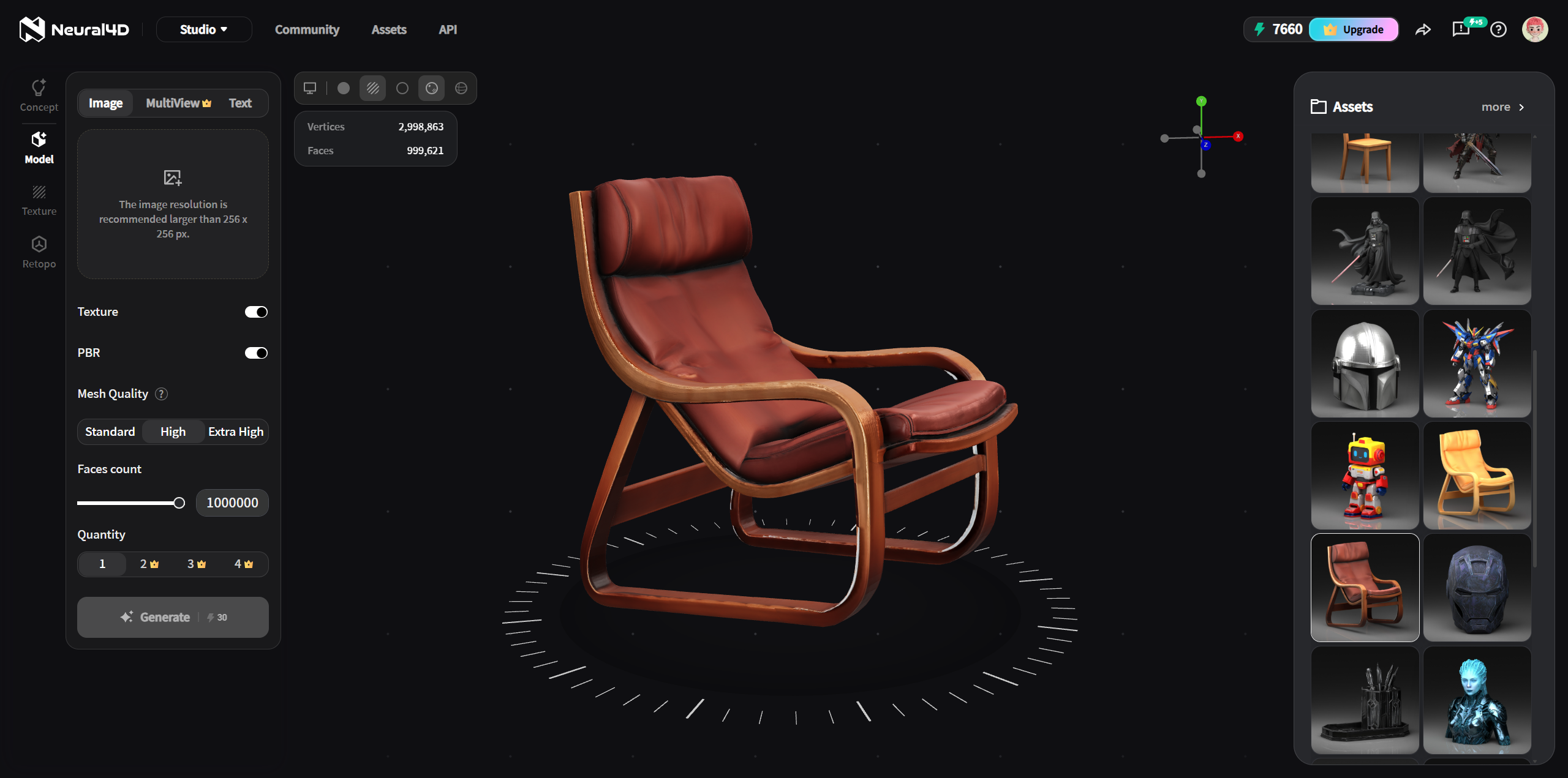
| One reference image | Image to 3D | Generate a 3D model from a photo or illustration. Batch mode accepts up to 10 images, producing a separate model for each. |
| A 3D idea you want to refine through conversation | Neural4D-2o | Generate a model inside 2o from text or an image, then refine it in that session. Models from the separate Text to 3D and Image to 3D tools cannot be transferred into 2o for editing. Each edit costs 30 Credits. |
| Six orthographic views | Multi-View to 3D | Reconstruct a model using six views of the same subject. |
| An anime character idea or reference image | AnimeArt | Create a customizable anime-style 3D character from text or an image, then export it as VRM. |
| A concept or reference image | Image Generation | Create a 2D image. A text prompt is required, even when you upload a reference image. |
| A video concept or reference image | Video Generation | Create a video. A text prompt is required; revise the prompt or reference image and generate again to change the result. |
| A part with exact dimensions | Coala | Create an industrial CAD model from text, a reference image, or a drawing. Current export is STL. |
To explore more tools and see the latest feature descriptions, visit the Neural4D features directory.
For Image to 3D and Multi-View to 3D, supported uploads are PNG, JPG, JPEG, and WebP, up to 20 MB per image.
For an anime-style character, open AnimeArt instead. Describe the character or add a reference image, customize its appearance and expression, then generate and export a VRM avatar. This is a separate workflow from the Text to 3D and Image to 3D settings above.
AI Texture applies PBR-compatible textures to a model generated in 3D Studio. Use a text prompt or a 2D reference image. External mesh uploads are not supported. Each generation costs 20 Credits.
In Animate, select an existing Studio Asset, rig it, apply a preset motion, and download an animated GLB. Models over 300K polygons need remeshing before rigging. Animate does not accept local model uploads or custom motions.
Multicolor starts from a textured Neural4D model. It detects color regions and lets you adjust a palette of 1 to 8 colors. Generate for 30 Credits, then download the colored model as 3MF or GLB. The default download format is 3MF.
Model Segmentation starts from your completed Neural4D model, with or without texture. Smart Split creates a set of separate parts for printing. This subscription feature costs 40 Credits per generation; the default download is a 3MF containing all parts as untextured geometry.
Browse the Community in Studio to preview shared models, images, and videos. Select Recreate to open the relevant workspace with the original prompt and settings prefilled, then make your own version.
Multicolor prepares color regions and Model Segmentation prepares separate parts. Neither performs slicing, support generation, G-code creation, or a printer task.
Open Assets Library to browse your Models, Images, and Videos. Search for an asset or mark it as a favorite. Batch Actions lets you select multiple assets to favorite, download as a ZIP, or delete. Deleted assets cannot be recovered.
Open an asset to review it and choose a supported download format. Formats depend on the tool that created the result:
| Asset or workflow | Supported download format |
|---|---|
| Text to 3D, Image to 3D, AI Texture | OBJ, FBX, GLB, USDZ, STL, BLEND |
| Animate | GLB |
| AnimeArt | VRM |
| Multicolor | 3MF, GLB |
| Model Segmentation | 3MF by default, containing all current parts as untextured geometry |
| Coala | STL |
| Image Generation | PNG |
| Video Generation | MP4 |
Neural4D uses Credits for generation and some follow-up actions. Free users receive 50 Credits each week. For current Go, Plus, and Pro plans, see Pricing. Open Account to view Usage History, including the date, type, details, and amount for deductions or returns.
Usage History currently has no search, filter, or export control. A failed server task may appear as an incomplete task followed by a Credits Return entry.
Can I upload a model to AI Texture or Animate?
AI Texture uses models
generated in 3D Studio. Animate starts from a Studio Asset; it does not accept a local model
upload in the Animate workspace.
Can Neural4D-2o edit a model from another tool?
No. Start a model inside
Neural4D-2o using text or an image, then refine it in the same 2o session. Models from the
separate Text to 3D and Image to 3D tools cannot be transferred into 2o for editing.
How do I change a generated video?
Edit the text prompt or replace the
reference image, then generate again.
Where can I find my creations?
Open Assets Library and select Models,
Images, or Videos. You can search, favorite, or batch download your assets.
%22%3E%3Cg%3E%3Cpath%20d%3D%22M14.22126%2C2L16.980341%2C2L10.922359%2C8.365314L18%2C17.000000999999997L12.44585%2C17.000000999999997L8.0973005%2C11.7527676L3.1189604%2C17.000000999999997L0.35988006%2C17.000000999999997L6.7777414%2C10.1918821L0%2C2L5.6921029%2C2L9.6207924%2C6.7933583L14.22126%2C2ZM13.255582%2C15.505536L14.785071%2C15.505536L4.88837%2C3.4391145L3.2449181%2C3.4391145L13.255582%2C15.505536Z%22%20fill%3D%22%23ffffff%22%20fill-opacity%3D%221%22%20style%3D%22mix-blend-mode%3Apassthrough%22%2F%3E%3C%2Fg%3E%3C%2Fg%3E%3C%2Fsvg%3E)
%22%3E%3Cg%3E%3Cg%3E%3Cpath%20d%3D%22M17.776579953674315%2C4.238972914697266C18.530987953674316%2C2.8357112146972656%2C17.668764953674316%2C1.0000038146972656%2C17.668764953674316%2C1.0000038146972656C15.728984953674317%2C1.0000038146972656%2C14.327326953674316%2C2.2953194146972655%2C14.327326953674316%2C2.2953194146972655C13.572919953674317%2C1.8635447646972656%2C11.093512553674316%2C1.8635447646972656%2C11.093512553674316%2C1.8635447646972656C11.093512553674316%2C1.8635447646972656%2C8.614197253674316%2C1.8635447646972656%2C7.859790753674316%2C2.2953194146972655C7.859790753674316%2C2.2953194146972655%2C6.4587898536743165%2C1.0000038146972656%2C4.518257353674317%2C1.0000038146972656C4.518257353674317%2C1.0000038146972656%2C3.6561312536743165%2C2.8350313146972654%2C4.410538953674316%2C4.238972914697266C4.410538953674316%2C4.238972914697266%2C2.6862124236743163%2C5.858135714697266%2C3.332825653674316%2C9.312969214697265C3.9408041536743164%2C12.559363814697265%2C6.782133553674316%2C13.415479814697266%2C8.614197253674316%2C13.415479814697266C8.614197253674316%2C13.415479814697266%2C7.859790753674316%2C14.063154814697265%2C7.967603653674316%2C15.142524814697266C7.967603653674316%2C15.142524814697266%2C6.889853453674316%2C15.790198814697266%2C5.812196053674317%2C15.358415814697265C4.734538553674316%2C14.926723814697265%2C4.1956536536743165%2C13.847263814697266%2C4.1956536536743165%2C13.847263814697266C4.1956536536743165%2C13.847263814697266%2C3.1179590536743165%2C12.443964814697265%2C2.0402743556743164%2C12.983694814697266C2.0402743556743164%2C12.983694814697266%2C1.7169677936743164%2C13.307532814697266%2C2.9024282136743165%2C13.847263814697266C2.9024282136743165%2C13.847263814697266%2C3.7645722536743165%2C15.142524814697266%2C4.087878753674316%2C15.898144814697266C4.411195253674316%2C16.653767814697268%2C6.135446553674316%2C17.301444814697266%2C7.860446953674316%2C16.869661814697267L7.860446953674316%2C19.352327814697265C7.860446953674316%2C19.352327814697265%2C7.860446953674316%2C19.568219814697265%2C7.4293847536743165%2C19.676166814697265C6.998322453674317%2C19.784110814697264%2C6.998322453674317%2C20.000003814697266%2C7.213853853674316%2C20.000003814697266L14.974576953674317%2C20.000003814697266C15.190109953674316%2C20.000003814697266%2C15.190109953674316%2C19.784110814697264%2C14.759046953674316%2C19.676166814697265C14.327983953674316%2C19.568219814697265%2C14.327983953674316%2C19.352327814697265%2C14.327983953674316%2C19.352327814697265L14.327983953674316%2C16.869661814697267C14.327983953674316%2C16.869661814697267%2C14.337451953674316%2C15.575053814697265%2C14.327983953674316%2C15.142524814697266C14.304263953674317%2C14.057753814697266%2C13.573576953674316%2C13.415479814697266%2C13.573576953674316%2C13.415479814697266C15.405640953674316%2C13.415479814697266%2C18.246925953674317%2C12.559363814697265%2C18.854893953674317%2C9.312969214697265C19.501579953674316%2C5.858135714697266%2C17.777234953674316%2C4.238972914697266%2C17.776579953674315%2C4.238972914697266L17.776579953674315%2C4.238972914697266Z%22%20fill%3D%22%23ffffff%22%20fill-opacity%3D%221%22%20style%3D%22mix-blend-mode%3Apassthrough%22%2F%3E%3C%2Fg%3E%3C%2Fg%3E%3C%2Fg%3E%3C%2Fsvg%3E)


%22%2F%3E%3C%2Fsvg%3E)

%22%2F%3E%3C%2Fsvg%3E)