Start from a reference image or a text description. Compare the mesh controls, editing options,
materials and download conditions that will shape your next step. Use this page to choose a
platform, then try it on an asset you want to make.
Three Ways to Shape Your N4D Workflow
Set Up the Mesh for Your Next Task
Choose topology and a target face count before generating in Text to 3D or Image to 3D.
Triangle is the default; Quad is an option when you expect to continue editing the
surface. Start with the controls that suit your project, then inspect the result before
adding more work.
Build and Refine in an N4D-2o Session
If you want to develop a 3D idea through conversation, start in N4D-2o. Describe a change
to the shape, proportions or material of a model generated in that session. This editing
path applies to the current session's models, so choose it at the start of the project.
Add Materials and Choose Your Export
Generate the geometry, add Texture and PBR when needed, then download the asset for your
next tool. N4D's Text to 3D and Image to 3D workflows support GLB, OBJ, FBX, USDZ, STL
and BLEND. Select the format for the job and check the file in its destination.
N4D and Meshy Fit Different Creation Workflows
Both platforms let you begin with text or an image. The decision becomes
more specific when you ask what happens after the first generation: how you change the model,
where you add materials and what you need to download.
01
Decide How You Want to Make Changes
N4D
N4D gives you a choice of starting workflows. Use Text to 3D or Image to 3D for a
configured generation, or begin in N4D-2o when
conversational changes are part of the plan. A regular Studio result cannot be
transferred into N4D-2o for editing.
Meshy
Meshy also offers a 3D Agent for conversational creation. Compare the actions
available in the workflow you intend to use, especially if you want to keep
developing one asset rather than generate separate variations.
02
Match the Texturing Tool to the Model You Have
N4D
In N4D, AI Texture works on models generated in 3D Studio. For an already
textured Studio model, Edit Texture lets you mark an area and describe the
material change you want. These tools belong to the N4D asset workflow; they are
not an upload-and-repair service for an external mesh.
Meshy
Meshy's AI Texturing accepts uploaded models as well as models generated on its
platform. If your task starts with a mesh you made elsewhere and you want
AI-generated materials, that difference belongs in your shortlist. Review Meshy's texturing
workflow.
03
Compare the Finished Handoff
Your handoff checklist
A geometry preview, a textured model and a successful import are different
milestones. When comparing time and cost, include the stages your project
requires: generation, revisions, materials, download and any work in the
destination software.
N4D workflow
N4D keeps geometry generation and the optional Texture and PBR stages distinct.
Compare a similar output on Meshy before deciding which route fits your budget
and process.
N4D vs Meshy Feature Comparison
Use this overview to choose a starting workflow. Model settings and plan conditions can change,
so check the selected tool before committing to a project.
Decision point
N4D
Meshy
Starting input
Text to 3D and Image to 3D, with separate generation tools
Text to 3D and Image to 3D, plus conversational creation
through 3D Agent
Mesh controls
Choose topology and target face count before generation;
Triangle is the default
High Detail (also described as Standard in some guides) and Smart Topology offer different geometry and topology controls.
Conversational creation
N4D-2o can refine models generated in its current session
3D Agent supports a conversational creation workflow
Material generation
Optional Texture and PBR stages; AI Texture works on
Studio-generated models
AI Texturing supports generated models and uploaded meshes
Model exports
GLB, OBJ, FBX, USDZ, STL and BLEND for Text to 3D and Image to
3D
Formats include GLB, OBJ, FBX, USDZ, STL, BLEND, 3MF and DXF; check availability for the selected tool and asset.
Private work
Private generation is available to subscribers
Paid subscribers retain private ownership, subject to conditions on public sharing and source-material rights.
Cost planning
Check Credits for the generation and follow-up operations you
need
Check credits, model access and download conditions for the
output you need
Choose N4D for a Project You Want to Develop in Studio
Start with N4D when you want to choose mesh settings before generation, work on a
Studio-generated asset and add materials before export. If conversational refinement
matters, begin in N4D-2o so the model is created in the session where you will edit it.
Consider Meshy When Your Starting Point Calls for Its Tools
Meshy is worth evaluating if you already have an external mesh to texture, want to try
its 3D Agent, or prefer a particular model and its output controls. Test that workflow
against your own input and download requirements. A useful comparison ends with a file
you can work with.
Build Around the Asset You Want to Make
Props for an Indie Project
Turn a concept image into a prop you can inspect in your scene. Compare silhouette,
material appearance and the detail needed at the intended viewing distance. Choose a
face count your project can handle, then test the exported file in your engine.
Personal Prints and Collectibles
Generate a model from your idea or reference, then inspect it in your print-preparation
software. Check scale, wall thickness, small features and supports before printing. A
generated mesh is a starting point for that preparation, and the finished print depends
on those choices.
Furniture and Product Concepts
Explore the overall form of a chair, lamp or decorative object before refining the
design. Review the result from several angles and try the materials in a render. Use
this workflow for visual concepts; parts that require exact dimensions need a
dimension-controlled design process.
Try N4D with One Reference Image
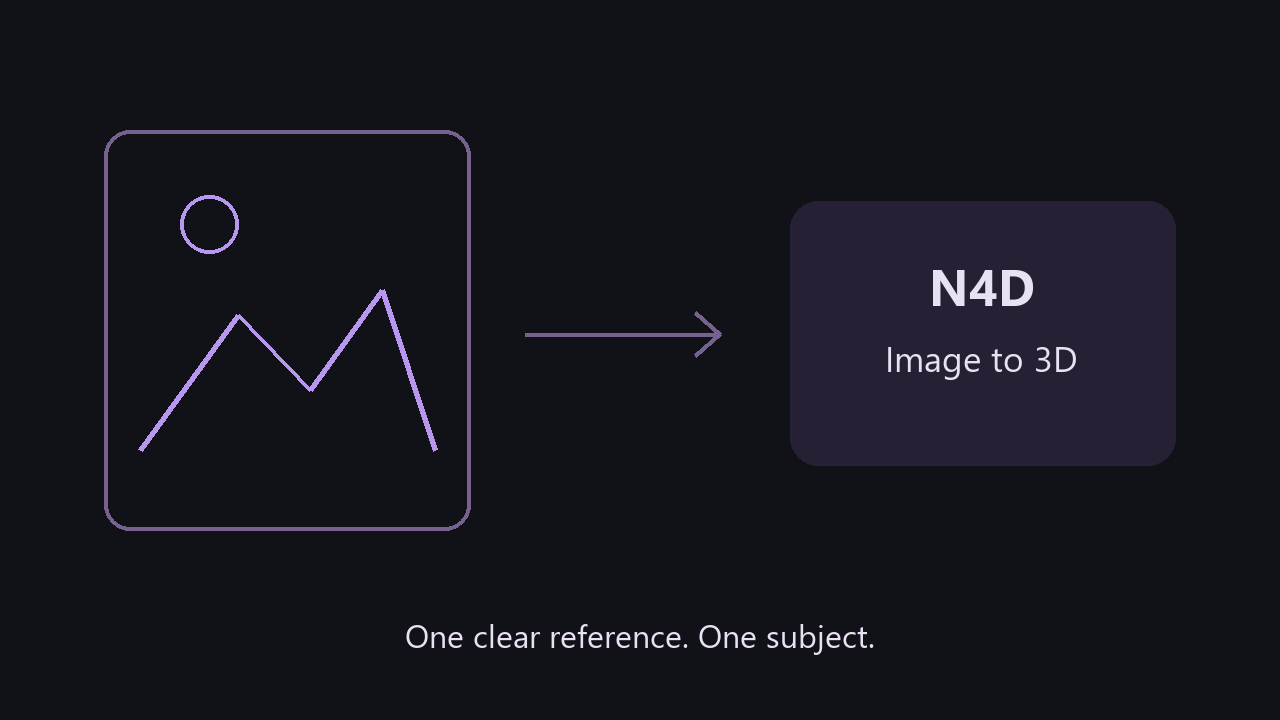
Use an object you understand well enough to judge. A clear reference makes
it easier to decide whether the generated asset is useful for your project.
1. Bring Your Reference
Open N4D Image to 3D.
Click, drag or paste a JPG, JPEG, PNG or WebP image up to 20 MB. Start with
a single subject whose silhouette and main parts are easy to see. If your
idea begins with words, use Text to 3D
instead.
Workflow illustration.
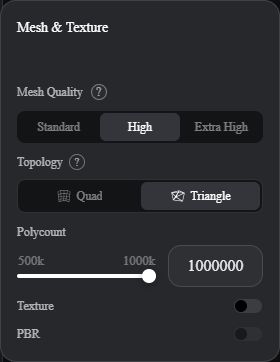
2. Choose the Generation Settings
Set the topology and target face count for the next stage of your project.
Triangle is selected by default. Add Texture and PBR if you need a
material-bearing output, and review the Credits shown before submitting.
Actual N4D Studio settings, captured October 28, 2026. Values shown
belong to this session. View full
size.
3. Inspect the Result
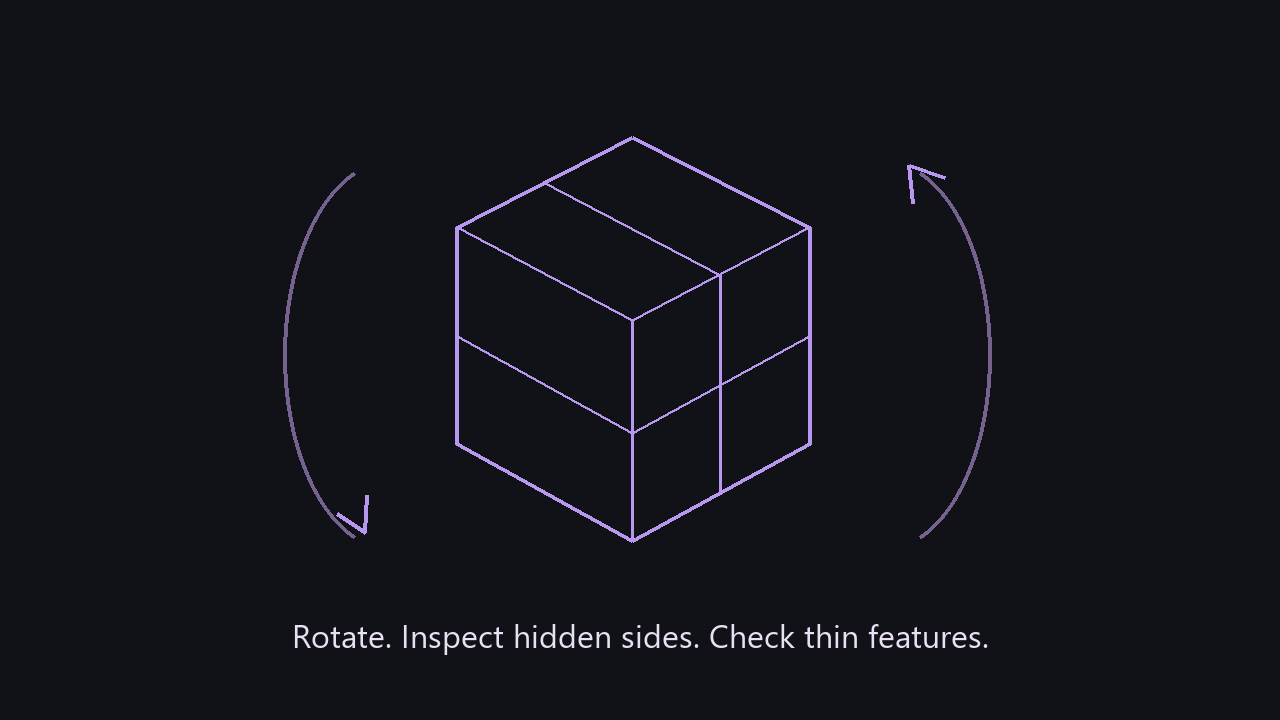
Rotate the model and look at its hidden sides, thin features and main
surfaces. Check how closely it follows the reference. If it needs another
generation, adjust the input or settings. For conversational refinement,
start a separate project in N4D-2o from the outset.
Workflow illustration.
4. Download and Test the Handoff
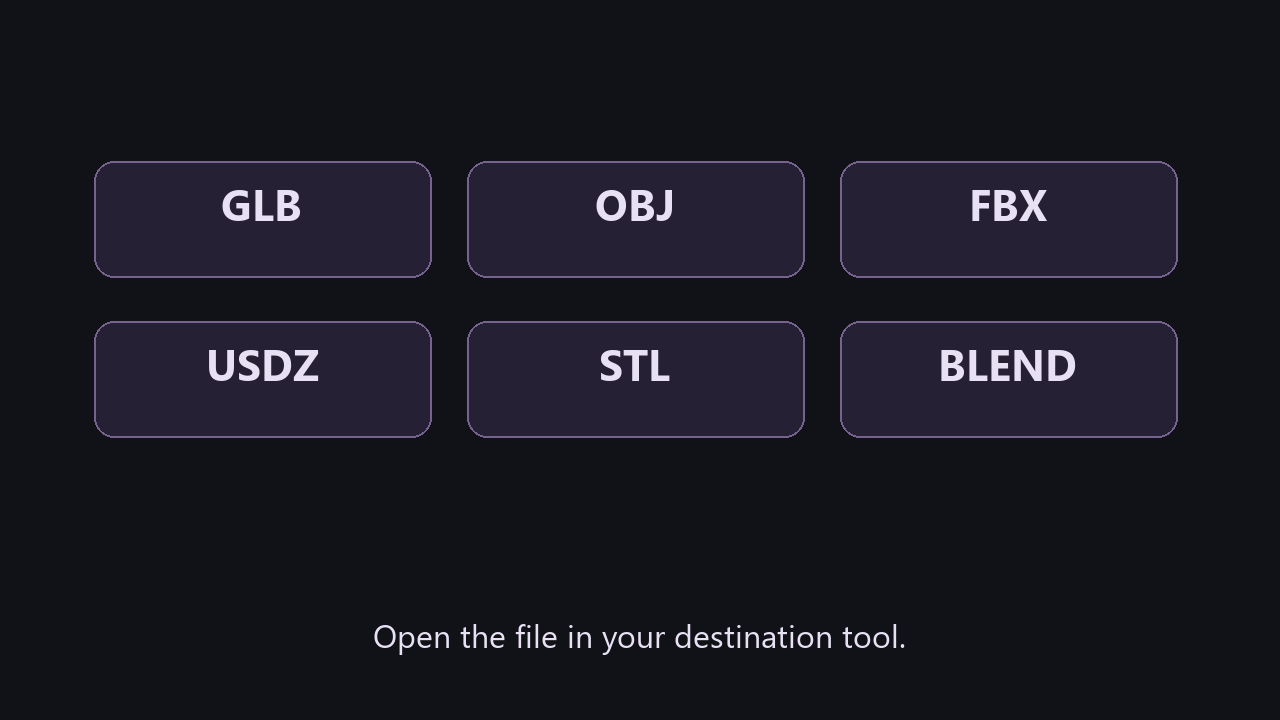
Choose the export format for your editor, viewer or print-preparation tool.
Open the downloaded asset there and check the geometry, scale and materials
your task requires. If you are comparing platforms, repeat the exercise with
the same reference and record the stages needed to reach a usable file.
Workflow illustration.
Compare Plans by the Output You Need
Start with the asset you need to take away. A plan that lets you generate a preview may have
different conditions for downloading a model, keeping work private or using a particular
generation mode.
N4D offers a Free plan and Go, Plus and Pro subscriptions. Review the current plan details for
textured downloads, private work and Credits. For Meshy, check the selected model's access and
download conditions as well as the plan allowance.
Before you choose
What to check
The file you need
Whether the plan includes the model, materials and
export format required by your next tool
Revisions
The Credits used by another generation, texturing or
a follow-up edit
Private work
Whether your plan permits private generation and how
shared assets may be used
Commercial use
The license attached to the asset and any attribution
conditions
Try N4D first if you want to generate an asset in Studio, choose its mesh
settings and continue through materials and export. Start in N4D-2o if you want
conversational refinement. If your immediate task is texturing an external mesh,
review Meshy's upload-based texturing workflow. Use the same reference and
required output when comparing the two.
Can N4D edit a model I downloaded from
Meshy?
The N4D workflows described here do not provide a general way to upload a Meshy
model for conversational editing or AI Texture. N4D-2o edits models generated in
its current session. AI Texture applies to models generated in 3D Studio. To
create a new version in N4D, start from a text description or reference image.
Does N4D include PBR materials?
PBR is available as an optional stage in Text to 3D and Image to 3D. Select the
material options you need and review their Credits before generating. Material
processing adds to the geometry stage, so include it when estimating the
complete job.
Can I use the models for a commercial
project?
Check the conditions attached to your plan and asset. N4D's current terms give
paid subscribers commercial rights to their generated content. Meshy's free and
paid plans use different licensing conditions. Review the N4D plan details and
Meshy plan details
before using an asset commercially.
Which format should I download?
Choose a format supported by the destination software and the content you need to
carry. N4D's Text to 3D and Image to 3D tools offer GLB, OBJ, FBX, USDZ, STL and
BLEND. For an existing Meshy asset with missing materials after import, follow
the Meshy color export
troubleshooting guide.
Where can I find the detailed T2
comparison?
The N4D vs Meshy T2 topology
and editing guide covers model-specific settings and checks. This page
focuses on choosing a platform and starting the right creation workflow.








%22%3E%3Cg%3E%3Cpath%20d%3D%22M14.22126%2C2L16.980341%2C2L10.922359%2C8.365314L18%2C17.000000999999997L12.44585%2C17.000000999999997L8.0973005%2C11.7527676L3.1189604%2C17.000000999999997L0.35988006%2C17.000000999999997L6.7777414%2C10.1918821L0%2C2L5.6921029%2C2L9.6207924%2C6.7933583L14.22126%2C2ZM13.255582%2C15.505536L14.785071%2C15.505536L4.88837%2C3.4391145L3.2449181%2C3.4391145L13.255582%2C15.505536Z%22%20fill%3D%22%23ffffff%22%20fill-opacity%3D%221%22%20style%3D%22mix-blend-mode%3Apassthrough%22%2F%3E%3C%2Fg%3E%3C%2Fg%3E%3C%2Fsvg%3E)
%22%3E%3Cg%3E%3Cg%3E%3Cpath%20d%3D%22M17.776579953674315%2C4.238972914697266C18.530987953674316%2C2.8357112146972656%2C17.668764953674316%2C1.0000038146972656%2C17.668764953674316%2C1.0000038146972656C15.728984953674317%2C1.0000038146972656%2C14.327326953674316%2C2.2953194146972655%2C14.327326953674316%2C2.2953194146972655C13.572919953674317%2C1.8635447646972656%2C11.093512553674316%2C1.8635447646972656%2C11.093512553674316%2C1.8635447646972656C11.093512553674316%2C1.8635447646972656%2C8.614197253674316%2C1.8635447646972656%2C7.859790753674316%2C2.2953194146972655C7.859790753674316%2C2.2953194146972655%2C6.4587898536743165%2C1.0000038146972656%2C4.518257353674317%2C1.0000038146972656C4.518257353674317%2C1.0000038146972656%2C3.6561312536743165%2C2.8350313146972654%2C4.410538953674316%2C4.238972914697266C4.410538953674316%2C4.238972914697266%2C2.6862124236743163%2C5.858135714697266%2C3.332825653674316%2C9.312969214697265C3.9408041536743164%2C12.559363814697265%2C6.782133553674316%2C13.415479814697266%2C8.614197253674316%2C13.415479814697266C8.614197253674316%2C13.415479814697266%2C7.859790753674316%2C14.063154814697265%2C7.967603653674316%2C15.142524814697266C7.967603653674316%2C15.142524814697266%2C6.889853453674316%2C15.790198814697266%2C5.812196053674317%2C15.358415814697265C4.734538553674316%2C14.926723814697265%2C4.1956536536743165%2C13.847263814697266%2C4.1956536536743165%2C13.847263814697266C4.1956536536743165%2C13.847263814697266%2C3.1179590536743165%2C12.443964814697265%2C2.0402743556743164%2C12.983694814697266C2.0402743556743164%2C12.983694814697266%2C1.7169677936743164%2C13.307532814697266%2C2.9024282136743165%2C13.847263814697266C2.9024282136743165%2C13.847263814697266%2C3.7645722536743165%2C15.142524814697266%2C4.087878753674316%2C15.898144814697266C4.411195253674316%2C16.653767814697268%2C6.135446553674316%2C17.301444814697266%2C7.860446953674316%2C16.869661814697267L7.860446953674316%2C19.352327814697265C7.860446953674316%2C19.352327814697265%2C7.860446953674316%2C19.568219814697265%2C7.4293847536743165%2C19.676166814697265C6.998322453674317%2C19.784110814697264%2C6.998322453674317%2C20.000003814697266%2C7.213853853674316%2C20.000003814697266L14.974576953674317%2C20.000003814697266C15.190109953674316%2C20.000003814697266%2C15.190109953674316%2C19.784110814697264%2C14.759046953674316%2C19.676166814697265C14.327983953674316%2C19.568219814697265%2C14.327983953674316%2C19.352327814697265%2C14.327983953674316%2C19.352327814697265L14.327983953674316%2C16.869661814697267C14.327983953674316%2C16.869661814697267%2C14.337451953674316%2C15.575053814697265%2C14.327983953674316%2C15.142524814697266C14.304263953674317%2C14.057753814697266%2C13.573576953674316%2C13.415479814697266%2C13.573576953674316%2C13.415479814697266C15.405640953674316%2C13.415479814697266%2C18.246925953674317%2C12.559363814697265%2C18.854893953674317%2C9.312969214697265C19.501579953674316%2C5.858135714697266%2C17.777234953674316%2C4.238972914697266%2C17.776579953674315%2C4.238972914697266L17.776579953674315%2C4.238972914697266Z%22%20fill%3D%22%23ffffff%22%20fill-opacity%3D%221%22%20style%3D%22mix-blend-mode%3Apassthrough%22%2F%3E%3C%2Fg%3E%3C%2Fg%3E%3C%2Fg%3E%3C%2Fsvg%3E)


%22%2F%3E%3C%2Fsvg%3E)

%22%2F%3E%3C%2Fsvg%3E)