

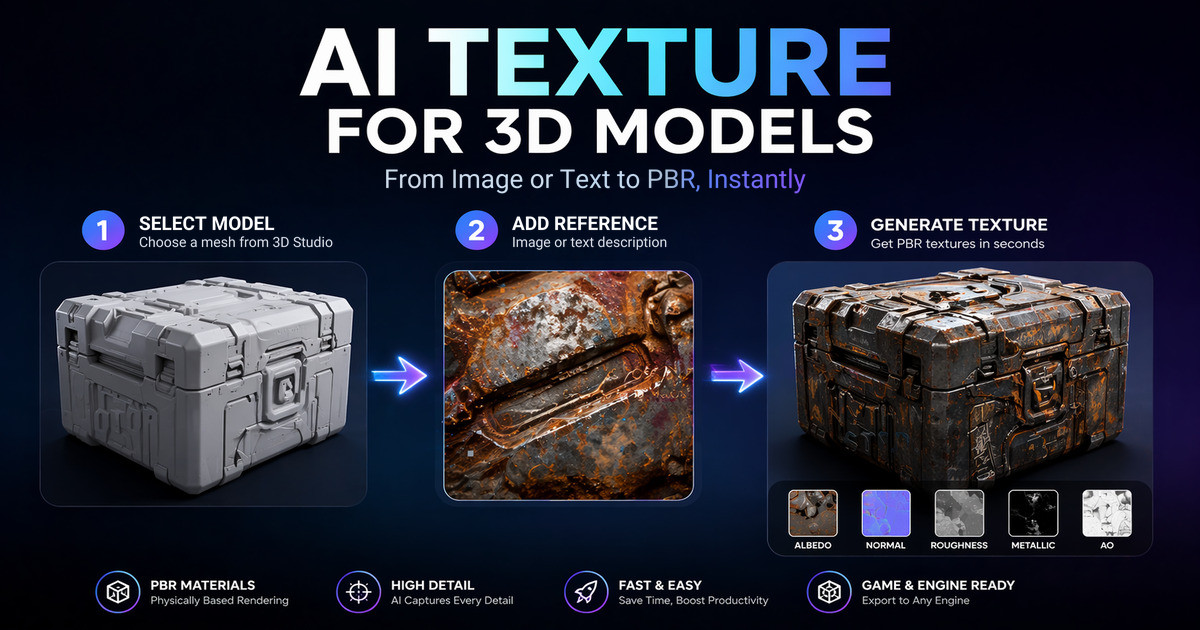
Move beyond simple overlays. Our Direct3D-S2 engine utilizes Spatial Sparse Attention (SSA) to extract material logic from your 2D photos and project it onto 3D base models with perfect alignment.

Specifically engineered for complex surfaces. SSA ensures that light, metallic, and roughness properties from your 2D source are synthesized natively into the 3D target.
Extract the 'soul' of any surface from a 2D image. The AI learns grain, reflection, and subsurface rules from your photo to project them accurately onto 3D assets.

Neural4D automatically handles complex UV unwrapping, ensuring your synthesized textures wrap around 3D curves with zero visible seams or distortion.

Generate intricate material variations for sci-fi armor or fantasy characters. Direct3D-S2 allows look-dev artists to prototype PBR styles in seconds rather than hours.

Define complex surface finishes like 'oxidized metal' or 'weathered marble' to build 3D environments. Perfect for architectural visualization requiring unique textures.

Translate functional material descriptions into high-fidelity PBR prototypes. Speed up industrial design with production-ready textures for realistic mechanical simulations.

Scale high-quality material sets for VR/AR product showcases. Bulk generate unique, non-repetitive surface finishes for metaverse furniture at production speed.
Create the mesh you want to style in Neural4D 3D Studio, then open it on the generation page and click Texture. Only models created there can be textured, so meshes imported from other tools are not supported.
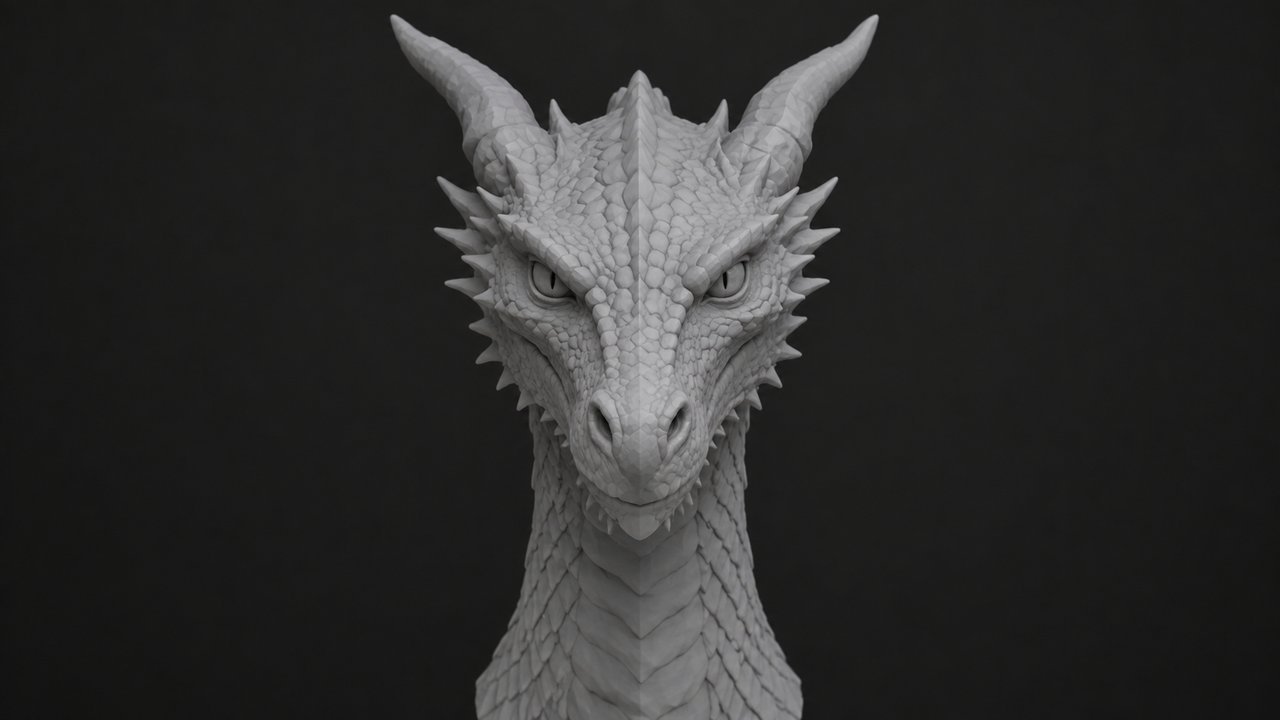
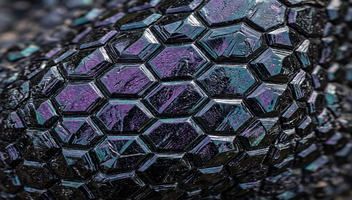
Upload a 2D photo or intricate pattern, or type a description of the surface. Either way defines the material 'soul' and visual DNA you want to transfer.
The AI applies the pattern and material logic from your reference onto your 3D model, creating a breathtaking PBR-compliant asset.
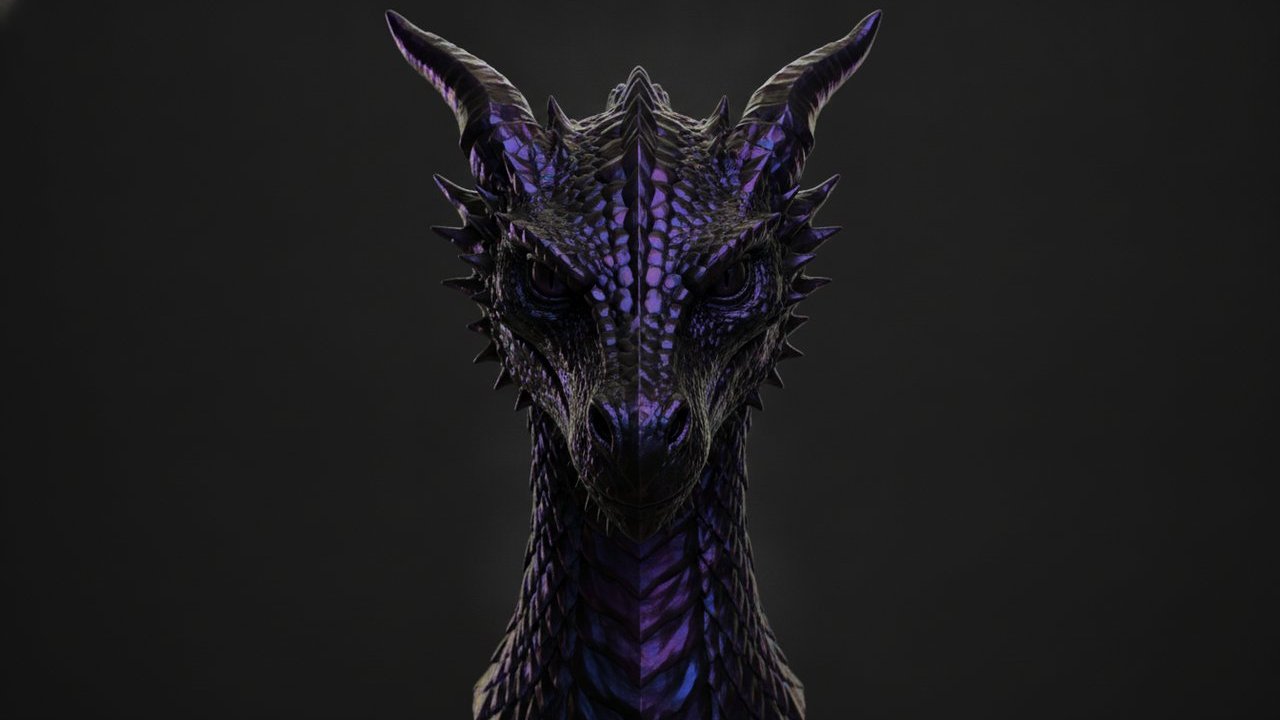
A full AI Texture pass gives the whole model one coherent material. When only one part needs to change, Edit Texture repaints the area you paint and leaves the rest of the surface untouched. Open it on the generation page, next to the Texture entry.
Paint the area you want to change directly on the model. Erase, brush Size, and Undo or Redo let you tighten the selection before you commit.
Write the result you want in the Texture Prompt, or attach a reference image. Only the painted region is retextured.
Each Apply adds a version to a single History timeline. Editing from an earlier version replaces the versions after it, and candidates you do not apply are dropped.
Edit Texture works on models that already carry an AI Texture, so run a full texture pass first.

The AI extracts high-end material characteristics (Chrome, Glass, Fabric) and patterns from your uploaded 2D photo and applies them directly to the geometry of your 3D model, creating a stylized fusion.
Yes. Every pixel of the synthesized pattern is calculated for PBR compliance, meaning it will interact realistically with light, shadows, and reflections in any engine.
You can export industry-standard formats including .obj, .fbx, .glb, and .usdz for high-fidelity rendering, as well as .stl for 3D printing. For supported formats, Neural4D provides a complete PBR texture set (Normal, Metallic, Roughness) to ensure seamless integration into professional pipelines.
Paid subscribers retain 100% commercial ownership of all synthesized assets. Free users receive 50 power per week for non-commercial exploration.
Yes. Our AI-Upsampling engine sharpens 2D patterns during synthesis to ensure they remain high-resolution even when baked into 4K textures.
Yes. Edit Texture repaints only the region you select on a model that already carries an AI Texture. Paint the area, describe the change in the Texture Prompt, and click Apply. Each Apply adds a version to a single History timeline, and editing from an earlier version replaces the versions after it.
%22%3E%3Cg%3E%3Cpath%20d%3D%22M14.22126%2C2L16.980341%2C2L10.922359%2C8.365314L18%2C17.000000999999997L12.44585%2C17.000000999999997L8.0973005%2C11.7527676L3.1189604%2C17.000000999999997L0.35988006%2C17.000000999999997L6.7777414%2C10.1918821L0%2C2L5.6921029%2C2L9.6207924%2C6.7933583L14.22126%2C2ZM13.255582%2C15.505536L14.785071%2C15.505536L4.88837%2C3.4391145L3.2449181%2C3.4391145L13.255582%2C15.505536Z%22%20fill%3D%22%23ffffff%22%20fill-opacity%3D%221%22%20style%3D%22mix-blend-mode%3Apassthrough%22%2F%3E%3C%2Fg%3E%3C%2Fg%3E%3C%2Fsvg%3E)
%22%3E%3Cg%3E%3Cg%3E%3Cpath%20d%3D%22M17.776579953674315%2C4.238972914697266C18.530987953674316%2C2.8357112146972656%2C17.668764953674316%2C1.0000038146972656%2C17.668764953674316%2C1.0000038146972656C15.728984953674317%2C1.0000038146972656%2C14.327326953674316%2C2.2953194146972655%2C14.327326953674316%2C2.2953194146972655C13.572919953674317%2C1.8635447646972656%2C11.093512553674316%2C1.8635447646972656%2C11.093512553674316%2C1.8635447646972656C11.093512553674316%2C1.8635447646972656%2C8.614197253674316%2C1.8635447646972656%2C7.859790753674316%2C2.2953194146972655C7.859790753674316%2C2.2953194146972655%2C6.4587898536743165%2C1.0000038146972656%2C4.518257353674317%2C1.0000038146972656C4.518257353674317%2C1.0000038146972656%2C3.6561312536743165%2C2.8350313146972654%2C4.410538953674316%2C4.238972914697266C4.410538953674316%2C4.238972914697266%2C2.6862124236743163%2C5.858135714697266%2C3.332825653674316%2C9.312969214697265C3.9408041536743164%2C12.559363814697265%2C6.782133553674316%2C13.415479814697266%2C8.614197253674316%2C13.415479814697266C8.614197253674316%2C13.415479814697266%2C7.859790753674316%2C14.063154814697265%2C7.967603653674316%2C15.142524814697266C7.967603653674316%2C15.142524814697266%2C6.889853453674316%2C15.790198814697266%2C5.812196053674317%2C15.358415814697265C4.734538553674316%2C14.926723814697265%2C4.1956536536743165%2C13.847263814697266%2C4.1956536536743165%2C13.847263814697266C4.1956536536743165%2C13.847263814697266%2C3.1179590536743165%2C12.443964814697265%2C2.0402743556743164%2C12.983694814697266C2.0402743556743164%2C12.983694814697266%2C1.7169677936743164%2C13.307532814697266%2C2.9024282136743165%2C13.847263814697266C2.9024282136743165%2C13.847263814697266%2C3.7645722536743165%2C15.142524814697266%2C4.087878753674316%2C15.898144814697266C4.411195253674316%2C16.653767814697268%2C6.135446553674316%2C17.301444814697266%2C7.860446953674316%2C16.869661814697267L7.860446953674316%2C19.352327814697265C7.860446953674316%2C19.352327814697265%2C7.860446953674316%2C19.568219814697265%2C7.4293847536743165%2C19.676166814697265C6.998322453674317%2C19.784110814697264%2C6.998322453674317%2C20.000003814697266%2C7.213853853674316%2C20.000003814697266L14.974576953674317%2C20.000003814697266C15.190109953674316%2C20.000003814697266%2C15.190109953674316%2C19.784110814697264%2C14.759046953674316%2C19.676166814697265C14.327983953674316%2C19.568219814697265%2C14.327983953674316%2C19.352327814697265%2C14.327983953674316%2C19.352327814697265L14.327983953674316%2C16.869661814697267C14.327983953674316%2C16.869661814697267%2C14.337451953674316%2C15.575053814697265%2C14.327983953674316%2C15.142524814697266C14.304263953674317%2C14.057753814697266%2C13.573576953674316%2C13.415479814697266%2C13.573576953674316%2C13.415479814697266C15.405640953674316%2C13.415479814697266%2C18.246925953674317%2C12.559363814697265%2C18.854893953674317%2C9.312969214697265C19.501579953674316%2C5.858135714697266%2C17.777234953674316%2C4.238972914697266%2C17.776579953674315%2C4.238972914697266L17.776579953674315%2C4.238972914697266Z%22%20fill%3D%22%23ffffff%22%20fill-opacity%3D%221%22%20style%3D%22mix-blend-mode%3Apassthrough%22%2F%3E%3C%2Fg%3E%3C%2Fg%3E%3C%2Fg%3E%3C%2Fsvg%3E)


%22%2F%3E%3C%2Fsvg%3E)

%22%2F%3E%3C%2Fsvg%3E)