

Image Generation creates a 2D image from a written prompt in Neural4D Studio. You can upload a reference image as an additional input, but a text prompt is still required. Download the result as a .png file, or use it as input for Image to 3D. Generating an image does not create a 3D model automatically.
The available models include GPT Image 2, Nano Banana Pro, Nano Banana 2 Lite, Seedream 4.5, and Flux 2 Pro. Choose a model in the Image Generator before submitting your task.
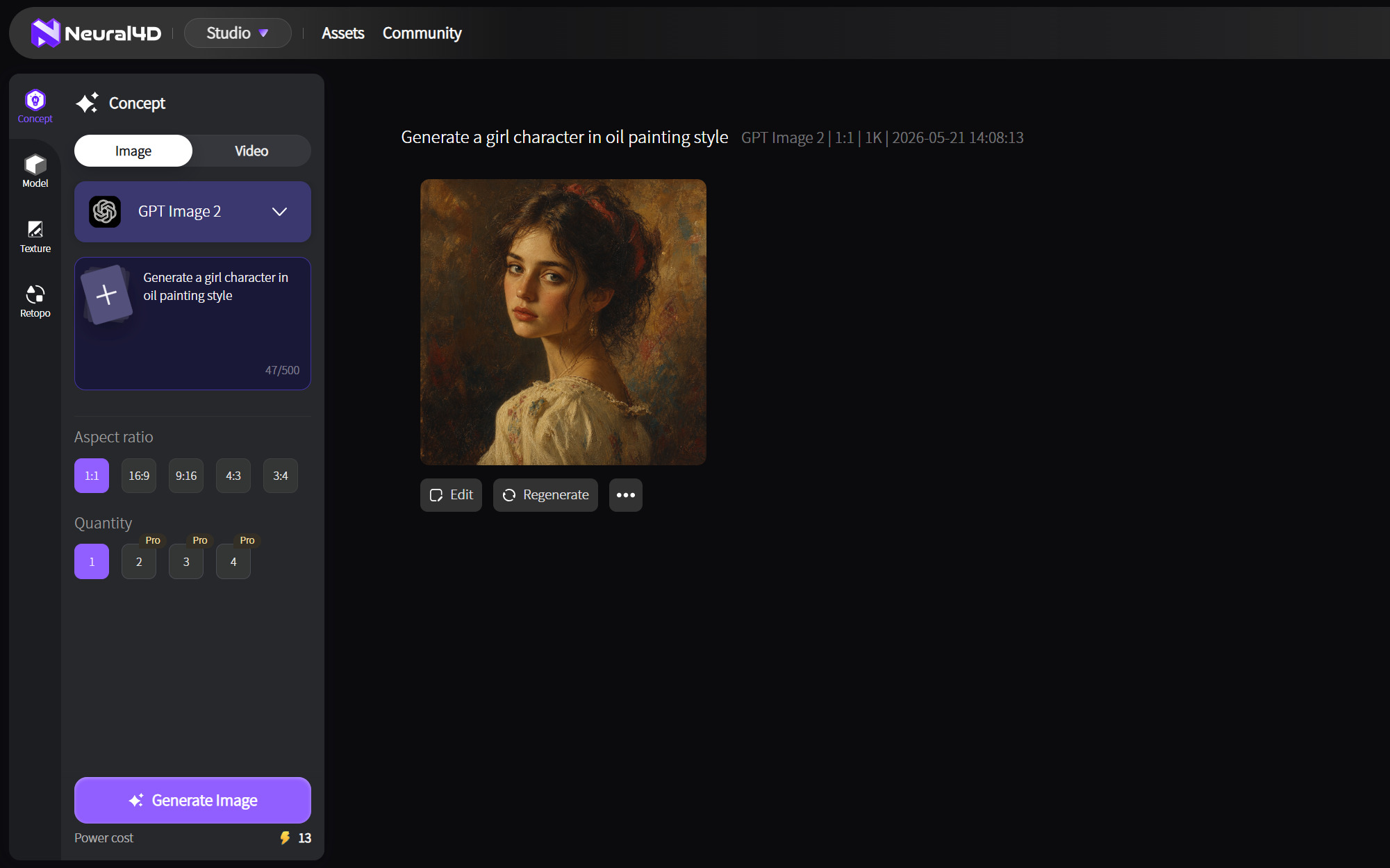
Start with the model that fits your prompt, then compare outputs using the same description. These are starting points, not guarantees about the result.
| Model | Starting point | Example task |
|---|---|---|
| GPT Image 2 | Detailed prompts and style instructions | Concept art with a specified composition |
| Nano Banana Pro | Photorealistic images | Product or furniture mockups |
| Nano Banana 2 Lite | Another option to compare with the same prompt | A draft image for side-by-side review |
| Seedream 4.5 | Detail-rich imagery | A scene with several visual details |
| Flux 2 Pro | Precise visual briefs | A marketing or product concept |
Model options and settings may change. Check the current model picker in Studio before following a preset workflow.
Follow these steps in Neural4D Studio:
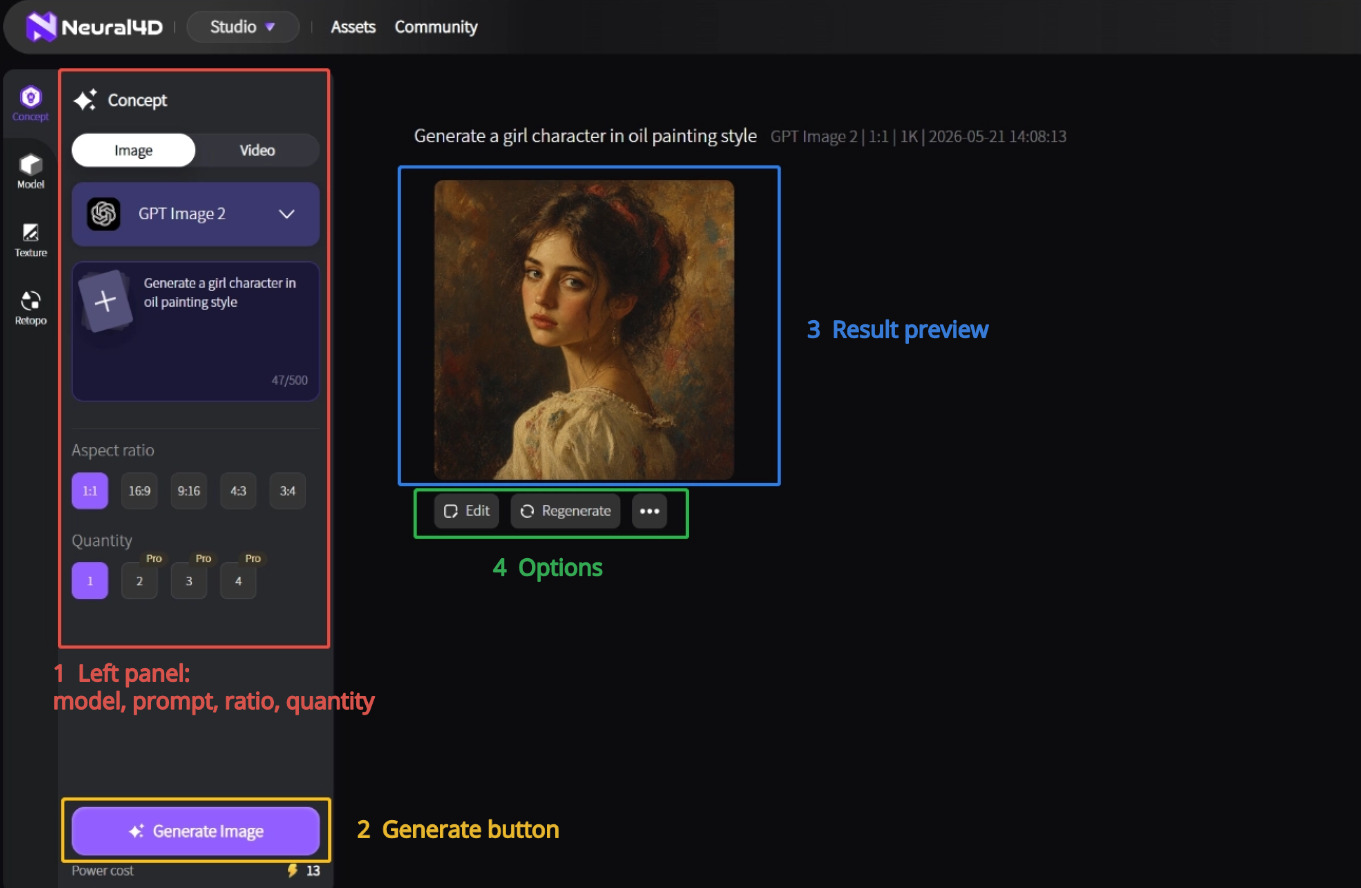
This short video introduces image and video creation in Neural4D Studio. Use the written steps above for the Image Generator workflow and current settings.
Choose an aspect ratio for where the image will be used. The Image Generator currently describes these presets:
Where available, choose a lower resolution for drafts and a higher resolution when you need more detail. Higher settings may use more Credits. The available ratios, resolution tiers, and image counts can vary by model, so follow the controls shown in Studio. Downloaded images use .png format. Check dimensions and color requirements separately before using an image for print.
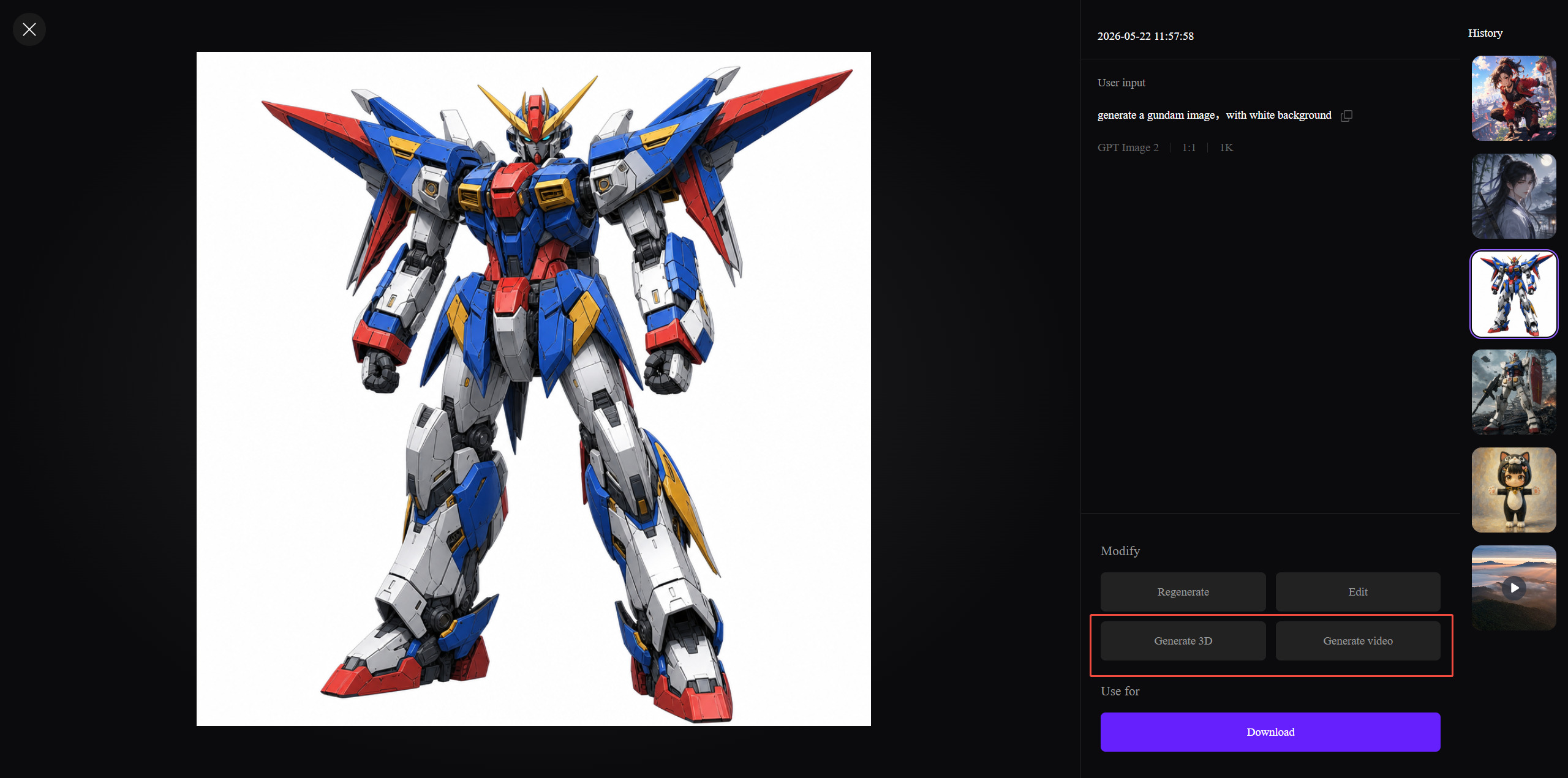
Yes. You can send a generated image to Image to 3D, or use an image as a reference in Video Generation. Each tool starts a separate generation task.
Select a generated image and use Generate 3D to continue in Image to 3D. Review the 3D settings before starting the new task. For detailed instructions, refer to the How to Use the Image to 3D Feature guide.
If you plan to print the model, inspect the finished geometry and export an .stl file for your slicer. Image Generation itself only produces a 2D image.
Open Video Generation and add the image as a reference. Enter a text prompt describing the movement or camera motion you want, then start a video generation task. A reference image alone cannot start video generation. For more guidance, see the How to Use Text to Video tutorial.
According to the Pricing page, paid subscribers own the content they generate and may use it commercially. Content generated on the Free plan enters the public domain. N4D asks that you credit N4D in the description of a commercial page where you use that content.
Visibility is a separate choice. Public generations may appear in the Neural4D Community; Private generations remain visible only to you and require a paid subscription. Free users receive 50 Credits each week and generate with Public visibility.
Open Image Generator
%22%3E%3Cg%3E%3Cpath%20d%3D%22M14.22126%2C2L16.980341%2C2L10.922359%2C8.365314L18%2C17.000000999999997L12.44585%2C17.000000999999997L8.0973005%2C11.7527676L3.1189604%2C17.000000999999997L0.35988006%2C17.000000999999997L6.7777414%2C10.1918821L0%2C2L5.6921029%2C2L9.6207924%2C6.7933583L14.22126%2C2ZM13.255582%2C15.505536L14.785071%2C15.505536L4.88837%2C3.4391145L3.2449181%2C3.4391145L13.255582%2C15.505536Z%22%20fill%3D%22%23ffffff%22%20fill-opacity%3D%221%22%20style%3D%22mix-blend-mode%3Apassthrough%22%2F%3E%3C%2Fg%3E%3C%2Fg%3E%3C%2Fsvg%3E)
%22%3E%3Cg%3E%3Cg%3E%3Cpath%20d%3D%22M17.776579953674315%2C4.238972914697266C18.530987953674316%2C2.8357112146972656%2C17.668764953674316%2C1.0000038146972656%2C17.668764953674316%2C1.0000038146972656C15.728984953674317%2C1.0000038146972656%2C14.327326953674316%2C2.2953194146972655%2C14.327326953674316%2C2.2953194146972655C13.572919953674317%2C1.8635447646972656%2C11.093512553674316%2C1.8635447646972656%2C11.093512553674316%2C1.8635447646972656C11.093512553674316%2C1.8635447646972656%2C8.614197253674316%2C1.8635447646972656%2C7.859790753674316%2C2.2953194146972655C7.859790753674316%2C2.2953194146972655%2C6.4587898536743165%2C1.0000038146972656%2C4.518257353674317%2C1.0000038146972656C4.518257353674317%2C1.0000038146972656%2C3.6561312536743165%2C2.8350313146972654%2C4.410538953674316%2C4.238972914697266C4.410538953674316%2C4.238972914697266%2C2.6862124236743163%2C5.858135714697266%2C3.332825653674316%2C9.312969214697265C3.9408041536743164%2C12.559363814697265%2C6.782133553674316%2C13.415479814697266%2C8.614197253674316%2C13.415479814697266C8.614197253674316%2C13.415479814697266%2C7.859790753674316%2C14.063154814697265%2C7.967603653674316%2C15.142524814697266C7.967603653674316%2C15.142524814697266%2C6.889853453674316%2C15.790198814697266%2C5.812196053674317%2C15.358415814697265C4.734538553674316%2C14.926723814697265%2C4.1956536536743165%2C13.847263814697266%2C4.1956536536743165%2C13.847263814697266C4.1956536536743165%2C13.847263814697266%2C3.1179590536743165%2C12.443964814697265%2C2.0402743556743164%2C12.983694814697266C2.0402743556743164%2C12.983694814697266%2C1.7169677936743164%2C13.307532814697266%2C2.9024282136743165%2C13.847263814697266C2.9024282136743165%2C13.847263814697266%2C3.7645722536743165%2C15.142524814697266%2C4.087878753674316%2C15.898144814697266C4.411195253674316%2C16.653767814697268%2C6.135446553674316%2C17.301444814697266%2C7.860446953674316%2C16.869661814697267L7.860446953674316%2C19.352327814697265C7.860446953674316%2C19.352327814697265%2C7.860446953674316%2C19.568219814697265%2C7.4293847536743165%2C19.676166814697265C6.998322453674317%2C19.784110814697264%2C6.998322453674317%2C20.000003814697266%2C7.213853853674316%2C20.000003814697266L14.974576953674317%2C20.000003814697266C15.190109953674316%2C20.000003814697266%2C15.190109953674316%2C19.784110814697264%2C14.759046953674316%2C19.676166814697265C14.327983953674316%2C19.568219814697265%2C14.327983953674316%2C19.352327814697265%2C14.327983953674316%2C19.352327814697265L14.327983953674316%2C16.869661814697267C14.327983953674316%2C16.869661814697267%2C14.337451953674316%2C15.575053814697265%2C14.327983953674316%2C15.142524814697266C14.304263953674317%2C14.057753814697266%2C13.573576953674316%2C13.415479814697266%2C13.573576953674316%2C13.415479814697266C15.405640953674316%2C13.415479814697266%2C18.246925953674317%2C12.559363814697265%2C18.854893953674317%2C9.312969214697265C19.501579953674316%2C5.858135714697266%2C17.777234953674316%2C4.238972914697266%2C17.776579953674315%2C4.238972914697266L17.776579953674315%2C4.238972914697266Z%22%20fill%3D%22%23ffffff%22%20fill-opacity%3D%221%22%20style%3D%22mix-blend-mode%3Apassthrough%22%2F%3E%3C%2Fg%3E%3C%2Fg%3E%3C%2Fg%3E%3C%2Fsvg%3E)


%22%2F%3E%3C%2Fsvg%3E)

%22%2F%3E%3C%2Fsvg%3E)