

Text to Video in Neural4D Studio turns a written scene description into an MP4 video. Choose a video model, describe the subject and camera motion, and optionally add a reference image to guide the visual style.
Use it to draft product teasers, social clips, or concept shots. Available resolutions and audio support vary by model, so check your settings before you generate.
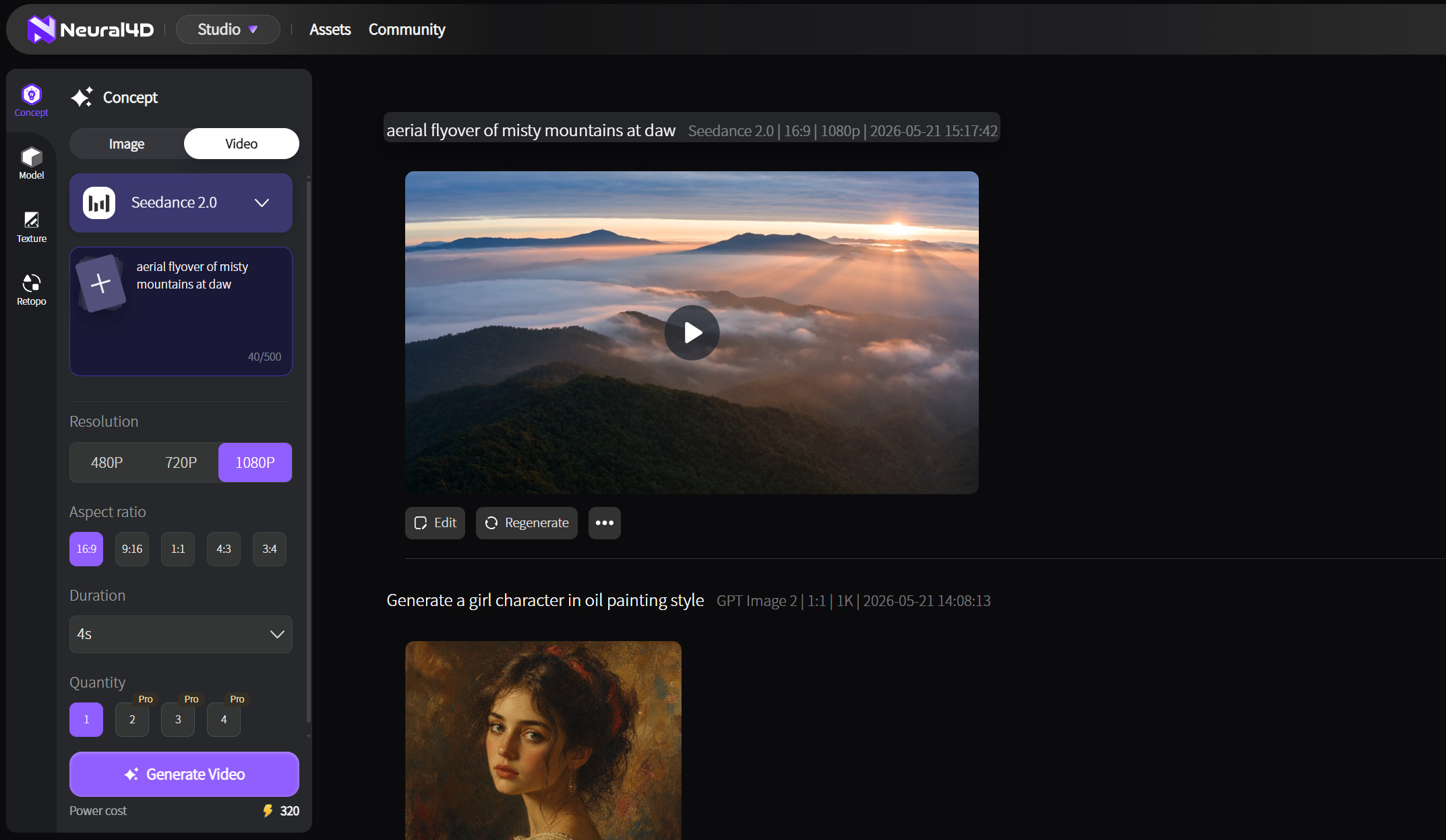
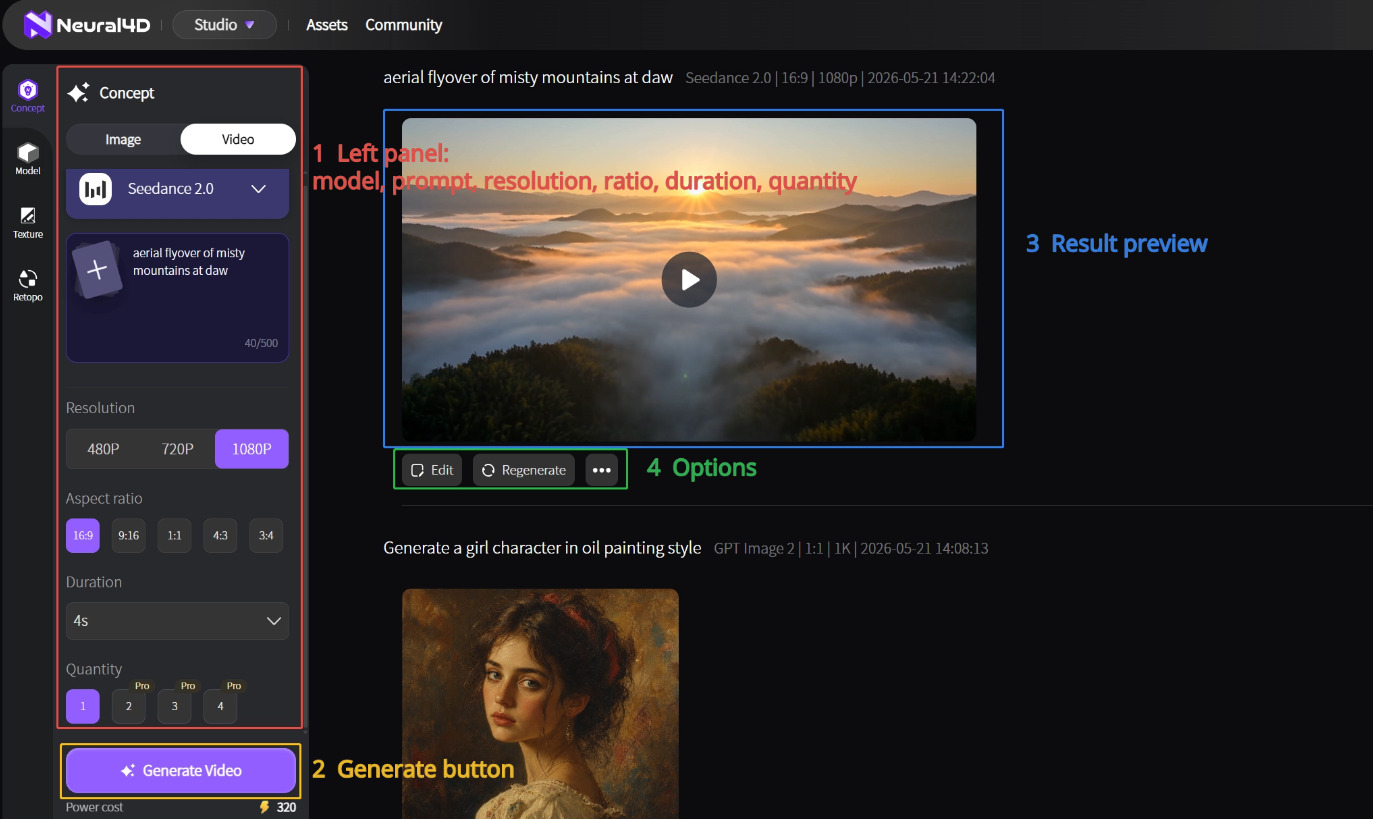
Choose a video model, duration (5 to 15 seconds), resolution (480P to 4K, depending on the model), aspect ratio, optional Native Audio, and quantity (1 to 4 clips). You can also add a reference image. Power cost depends on the model, resolution, duration, audio, and quantity.
| Setting | Available choices | What to consider |
|---|---|---|
| Model | Veo 3.1, Seedance 2.0, Seedance 2.0 Fast, Grok Imagine | Model choice affects motion style, available resolution, audio support, and Power cost. |
| Duration | 5 to 15 seconds | Keep early drafts short, then choose the length needed for the final clip. |
| Resolution | 480P, 720P, 1080P, or 4K, depending on the model | 4K is available with Veo 3.1 and Seedance 2.0. Higher resolution can use more Power. |
| Aspect ratio | 1:1, 16:9, 9:16, 4:3, 3:4 | Choose a frame that fits your destination, such as 9:16 for vertical video. |
| Reference image | Optional image upload | Guide the appearance of a subject, scene, or product with an existing image. |
| Native Audio | Available on Veo 3.1 and both Seedance 2.0 models | Enable it when the clip needs sound. Audio increases Power cost. |
| Quantity | 1 to 4 clips | Generate several variations when comparing different results. |
For a furniture teaser, upload a reference image of the product, choose 16:9 for a wide frame, and describe the camera movement and lighting in the prompt.
You can create a reference with the AI Image Generator. See the Text to Image guide for image creation steps.
Start with a clear scene description, then select settings that fit your project. Generation time and Power cost depend on your choices.
This short video introduces image and video generation in Neural4D Studio. Follow the steps above for the Text to Video settings.
Edit the prompt to describe the change you want, such as slower camera movement or brighter lighting. You can also change the reference image or generation settings. Generate again and compare the new clip with your earlier result.
Import the MP4 into an editor such as Adobe Premiere Pro, DaVinci Resolve, or CapCut to add cuts, titles, or sound. You can also place the video on a web page or convert it to another format if your project requires one.
Usage permissions depend on your plan and the applicable terms. Before using a generated video in an ad, client project, or other commercial work, review the current Pricing page and Terms of Use.
Create a Video
%22%3E%3Cg%3E%3Cpath%20d%3D%22M14.22126%2C2L16.980341%2C2L10.922359%2C8.365314L18%2C17.000000999999997L12.44585%2C17.000000999999997L8.0973005%2C11.7527676L3.1189604%2C17.000000999999997L0.35988006%2C17.000000999999997L6.7777414%2C10.1918821L0%2C2L5.6921029%2C2L9.6207924%2C6.7933583L14.22126%2C2ZM13.255582%2C15.505536L14.785071%2C15.505536L4.88837%2C3.4391145L3.2449181%2C3.4391145L13.255582%2C15.505536Z%22%20fill%3D%22%23ffffff%22%20fill-opacity%3D%221%22%20style%3D%22mix-blend-mode%3Apassthrough%22%2F%3E%3C%2Fg%3E%3C%2Fg%3E%3C%2Fsvg%3E)
%22%3E%3Cg%3E%3Cg%3E%3Cpath%20d%3D%22M17.776579953674315%2C4.238972914697266C18.530987953674316%2C2.8357112146972656%2C17.668764953674316%2C1.0000038146972656%2C17.668764953674316%2C1.0000038146972656C15.728984953674317%2C1.0000038146972656%2C14.327326953674316%2C2.2953194146972655%2C14.327326953674316%2C2.2953194146972655C13.572919953674317%2C1.8635447646972656%2C11.093512553674316%2C1.8635447646972656%2C11.093512553674316%2C1.8635447646972656C11.093512553674316%2C1.8635447646972656%2C8.614197253674316%2C1.8635447646972656%2C7.859790753674316%2C2.2953194146972655C7.859790753674316%2C2.2953194146972655%2C6.4587898536743165%2C1.0000038146972656%2C4.518257353674317%2C1.0000038146972656C4.518257353674317%2C1.0000038146972656%2C3.6561312536743165%2C2.8350313146972654%2C4.410538953674316%2C4.238972914697266C4.410538953674316%2C4.238972914697266%2C2.6862124236743163%2C5.858135714697266%2C3.332825653674316%2C9.312969214697265C3.9408041536743164%2C12.559363814697265%2C6.782133553674316%2C13.415479814697266%2C8.614197253674316%2C13.415479814697266C8.614197253674316%2C13.415479814697266%2C7.859790753674316%2C14.063154814697265%2C7.967603653674316%2C15.142524814697266C7.967603653674316%2C15.142524814697266%2C6.889853453674316%2C15.790198814697266%2C5.812196053674317%2C15.358415814697265C4.734538553674316%2C14.926723814697265%2C4.1956536536743165%2C13.847263814697266%2C4.1956536536743165%2C13.847263814697266C4.1956536536743165%2C13.847263814697266%2C3.1179590536743165%2C12.443964814697265%2C2.0402743556743164%2C12.983694814697266C2.0402743556743164%2C12.983694814697266%2C1.7169677936743164%2C13.307532814697266%2C2.9024282136743165%2C13.847263814697266C2.9024282136743165%2C13.847263814697266%2C3.7645722536743165%2C15.142524814697266%2C4.087878753674316%2C15.898144814697266C4.411195253674316%2C16.653767814697268%2C6.135446553674316%2C17.301444814697266%2C7.860446953674316%2C16.869661814697267L7.860446953674316%2C19.352327814697265C7.860446953674316%2C19.352327814697265%2C7.860446953674316%2C19.568219814697265%2C7.4293847536743165%2C19.676166814697265C6.998322453674317%2C19.784110814697264%2C6.998322453674317%2C20.000003814697266%2C7.213853853674316%2C20.000003814697266L14.974576953674317%2C20.000003814697266C15.190109953674316%2C20.000003814697266%2C15.190109953674316%2C19.784110814697264%2C14.759046953674316%2C19.676166814697265C14.327983953674316%2C19.568219814697265%2C14.327983953674316%2C19.352327814697265%2C14.327983953674316%2C19.352327814697265L14.327983953674316%2C16.869661814697267C14.327983953674316%2C16.869661814697267%2C14.337451953674316%2C15.575053814697265%2C14.327983953674316%2C15.142524814697266C14.304263953674317%2C14.057753814697266%2C13.573576953674316%2C13.415479814697266%2C13.573576953674316%2C13.415479814697266C15.405640953674316%2C13.415479814697266%2C18.246925953674317%2C12.559363814697265%2C18.854893953674317%2C9.312969214697265C19.501579953674316%2C5.858135714697266%2C17.777234953674316%2C4.238972914697266%2C17.776579953674315%2C4.238972914697266L17.776579953674315%2C4.238972914697266Z%22%20fill%3D%22%23ffffff%22%20fill-opacity%3D%221%22%20style%3D%22mix-blend-mode%3Apassthrough%22%2F%3E%3C%2Fg%3E%3C%2Fg%3E%3C%2Fg%3E%3C%2Fsvg%3E)


%22%2F%3E%3C%2Fsvg%3E)

%22%2F%3E%3C%2Fsvg%3E)