

Image to 3D turns a reference image into a 3D model. This guide covers input preparation, topology and texture settings, generation time, inspection, and download.
Go directly to the Image to 3D Studio, or open Neural4D Studio and select Image to 3D.
You can click, drag, or paste an image into the upload area. Supported formats are PNG, JPG, JPEG, and WebP. The maximum file size is 20 MB.
| Use an image with | Avoid |
|---|---|
| One clear subject that is fully visible | Multiple disconnected objects or a cropped subject |
| A plain background that contrasts with the subject | A background with similar colors or a busy scene |
| Even lighting and visible edges | Strong shadows, glare, or heavy reflections |
| An opaque object with a readable silhouette | Glass, transparent surfaces, or motion blur |
A front or three-quarter view usually gives the model enough visual information to form a clear silhouette. If exact geometry on several sides matters, use the available multi-view workflow instead of combining several objects into one image.
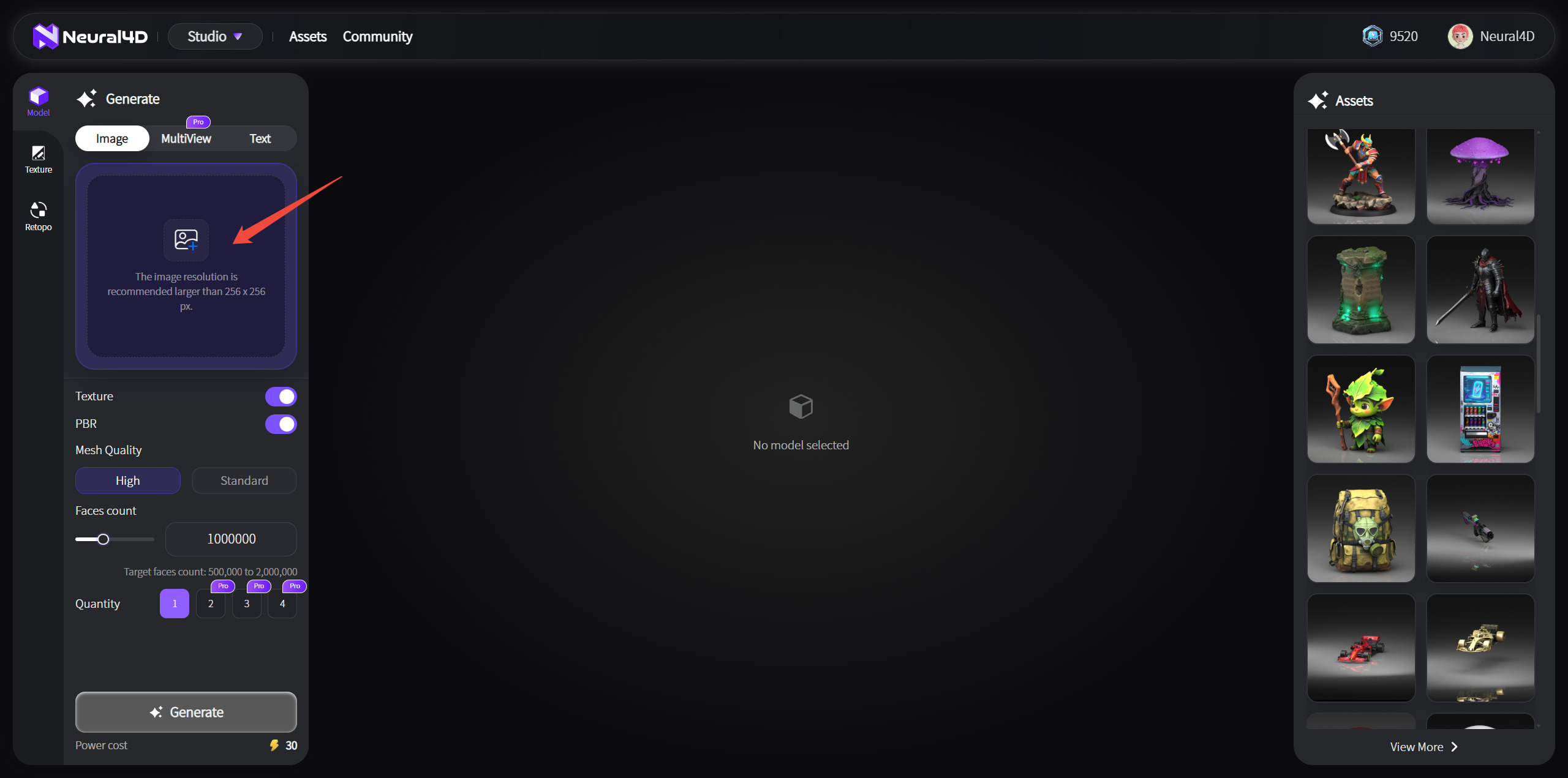
Choose the settings that match your next step before you submit the task.
| Setting | Options | When to use it |
|---|---|---|
| Topology | Triangle or Quad. Triangle is selected by default. | Triangle preserves more surface detail. Quad is useful when you plan further editing or animation work. |
| Polycount | Triangle: 100,000 to 500,000. Quad: 1,000 to 100,000. The default is 50,000. | Use a higher value for more detail and a lower value for a lighter model. |
| Texture | Optional | Adds the model's visible surface color. |
| PBR | Optional | Adds PBR material maps for physically based rendering workflows. |
| Pose | Auto, A-Pose, or T-Pose. Auto is selected by default. | A-Pose and T-Pose are subscription features for humanoid characters intended for rigging or animation. |
Each selected option is charged separately. A Quad base mesh costs 15 Credits, Texture costs an additional 10 Credits, and PBR costs an additional 10 Credits. Quad with both Texture and PBR costs 35 Credits in total.

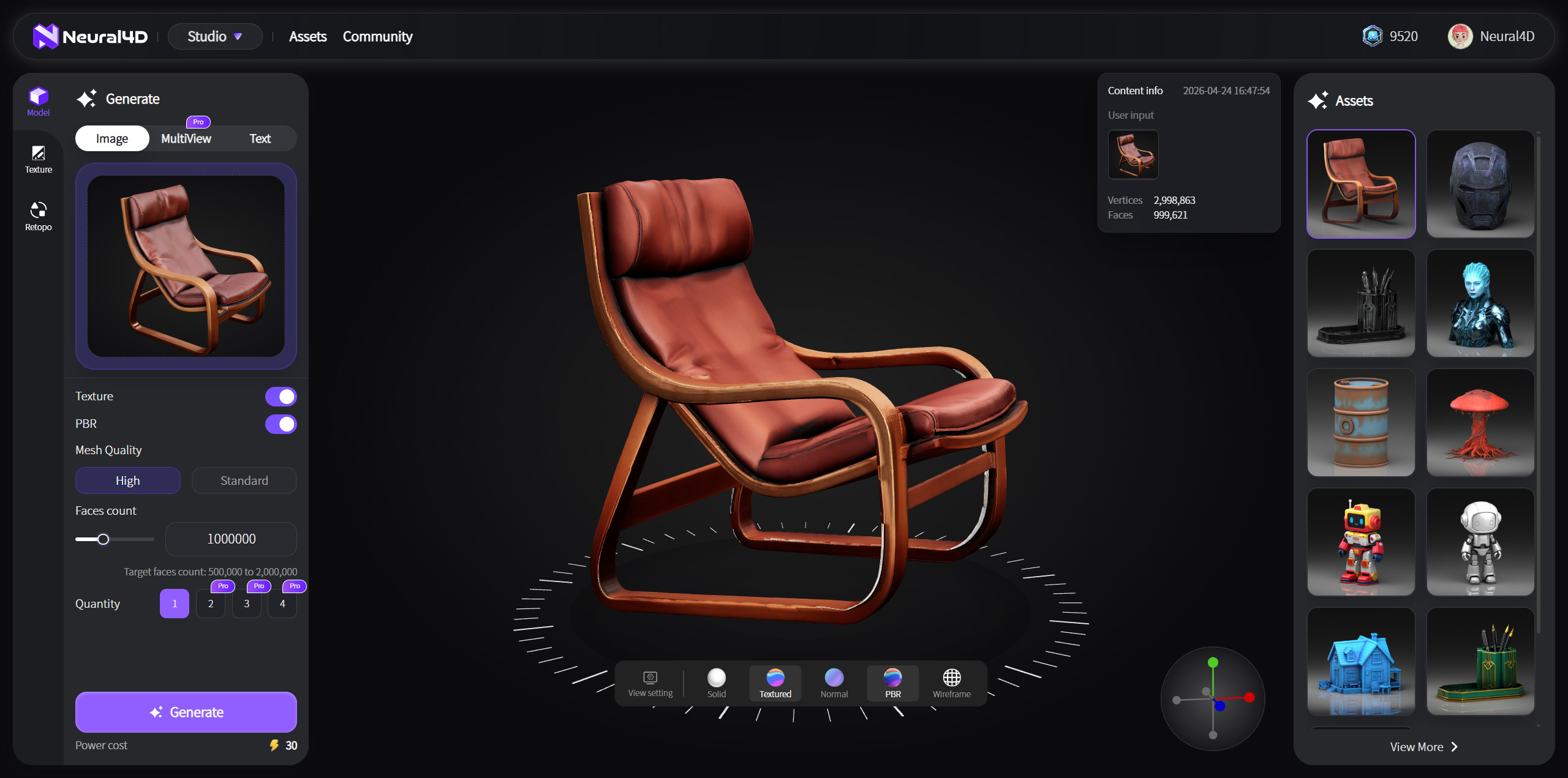
Click Generate. An untextured base mesh takes about 90 seconds. Texture and PBR generation are separate processing steps and take additional time, so a complete textured model normally takes more than two minutes.
When the result opens, rotate and zoom around it. Check the silhouette, thin parts, hidden sides, holes, and texture alignment. If the result does not match the reference, adjust the input or settings and submit a new generation.
A regular Image to 3D result cannot be transferred to Neural4D-2o for conversational editing. Neural4D-2o can edit only a model generated inside its current session.
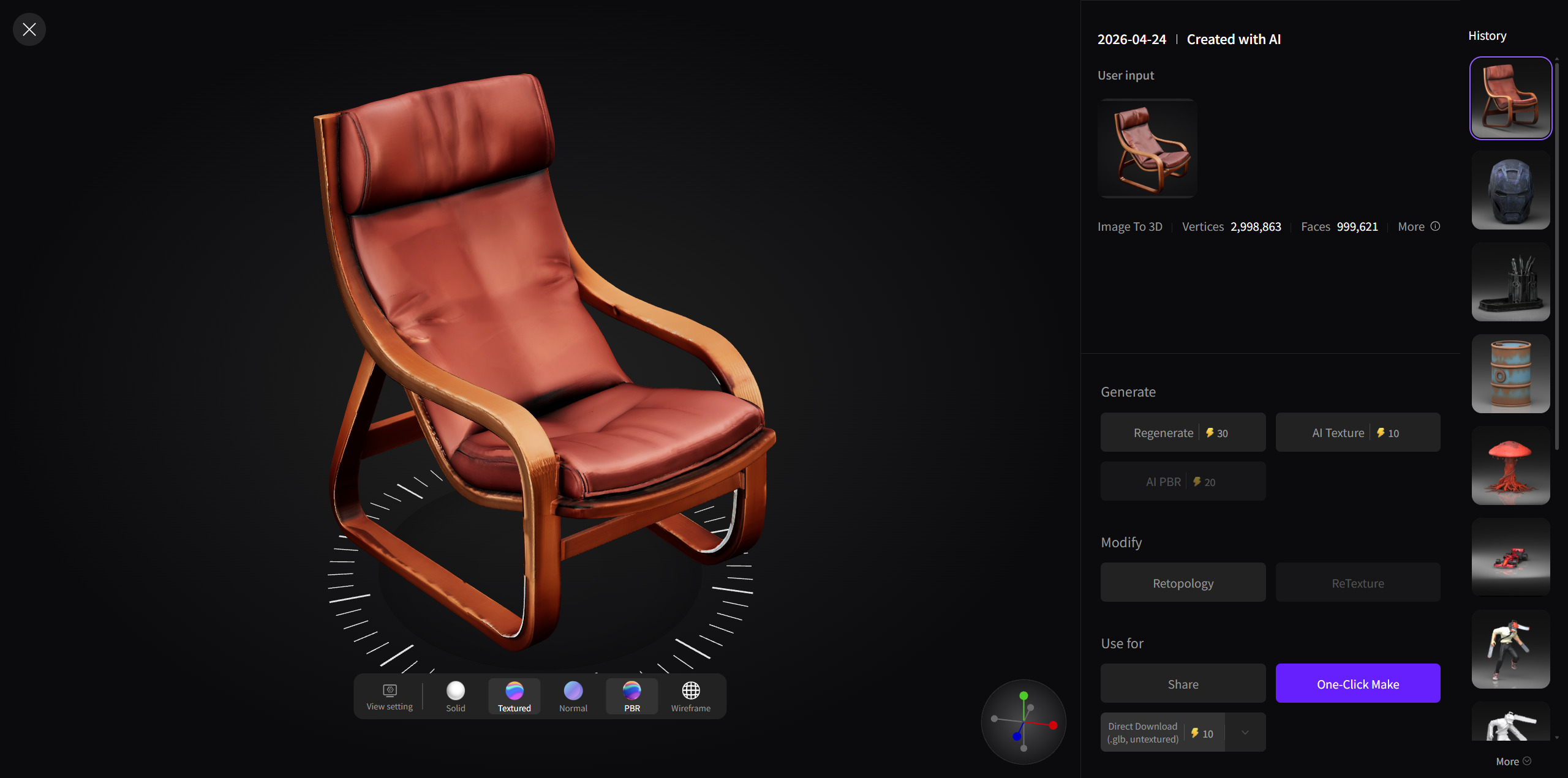
Click the Download icon and choose GLB, OBJ, FBX, USDZ, STL, or BLEND. Quad models support all six formats. OBJ is only the default selection in the Quad download dialog.
Your generated files remain available in the Assets Library. For a physical version, use the available One-Click Make option on the generated model.
Why did I get a white model?
If Texture was not selected, the expected
result is an untextured base mesh. If you selected Texture and the completed asset is still
white, reload the saved asset and follow the generation error guide.
Can I edit this model in Neural4D-2o?
No. Neural4D-2o edits only models
generated in the current Neural4D-2o session.
Which format should I download?
See the Neural4D format guide for common uses of each format.
No reference image? Start with Text to 3D.
%22%3E%3Cg%3E%3Cpath%20d%3D%22M14.22126%2C2L16.980341%2C2L10.922359%2C8.365314L18%2C17.000000999999997L12.44585%2C17.000000999999997L8.0973005%2C11.7527676L3.1189604%2C17.000000999999997L0.35988006%2C17.000000999999997L6.7777414%2C10.1918821L0%2C2L5.6921029%2C2L9.6207924%2C6.7933583L14.22126%2C2ZM13.255582%2C15.505536L14.785071%2C15.505536L4.88837%2C3.4391145L3.2449181%2C3.4391145L13.255582%2C15.505536Z%22%20fill%3D%22%23ffffff%22%20fill-opacity%3D%221%22%20style%3D%22mix-blend-mode%3Apassthrough%22%2F%3E%3C%2Fg%3E%3C%2Fg%3E%3C%2Fsvg%3E)
%22%3E%3Cg%3E%3Cg%3E%3Cpath%20d%3D%22M17.776579953674315%2C4.238972914697266C18.530987953674316%2C2.8357112146972656%2C17.668764953674316%2C1.0000038146972656%2C17.668764953674316%2C1.0000038146972656C15.728984953674317%2C1.0000038146972656%2C14.327326953674316%2C2.2953194146972655%2C14.327326953674316%2C2.2953194146972655C13.572919953674317%2C1.8635447646972656%2C11.093512553674316%2C1.8635447646972656%2C11.093512553674316%2C1.8635447646972656C11.093512553674316%2C1.8635447646972656%2C8.614197253674316%2C1.8635447646972656%2C7.859790753674316%2C2.2953194146972655C7.859790753674316%2C2.2953194146972655%2C6.4587898536743165%2C1.0000038146972656%2C4.518257353674317%2C1.0000038146972656C4.518257353674317%2C1.0000038146972656%2C3.6561312536743165%2C2.8350313146972654%2C4.410538953674316%2C4.238972914697266C4.410538953674316%2C4.238972914697266%2C2.6862124236743163%2C5.858135714697266%2C3.332825653674316%2C9.312969214697265C3.9408041536743164%2C12.559363814697265%2C6.782133553674316%2C13.415479814697266%2C8.614197253674316%2C13.415479814697266C8.614197253674316%2C13.415479814697266%2C7.859790753674316%2C14.063154814697265%2C7.967603653674316%2C15.142524814697266C7.967603653674316%2C15.142524814697266%2C6.889853453674316%2C15.790198814697266%2C5.812196053674317%2C15.358415814697265C4.734538553674316%2C14.926723814697265%2C4.1956536536743165%2C13.847263814697266%2C4.1956536536743165%2C13.847263814697266C4.1956536536743165%2C13.847263814697266%2C3.1179590536743165%2C12.443964814697265%2C2.0402743556743164%2C12.983694814697266C2.0402743556743164%2C12.983694814697266%2C1.7169677936743164%2C13.307532814697266%2C2.9024282136743165%2C13.847263814697266C2.9024282136743165%2C13.847263814697266%2C3.7645722536743165%2C15.142524814697266%2C4.087878753674316%2C15.898144814697266C4.411195253674316%2C16.653767814697268%2C6.135446553674316%2C17.301444814697266%2C7.860446953674316%2C16.869661814697267L7.860446953674316%2C19.352327814697265C7.860446953674316%2C19.352327814697265%2C7.860446953674316%2C19.568219814697265%2C7.4293847536743165%2C19.676166814697265C6.998322453674317%2C19.784110814697264%2C6.998322453674317%2C20.000003814697266%2C7.213853853674316%2C20.000003814697266L14.974576953674317%2C20.000003814697266C15.190109953674316%2C20.000003814697266%2C15.190109953674316%2C19.784110814697264%2C14.759046953674316%2C19.676166814697265C14.327983953674316%2C19.568219814697265%2C14.327983953674316%2C19.352327814697265%2C14.327983953674316%2C19.352327814697265L14.327983953674316%2C16.869661814697267C14.327983953674316%2C16.869661814697267%2C14.337451953674316%2C15.575053814697265%2C14.327983953674316%2C15.142524814697266C14.304263953674317%2C14.057753814697266%2C13.573576953674316%2C13.415479814697266%2C13.573576953674316%2C13.415479814697266C15.405640953674316%2C13.415479814697266%2C18.246925953674317%2C12.559363814697265%2C18.854893953674317%2C9.312969214697265C19.501579953674316%2C5.858135714697266%2C17.777234953674316%2C4.238972914697266%2C17.776579953674315%2C4.238972914697266L17.776579953674315%2C4.238972914697266Z%22%20fill%3D%22%23ffffff%22%20fill-opacity%3D%221%22%20style%3D%22mix-blend-mode%3Apassthrough%22%2F%3E%3C%2Fg%3E%3C%2Fg%3E%3C%2Fg%3E%3C%2Fsvg%3E)


%22%2F%3E%3C%2Fsvg%3E)

%22%2F%3E%3C%2Fsvg%3E)