You can upgrade from the Free plan to Go, Plus, or
Pro. Choose monthly or annual billing on the
Pricing page.
How do I upgrade my account?
-
1. Open Pricing
-
2. Choose a Billing Cycle
Select Monthly or
Annually to compare the available plans.
-
3. Select Your Plan
Compare Go, Plus, and
Pro, then click Upgrade under your chosen plan.
-
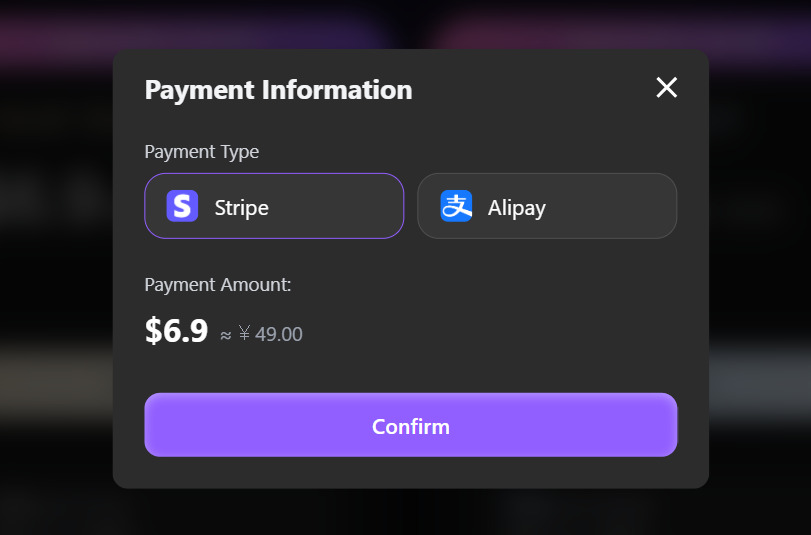
4. Confirm Payment
Choose your preferred payment method and confirm the
payment.
When does my upgraded plan take effect?
Your upgraded plan takes effect after successful payment. Open your
Account page to check
your plan and available Credits.
For a detailed breakdown of features, benefits, and credit limits, please visit our official
Pricing page.
Need to manage your subscription? Open the
Account page and select
Manage to manage or cancel your subscription.


%22%3E%3Cg%3E%3Cpath%20d%3D%22M14.22126%2C2L16.980341%2C2L10.922359%2C8.365314L18%2C17.000000999999997L12.44585%2C17.000000999999997L8.0973005%2C11.7527676L3.1189604%2C17.000000999999997L0.35988006%2C17.000000999999997L6.7777414%2C10.1918821L0%2C2L5.6921029%2C2L9.6207924%2C6.7933583L14.22126%2C2ZM13.255582%2C15.505536L14.785071%2C15.505536L4.88837%2C3.4391145L3.2449181%2C3.4391145L13.255582%2C15.505536Z%22%20fill%3D%22%23ffffff%22%20fill-opacity%3D%221%22%20style%3D%22mix-blend-mode%3Apassthrough%22%2F%3E%3C%2Fg%3E%3C%2Fg%3E%3C%2Fsvg%3E)
%22%3E%3Cg%3E%3Cg%3E%3Cpath%20d%3D%22M17.776579953674315%2C4.238972914697266C18.530987953674316%2C2.8357112146972656%2C17.668764953674316%2C1.0000038146972656%2C17.668764953674316%2C1.0000038146972656C15.728984953674317%2C1.0000038146972656%2C14.327326953674316%2C2.2953194146972655%2C14.327326953674316%2C2.2953194146972655C13.572919953674317%2C1.8635447646972656%2C11.093512553674316%2C1.8635447646972656%2C11.093512553674316%2C1.8635447646972656C11.093512553674316%2C1.8635447646972656%2C8.614197253674316%2C1.8635447646972656%2C7.859790753674316%2C2.2953194146972655C7.859790753674316%2C2.2953194146972655%2C6.4587898536743165%2C1.0000038146972656%2C4.518257353674317%2C1.0000038146972656C4.518257353674317%2C1.0000038146972656%2C3.6561312536743165%2C2.8350313146972654%2C4.410538953674316%2C4.238972914697266C4.410538953674316%2C4.238972914697266%2C2.6862124236743163%2C5.858135714697266%2C3.332825653674316%2C9.312969214697265C3.9408041536743164%2C12.559363814697265%2C6.782133553674316%2C13.415479814697266%2C8.614197253674316%2C13.415479814697266C8.614197253674316%2C13.415479814697266%2C7.859790753674316%2C14.063154814697265%2C7.967603653674316%2C15.142524814697266C7.967603653674316%2C15.142524814697266%2C6.889853453674316%2C15.790198814697266%2C5.812196053674317%2C15.358415814697265C4.734538553674316%2C14.926723814697265%2C4.1956536536743165%2C13.847263814697266%2C4.1956536536743165%2C13.847263814697266C4.1956536536743165%2C13.847263814697266%2C3.1179590536743165%2C12.443964814697265%2C2.0402743556743164%2C12.983694814697266C2.0402743556743164%2C12.983694814697266%2C1.7169677936743164%2C13.307532814697266%2C2.9024282136743165%2C13.847263814697266C2.9024282136743165%2C13.847263814697266%2C3.7645722536743165%2C15.142524814697266%2C4.087878753674316%2C15.898144814697266C4.411195253674316%2C16.653767814697268%2C6.135446553674316%2C17.301444814697266%2C7.860446953674316%2C16.869661814697267L7.860446953674316%2C19.352327814697265C7.860446953674316%2C19.352327814697265%2C7.860446953674316%2C19.568219814697265%2C7.4293847536743165%2C19.676166814697265C6.998322453674317%2C19.784110814697264%2C6.998322453674317%2C20.000003814697266%2C7.213853853674316%2C20.000003814697266L14.974576953674317%2C20.000003814697266C15.190109953674316%2C20.000003814697266%2C15.190109953674316%2C19.784110814697264%2C14.759046953674316%2C19.676166814697265C14.327983953674316%2C19.568219814697265%2C14.327983953674316%2C19.352327814697265%2C14.327983953674316%2C19.352327814697265L14.327983953674316%2C16.869661814697267C14.327983953674316%2C16.869661814697267%2C14.337451953674316%2C15.575053814697265%2C14.327983953674316%2C15.142524814697266C14.304263953674317%2C14.057753814697266%2C13.573576953674316%2C13.415479814697266%2C13.573576953674316%2C13.415479814697266C15.405640953674316%2C13.415479814697266%2C18.246925953674317%2C12.559363814697265%2C18.854893953674317%2C9.312969214697265C19.501579953674316%2C5.858135714697266%2C17.777234953674316%2C4.238972914697266%2C17.776579953674315%2C4.238972914697266L17.776579953674315%2C4.238972914697266Z%22%20fill%3D%22%23ffffff%22%20fill-opacity%3D%221%22%20style%3D%22mix-blend-mode%3Apassthrough%22%2F%3E%3C%2Fg%3E%3C%2Fg%3E%3C%2Fg%3E%3C%2Fsvg%3E)


%22%2F%3E%3C%2Fsvg%3E)

%22%2F%3E%3C%2Fsvg%3E)