

When converting a single 2D image into a 3D model, one of the biggest challenges in AI generation is dealing with baked lighting. Traditional AI workflows often project the shadows and highlights visible in the original photo directly onto the final 3D texture. This creates "painted" or "dead" shadows that look entirely unnatural when the model is dropped into a dynamic game engine or virtual environment.
Neural4D solves this issue through an advanced AI Texture generation process that employs intrinsic image decomposition. By mathematically separating the core object color (albedo) from the directional lighting of the reference image, Neural4D delivers unlit, game-ready assets capable of reacting dynamically to any environment light.
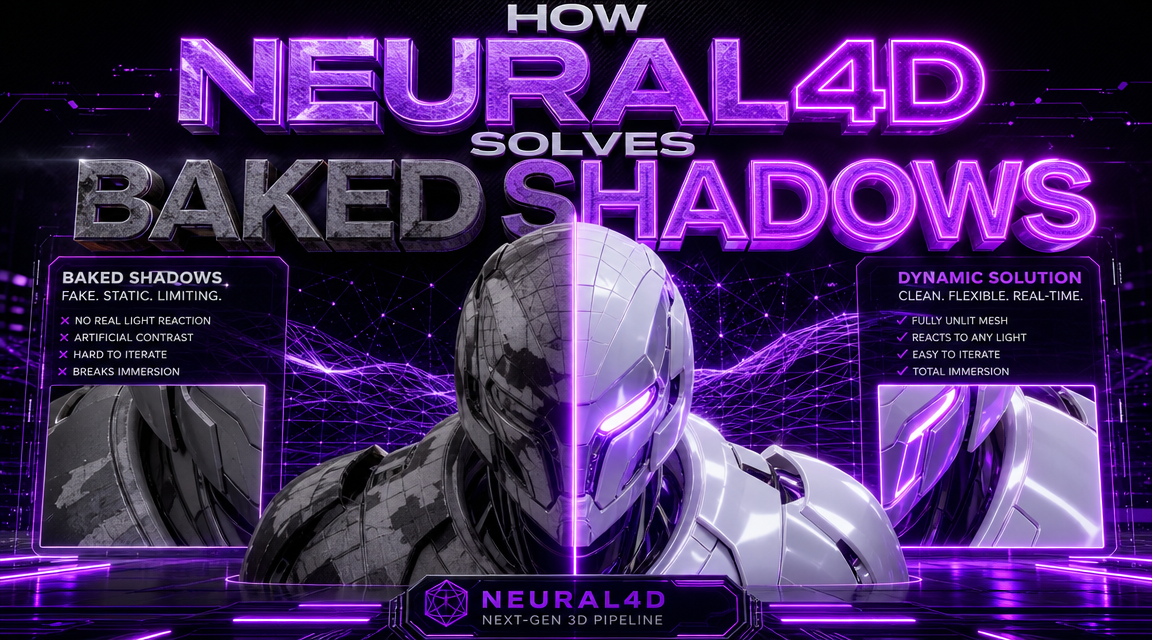
In photography or 2D rendering, shadows give an object a sense of depth and volume. However, in 3D production, those same shadows become a liability if they are permanently colored into the model's texture.
If you import a model with baked shadows into Unreal Engine 5 or Unity, and the in-game sun shines from the opposite direction, the model will display shadows on both sides, breaking immersion. To be truly usable in production, a 3D asset needs a clean "base color" texture that acts as a blank canvas for the game engine's lighting system to illuminate.
To understand the advantage of Neural4D's PBR pipeline, compare standard texture projection with our active delighting process.
| Approach | How it processes lighting |
|---|---|
| Standard AI Projection | Simply "shrink-wraps" the 2D photo onto the mesh. The dark shadow underneath the subject and the bright glares on top are permanently printed into the texture. |
| Neural4D Delighting | Analyzes the image to extract the true underlying color (Albedo). It intentionally strips out the environmental shadows, ambient occlusion, and specular highlights. |
Removing the shadows is only half the solution. A flat, unlit texture will still look unnatural if it doesn't interact correctly with virtual lights. Neural4D completes the workflow by generating a full suite of Physical Based Rendering (PBR) maps alongside the base color.
By automatically calculating Roughness and Metallic maps during the AI Texture step, the engine defines exactly how glossy or matte each surface should be. When you export your model in a supported format like .GLB or .FBX, these maps are embedded inside the file. Dropping the asset into a scene instantly allows it to catch reflections, cast accurate real-time shadows, and respond to dynamic light sources just like a handcrafted AAA asset. You can read more about supported export formats here.
Neural4D's delighting process happens automatically, provided you utilize the texture generation phase correctly. When generating a model using Image to 3D or Text to 3D, ensure that the texture toggle is enabled before submitting the job.
If you already possess a white base mesh (generated via the Direct3D-S2 engine), you can apply this advanced lighting extraction retroactively:
Still need help? If you want to refine the shape or topology of your generated asset before texturing, try using Neural4D-2.5. If you have further questions about lighting or materials, visit the Neural4D Help Center for more detailed guidance pages.
'%3e%3cg%3e%3cpath%20d='M14.22126,2L16.980341,2L10.922359,8.365314L18,17.000000999999997L12.44585,17.000000999999997L8.0973005,11.7527676L3.1189604,17.000000999999997L0.35988006,17.000000999999997L6.7777414,10.1918821L0,2L5.6921029,2L9.6207924,6.7933583L14.22126,2ZM13.255582,15.505536L14.785071,15.505536L4.88837,3.4391145L3.2449181,3.4391145L13.255582,15.505536Z'%20fill='%23ffffff'%20fill-opacity='1'%20style='mix-blend-mode:passthrough'/%3e%3c/g%3e%3c/g%3e%3c/svg%3e)
'%3e%3cg%3e%3cg%3e%3cpath%20d='M17.776579953674315,4.238972914697266C18.530987953674316,2.8357112146972656,17.668764953674316,1.0000038146972656,17.668764953674316,1.0000038146972656C15.728984953674317,1.0000038146972656,14.327326953674316,2.2953194146972655,14.327326953674316,2.2953194146972655C13.572919953674317,1.8635447646972656,11.093512553674316,1.8635447646972656,11.093512553674316,1.8635447646972656C11.093512553674316,1.8635447646972656,8.614197253674316,1.8635447646972656,7.859790753674316,2.2953194146972655C7.859790753674316,2.2953194146972655,6.4587898536743165,1.0000038146972656,4.518257353674317,1.0000038146972656C4.518257353674317,1.0000038146972656,3.6561312536743165,2.8350313146972654,4.410538953674316,4.238972914697266C4.410538953674316,4.238972914697266,2.6862124236743163,5.858135714697266,3.332825653674316,9.312969214697265C3.9408041536743164,12.559363814697265,6.782133553674316,13.415479814697266,8.614197253674316,13.415479814697266C8.614197253674316,13.415479814697266,7.859790753674316,14.063154814697265,7.967603653674316,15.142524814697266C7.967603653674316,15.142524814697266,6.889853453674316,15.790198814697266,5.812196053674317,15.358415814697265C4.734538553674316,14.926723814697265,4.1956536536743165,13.847263814697266,4.1956536536743165,13.847263814697266C4.1956536536743165,13.847263814697266,3.1179590536743165,12.443964814697265,2.0402743556743164,12.983694814697266C2.0402743556743164,12.983694814697266,1.7169677936743164,13.307532814697266,2.9024282136743165,13.847263814697266C2.9024282136743165,13.847263814697266,3.7645722536743165,15.142524814697266,4.087878753674316,15.898144814697266C4.411195253674316,16.653767814697268,6.135446553674316,17.301444814697266,7.860446953674316,16.869661814697267L7.860446953674316,19.352327814697265C7.860446953674316,19.352327814697265,7.860446953674316,19.568219814697265,7.4293847536743165,19.676166814697265C6.998322453674317,19.784110814697264,6.998322453674317,20.000003814697266,7.213853853674316,20.000003814697266L14.974576953674317,20.000003814697266C15.190109953674316,20.000003814697266,15.190109953674316,19.784110814697264,14.759046953674316,19.676166814697265C14.327983953674316,19.568219814697265,14.327983953674316,19.352327814697265,14.327983953674316,19.352327814697265L14.327983953674316,16.869661814697267C14.327983953674316,16.869661814697267,14.337451953674316,15.575053814697265,14.327983953674316,15.142524814697266C14.304263953674317,14.057753814697266,13.573576953674316,13.415479814697266,13.573576953674316,13.415479814697266C15.405640953674316,13.415479814697266,18.246925953674317,12.559363814697265,18.854893953674317,9.312969214697265C19.501579953674316,5.858135714697266,17.777234953674316,4.238972914697266,17.776579953674315,4.238972914697266L17.776579953674315,4.238972914697266Z'%20fill='%23ffffff'%20fill-opacity='1'%20style='mix-blend-mode:passthrough'/%3e%3c/g%3e%3c/g%3e%3c/g%3e%3c/svg%3e)


