

Open your Neural4D Account page and locate Usage History. This account-level record shows when Credits were used or returned across Neural4D tasks.
If you also need an overview of plans and account access, see Accounts and Billing.
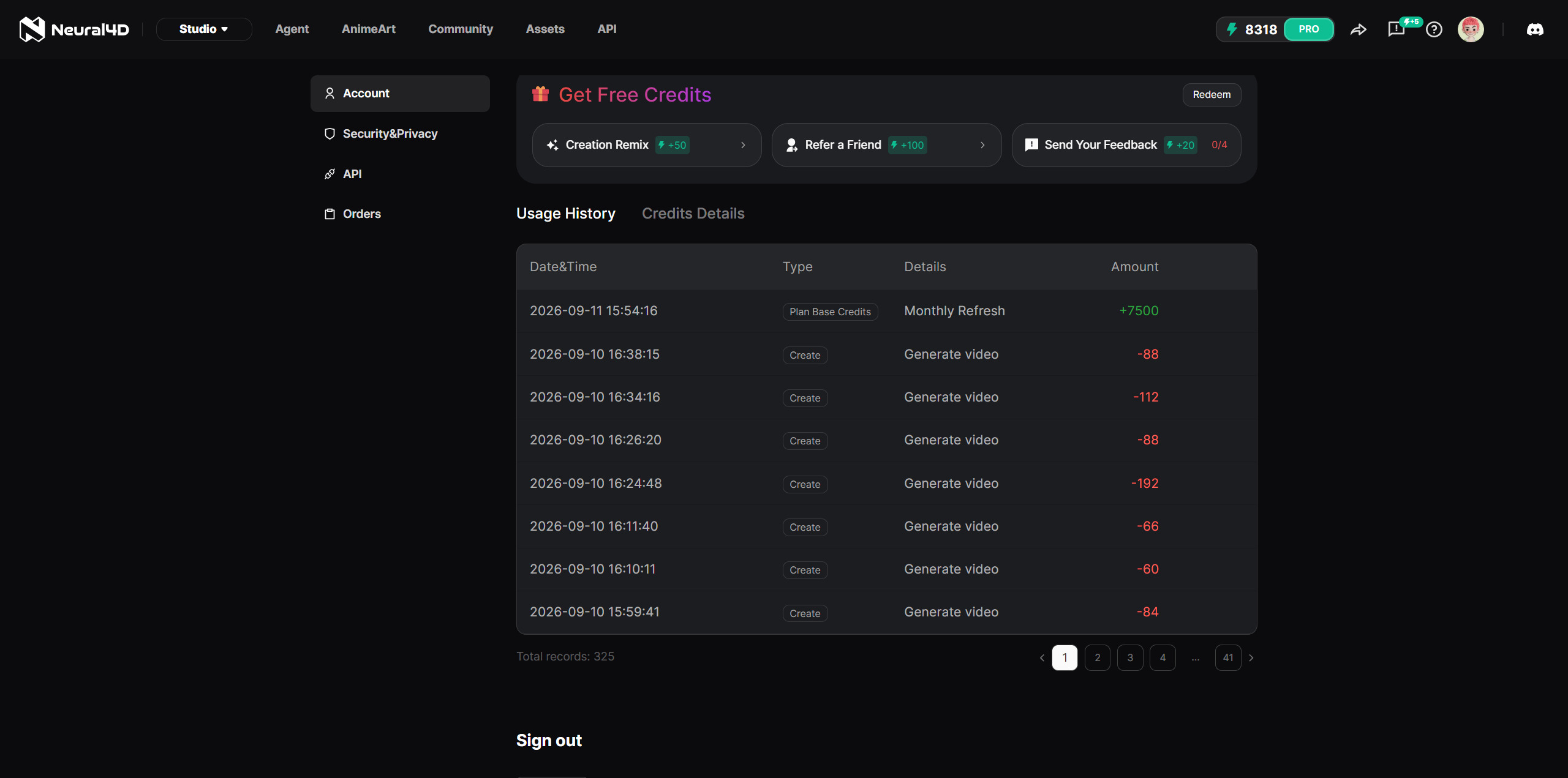
Each row uses four fields. Read them together to match an entry to a generation request, a failed task, or a Credits return.
| Field | What it tells you |
|---|---|
| Date & Time | When the usage event was recorded. |
| Type | The category of the task or Credits event. |
| Details | The task description or status, such as Incomplete Task: Generate image. |
| Amount | The number of Credits deducted or returned for that event. |
Neural4D deducts Credits when you submit a task. The deduction is tied to the submitted task, not to a later download or export action.
A server-side failure may appear as an incomplete task entry, for example Incomplete Task: Generate image. Neural4D then returns the deducted Credits automatically. The return appears as a separate Credits Return entry.
This makes the task failure and the balance correction traceable as two related records. Compare their timestamps, details, and amounts when checking a failed generation.
You do not need to cancel or manually request the return when the task fails on the server. Users cannot cancel a task after it has been submitted.
Users on every Neural4D plan can view their complete Usage History. This includes free accounts and the current paid plans: Go, Plus, and Pro. There is currently no known time-based truncation of the history shown on the Account page.
Not currently. Usage History does not provide filtering, search, or export controls. Use the displayed Date & Time, Type, Details, and Amount fields to locate and verify a record directly on the page.
Yes. All Neural4D plans can view the full Usage History, and there is currently no known time-based truncation.
No. Users cannot cancel a task after submission. Credits are returned automatically only when a task fails on the server.
Each submission creates a separate task. Repeating the same action therefore creates another record and deducts Credits again.
Not currently. Usage History does not provide filters, search, or export tools.
%22%3E%3Cg%3E%3Cpath%20d%3D%22M14.22126%2C2L16.980341%2C2L10.922359%2C8.365314L18%2C17.000000999999997L12.44585%2C17.000000999999997L8.0973005%2C11.7527676L3.1189604%2C17.000000999999997L0.35988006%2C17.000000999999997L6.7777414%2C10.1918821L0%2C2L5.6921029%2C2L9.6207924%2C6.7933583L14.22126%2C2ZM13.255582%2C15.505536L14.785071%2C15.505536L4.88837%2C3.4391145L3.2449181%2C3.4391145L13.255582%2C15.505536Z%22%20fill%3D%22%23ffffff%22%20fill-opacity%3D%221%22%20style%3D%22mix-blend-mode%3Apassthrough%22%2F%3E%3C%2Fg%3E%3C%2Fg%3E%3C%2Fsvg%3E)
%22%3E%3Cg%3E%3Cg%3E%3Cpath%20d%3D%22M17.776579953674315%2C4.238972914697266C18.530987953674316%2C2.8357112146972656%2C17.668764953674316%2C1.0000038146972656%2C17.668764953674316%2C1.0000038146972656C15.728984953674317%2C1.0000038146972656%2C14.327326953674316%2C2.2953194146972655%2C14.327326953674316%2C2.2953194146972655C13.572919953674317%2C1.8635447646972656%2C11.093512553674316%2C1.8635447646972656%2C11.093512553674316%2C1.8635447646972656C11.093512553674316%2C1.8635447646972656%2C8.614197253674316%2C1.8635447646972656%2C7.859790753674316%2C2.2953194146972655C7.859790753674316%2C2.2953194146972655%2C6.4587898536743165%2C1.0000038146972656%2C4.518257353674317%2C1.0000038146972656C4.518257353674317%2C1.0000038146972656%2C3.6561312536743165%2C2.8350313146972654%2C4.410538953674316%2C4.238972914697266C4.410538953674316%2C4.238972914697266%2C2.6862124236743163%2C5.858135714697266%2C3.332825653674316%2C9.312969214697265C3.9408041536743164%2C12.559363814697265%2C6.782133553674316%2C13.415479814697266%2C8.614197253674316%2C13.415479814697266C8.614197253674316%2C13.415479814697266%2C7.859790753674316%2C14.063154814697265%2C7.967603653674316%2C15.142524814697266C7.967603653674316%2C15.142524814697266%2C6.889853453674316%2C15.790198814697266%2C5.812196053674317%2C15.358415814697265C4.734538553674316%2C14.926723814697265%2C4.1956536536743165%2C13.847263814697266%2C4.1956536536743165%2C13.847263814697266C4.1956536536743165%2C13.847263814697266%2C3.1179590536743165%2C12.443964814697265%2C2.0402743556743164%2C12.983694814697266C2.0402743556743164%2C12.983694814697266%2C1.7169677936743164%2C13.307532814697266%2C2.9024282136743165%2C13.847263814697266C2.9024282136743165%2C13.847263814697266%2C3.7645722536743165%2C15.142524814697266%2C4.087878753674316%2C15.898144814697266C4.411195253674316%2C16.653767814697268%2C6.135446553674316%2C17.301444814697266%2C7.860446953674316%2C16.869661814697267L7.860446953674316%2C19.352327814697265C7.860446953674316%2C19.352327814697265%2C7.860446953674316%2C19.568219814697265%2C7.4293847536743165%2C19.676166814697265C6.998322453674317%2C19.784110814697264%2C6.998322453674317%2C20.000003814697266%2C7.213853853674316%2C20.000003814697266L14.974576953674317%2C20.000003814697266C15.190109953674316%2C20.000003814697266%2C15.190109953674316%2C19.784110814697264%2C14.759046953674316%2C19.676166814697265C14.327983953674316%2C19.568219814697265%2C14.327983953674316%2C19.352327814697265%2C14.327983953674316%2C19.352327814697265L14.327983953674316%2C16.869661814697267C14.327983953674316%2C16.869661814697267%2C14.337451953674316%2C15.575053814697265%2C14.327983953674316%2C15.142524814697266C14.304263953674317%2C14.057753814697266%2C13.573576953674316%2C13.415479814697266%2C13.573576953674316%2C13.415479814697266C15.405640953674316%2C13.415479814697266%2C18.246925953674317%2C12.559363814697265%2C18.854893953674317%2C9.312969214697265C19.501579953674316%2C5.858135714697266%2C17.777234953674316%2C4.238972914697266%2C17.776579953674315%2C4.238972914697266L17.776579953674315%2C4.238972914697266Z%22%20fill%3D%22%23ffffff%22%20fill-opacity%3D%221%22%20style%3D%22mix-blend-mode%3Apassthrough%22%2F%3E%3C%2Fg%3E%3C%2Fg%3E%3C%2Fg%3E%3C%2Fsvg%3E)


%22%2F%3E%3C%2Fsvg%3E)

%22%2F%3E%3C%2Fsvg%3E)