

AnimeArt is an advanced 3D character creator within Neural4D, specifically designed for crafting high-quality models with a stylized anime aesthetic. It combines the power of AI generation with a granular editor, giving you precise control over every element of your character's appearance.
Whether you are dropping a protagonist directly into a VRM-supported indie game on Unityroom, generating an instant custom avatar for VRChat, or designing an original character (OC) for illustration, AnimeArt transforms your creative brief into a fully realized, exportable 3D anime model in minutes.
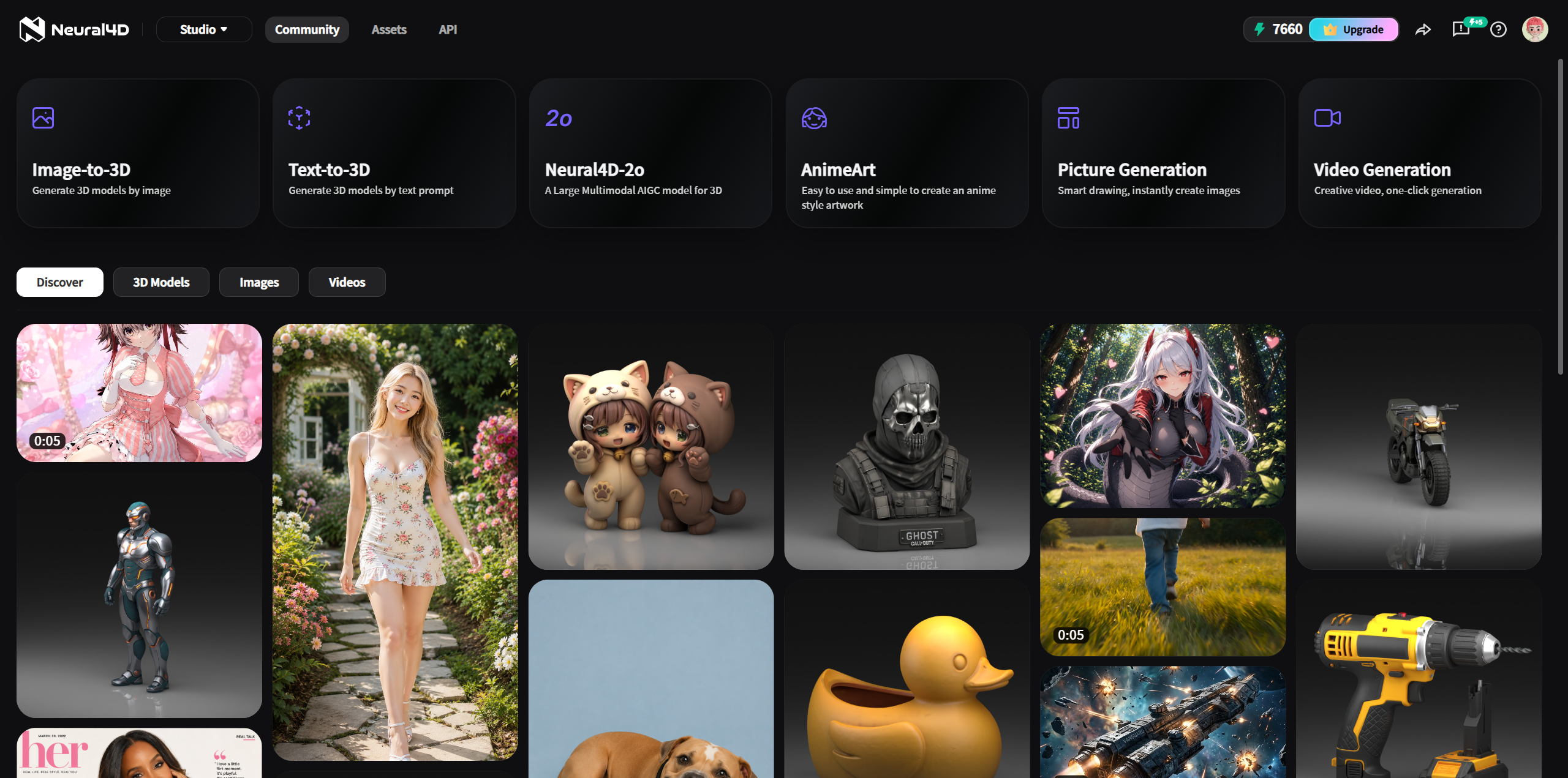
The AnimeArt tool is located directly within the Neural4D Studio dashboard:
| Access Method | How to Navigate |
|---|---|
| Studio Dashboard | Log in to the Neural4D Studio. At the top of the dashboard, locate and click the AnimeArt card labeled "Easy to use and simple to create an anime style artwork". |
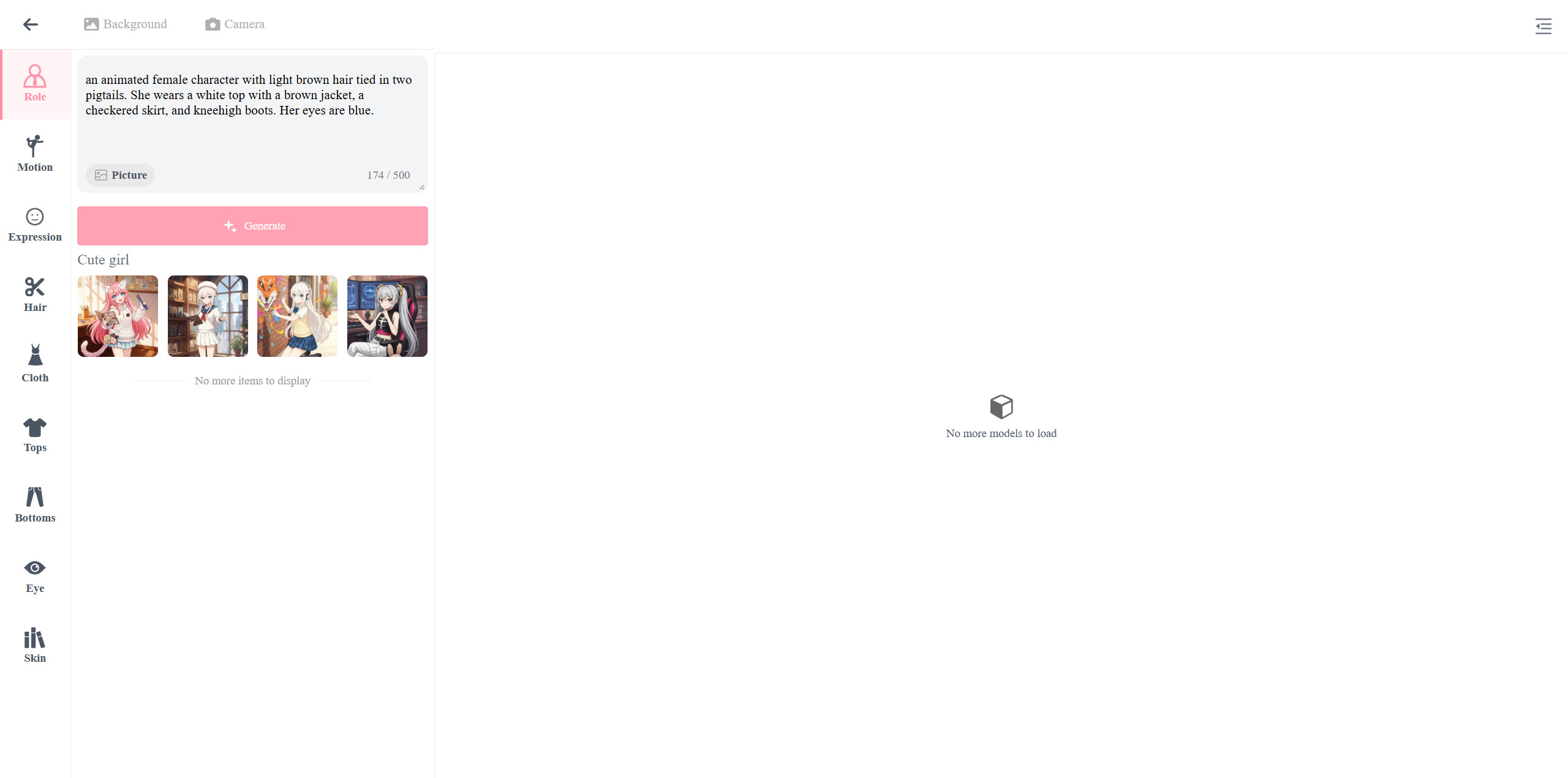
Inside the AnimeArt interface, use the Role tab to describe your character's core identity. You have two input methods:
| Input Method | How to Use |
|---|---|
| Text Prompt | Type a natural-language description of your character's appearance in the Role tab (for example, "animated female character with light brown hair, fantasy warrior outfit"). |
| Reference Image | Click the Picture icon within the text box to upload a reference image. The AI will use it to guide the character's visual style and proportions. |
Remember to click the Generate button to get your character.
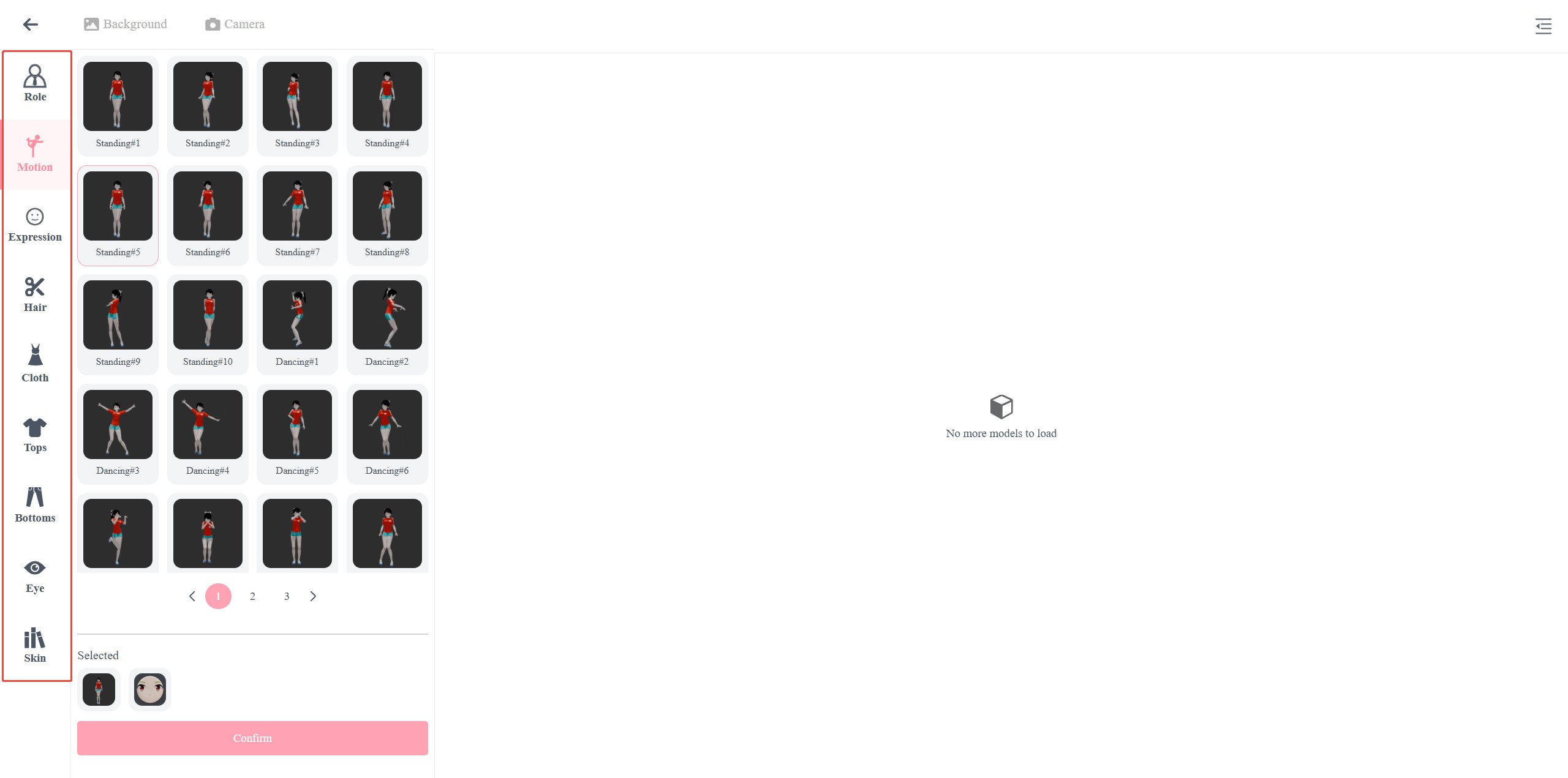
Use the vertical customization sidebar to refine your character beyond the base prompt. The available panels cover three major areas:
| Panel | What You Can Control |
|---|---|
| Role Settings | Set your character's facial expressions and motion poses. Bring them to life instantly with a built-in library featuring 14 categories of facial expressions and 43 distinct motion presets. |
| Appearance | Select specific styles for Hair, Eye (including contact lens colors), and Skin tone to achieve the precise look you need. |
| Outfits | Choose a complete Cloth set for a coordinated look, or mix and match individual Tops and Bottoms for a custom ensemble. |
Click the Confirm button to apply your settings.
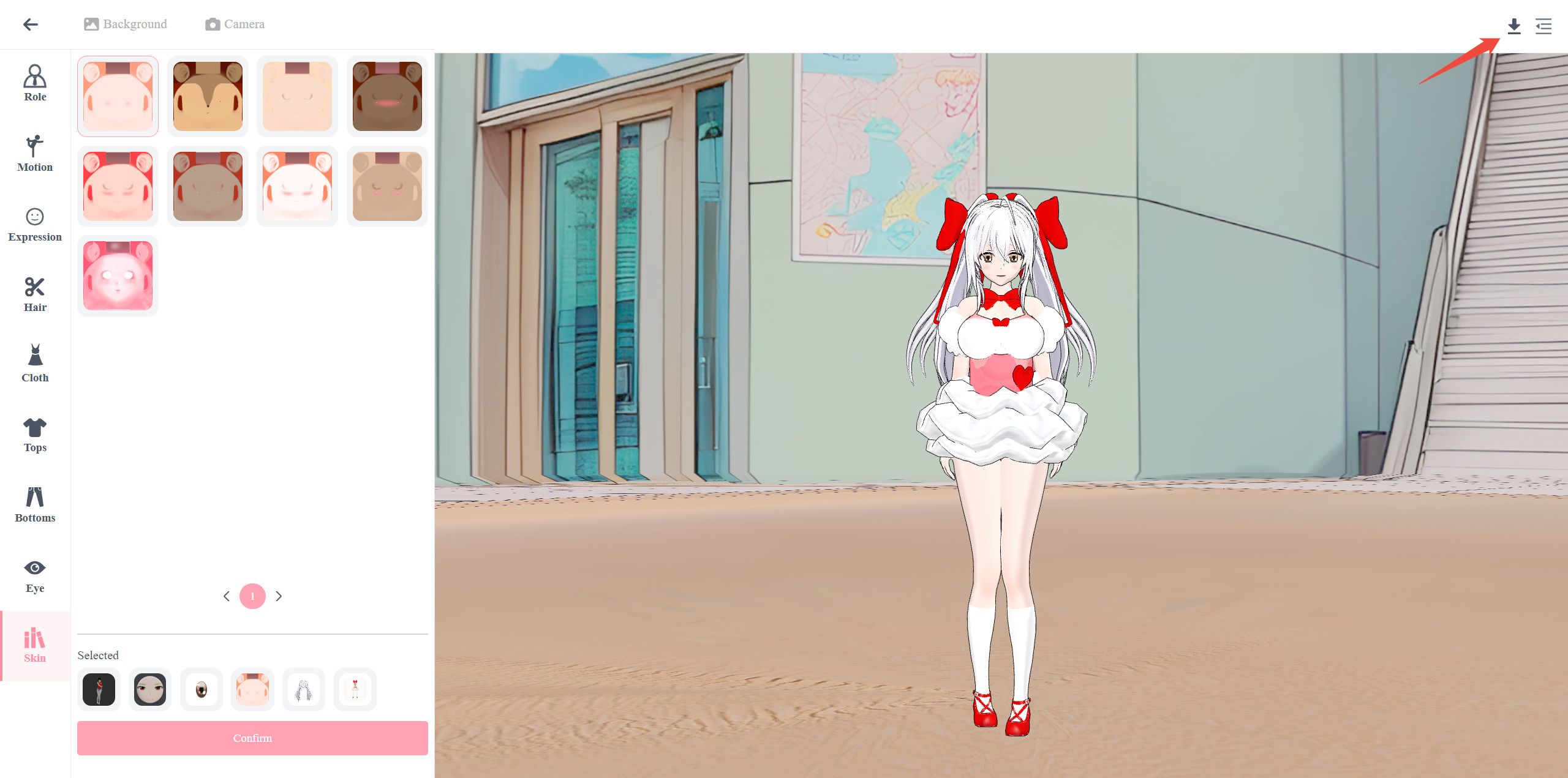
Once your character settings are finalized, click the pink Generate button. Neural4D will process your configuration and produce the final 3D anime model. When satisfied with the result, click the Download icon to export. AnimeArt currently supports exporting exclusively to the VRM format:
| Format | Best For |
|---|---|
| .VRM | Standard format for 3D avatars: fully rigged and ready for Vtubing, metaverse platforms, and Unity applications. |
 Try AnimeArt Free

'%3e%3cg%3e%3cpath%20d='M14.22126,2L16.980341,2L10.922359,8.365314L18,17.000000999999997L12.44585,17.000000999999997L8.0973005,11.7527676L3.1189604,17.000000999999997L0.35988006,17.000000999999997L6.7777414,10.1918821L0,2L5.6921029,2L9.6207924,6.7933583L14.22126,2ZM13.255582,15.505536L14.785071,15.505536L4.88837,3.4391145L3.2449181,3.4391145L13.255582,15.505536Z'%20fill='%23ffffff'%20fill-opacity='1'%20style='mix-blend-mode:passthrough'/%3e%3c/g%3e%3c/g%3e%3c/svg%3e)
'%3e%3cg%3e%3cg%3e%3cpath%20d='M17.776579953674315,4.238972914697266C18.530987953674316,2.8357112146972656,17.668764953674316,1.0000038146972656,17.668764953674316,1.0000038146972656C15.728984953674317,1.0000038146972656,14.327326953674316,2.2953194146972655,14.327326953674316,2.2953194146972655C13.572919953674317,1.8635447646972656,11.093512553674316,1.8635447646972656,11.093512553674316,1.8635447646972656C11.093512553674316,1.8635447646972656,8.614197253674316,1.8635447646972656,7.859790753674316,2.2953194146972655C7.859790753674316,2.2953194146972655,6.4587898536743165,1.0000038146972656,4.518257353674317,1.0000038146972656C4.518257353674317,1.0000038146972656,3.6561312536743165,2.8350313146972654,4.410538953674316,4.238972914697266C4.410538953674316,4.238972914697266,2.6862124236743163,5.858135714697266,3.332825653674316,9.312969214697265C3.9408041536743164,12.559363814697265,6.782133553674316,13.415479814697266,8.614197253674316,13.415479814697266C8.614197253674316,13.415479814697266,7.859790753674316,14.063154814697265,7.967603653674316,15.142524814697266C7.967603653674316,15.142524814697266,6.889853453674316,15.790198814697266,5.812196053674317,15.358415814697265C4.734538553674316,14.926723814697265,4.1956536536743165,13.847263814697266,4.1956536536743165,13.847263814697266C4.1956536536743165,13.847263814697266,3.1179590536743165,12.443964814697265,2.0402743556743164,12.983694814697266C2.0402743556743164,12.983694814697266,1.7169677936743164,13.307532814697266,2.9024282136743165,13.847263814697266C2.9024282136743165,13.847263814697266,3.7645722536743165,15.142524814697266,4.087878753674316,15.898144814697266C4.411195253674316,16.653767814697268,6.135446553674316,17.301444814697266,7.860446953674316,16.869661814697267L7.860446953674316,19.352327814697265C7.860446953674316,19.352327814697265,7.860446953674316,19.568219814697265,7.4293847536743165,19.676166814697265C6.998322453674317,19.784110814697264,6.998322453674317,20.000003814697266,7.213853853674316,20.000003814697266L14.974576953674317,20.000003814697266C15.190109953674316,20.000003814697266,15.190109953674316,19.784110814697264,14.759046953674316,19.676166814697265C14.327983953674316,19.568219814697265,14.327983953674316,19.352327814697265,14.327983953674316,19.352327814697265L14.327983953674316,16.869661814697267C14.327983953674316,16.869661814697267,14.337451953674316,15.575053814697265,14.327983953674316,15.142524814697266C14.304263953674317,14.057753814697266,13.573576953674316,13.415479814697266,13.573576953674316,13.415479814697266C15.405640953674316,13.415479814697266,18.246925953674317,12.559363814697265,18.854893953674317,9.312969214697265C19.501579953674316,5.858135714697266,17.777234953674316,4.238972914697266,17.776579953674315,4.238972914697266L17.776579953674315,4.238972914697266Z'%20fill='%23ffffff'%20fill-opacity='1'%20style='mix-blend-mode:passthrough'/%3e%3c/g%3e%3c/g%3e%3c/g%3e%3c/svg%3e)


