

How to use Neural4D models in WebAR?
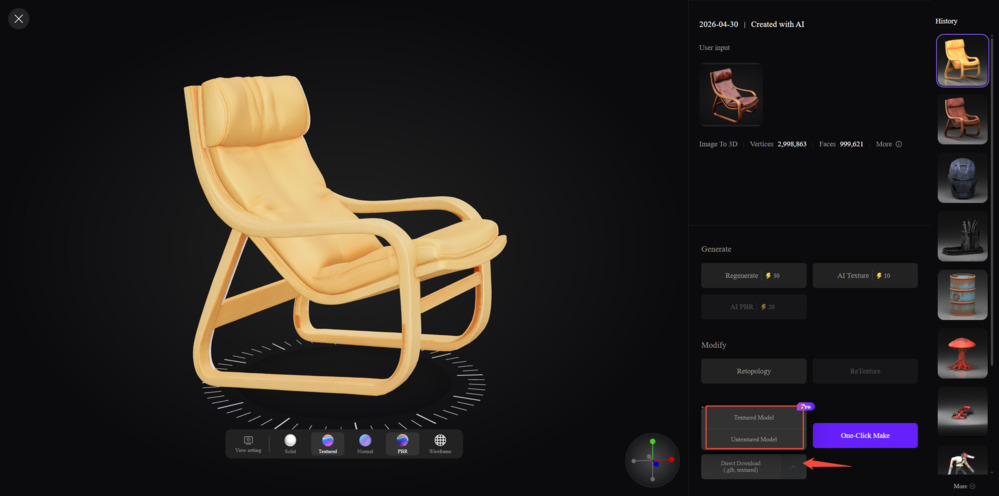
Step 1: Export and Optimize GLB for Web Performance
WebAR experiences require high visual fidelity combined with aggressive optimization to ensure fast loading times over mobile networks. The .glb (binary GLTF) format is the industry standard for WebAR.
When exporting from Neural4D Studio, our system automatically implements the following production-ready standards:
| Standard | Benefit |
|---|---|
| Draco Compression | Reduces geometry data size by up to 90% without losing detail. |
| KTX2 Texture Encoding | Optimizes textures for GPU memory, preventing browser crashes on low-end devices. |
Step 2: Implementing the Cross-Platform WebAR Viewer
To provide a consistent experience across Android (Scene Viewer) and iOS (AR Quick Look), we recommend using Google's <model-viewer> library.
First, include the library in your HTML header:
<script type="module" src="https://ajax.googleapis.com/ajax/libs/model-viewer/3.4.0/model-viewer.min.js"></script>
Then, embed the Neural4D model using the following responsive configuration:
<model-viewer
    src="path/to/neural4d_model.glb"
    ios-src="path/to/neural4d_model.usdz"
    ar ar-modes="webxr scene-viewer quick-look"
    camera-controls
    poster="poster.webp"
    shadow-intensity="1"
    auto-rotate>
    <button slot="ar-button" class="ar-button">View in your space</button>
</model-viewer>
Step 3: Ensuring High-Tension Visual Quality
WebAR lighting can often feel flat. To maintain the "High-Tension" aesthetic of Neural4D models, always use an HDR environment map. This ensures that the metallic and glass surfaces of your model reflect the real-world surroundings accurately.
Neural4D models are baked with physically accurate PBR (Physically Based Rendering) materials that are fully compatible with model-viewer's lighting engine.
Try Neural4D for FreeHave a question or ran into an issue not covered here? Visit our Feedback page and let us know – we read every message.
%22%3E%3Cg%3E%3Cpath%20d%3D%22M14.22126%2C2L16.980341%2C2L10.922359%2C8.365314L18%2C17.000000999999997L12.44585%2C17.000000999999997L8.0973005%2C11.7527676L3.1189604%2C17.000000999999997L0.35988006%2C17.000000999999997L6.7777414%2C10.1918821L0%2C2L5.6921029%2C2L9.6207924%2C6.7933583L14.22126%2C2ZM13.255582%2C15.505536L14.785071%2C15.505536L4.88837%2C3.4391145L3.2449181%2C3.4391145L13.255582%2C15.505536Z%22%20fill%3D%22%23ffffff%22%20fill-opacity%3D%221%22%20style%3D%22mix-blend-mode%3Apassthrough%22%2F%3E%3C%2Fg%3E%3C%2Fg%3E%3C%2Fsvg%3E)
%22%3E%3Cg%3E%3Cg%3E%3Cpath%20d%3D%22M17.776579953674315%2C4.238972914697266C18.530987953674316%2C2.8357112146972656%2C17.668764953674316%2C1.0000038146972656%2C17.668764953674316%2C1.0000038146972656C15.728984953674317%2C1.0000038146972656%2C14.327326953674316%2C2.2953194146972655%2C14.327326953674316%2C2.2953194146972655C13.572919953674317%2C1.8635447646972656%2C11.093512553674316%2C1.8635447646972656%2C11.093512553674316%2C1.8635447646972656C11.093512553674316%2C1.8635447646972656%2C8.614197253674316%2C1.8635447646972656%2C7.859790753674316%2C2.2953194146972655C7.859790753674316%2C2.2953194146972655%2C6.4587898536743165%2C1.0000038146972656%2C4.518257353674317%2C1.0000038146972656C4.518257353674317%2C1.0000038146972656%2C3.6561312536743165%2C2.8350313146972654%2C4.410538953674316%2C4.238972914697266C4.410538953674316%2C4.238972914697266%2C2.6862124236743163%2C5.858135714697266%2C3.332825653674316%2C9.312969214697265C3.9408041536743164%2C12.559363814697265%2C6.782133553674316%2C13.415479814697266%2C8.614197253674316%2C13.415479814697266C8.614197253674316%2C13.415479814697266%2C7.859790753674316%2C14.063154814697265%2C7.967603653674316%2C15.142524814697266C7.967603653674316%2C15.142524814697266%2C6.889853453674316%2C15.790198814697266%2C5.812196053674317%2C15.358415814697265C4.734538553674316%2C14.926723814697265%2C4.1956536536743165%2C13.847263814697266%2C4.1956536536743165%2C13.847263814697266C4.1956536536743165%2C13.847263814697266%2C3.1179590536743165%2C12.443964814697265%2C2.0402743556743164%2C12.983694814697266C2.0402743556743164%2C12.983694814697266%2C1.7169677936743164%2C13.307532814697266%2C2.9024282136743165%2C13.847263814697266C2.9024282136743165%2C13.847263814697266%2C3.7645722536743165%2C15.142524814697266%2C4.087878753674316%2C15.898144814697266C4.411195253674316%2C16.653767814697268%2C6.135446553674316%2C17.301444814697266%2C7.860446953674316%2C16.869661814697267L7.860446953674316%2C19.352327814697265C7.860446953674316%2C19.352327814697265%2C7.860446953674316%2C19.568219814697265%2C7.4293847536743165%2C19.676166814697265C6.998322453674317%2C19.784110814697264%2C6.998322453674317%2C20.000003814697266%2C7.213853853674316%2C20.000003814697266L14.974576953674317%2C20.000003814697266C15.190109953674316%2C20.000003814697266%2C15.190109953674316%2C19.784110814697264%2C14.759046953674316%2C19.676166814697265C14.327983953674316%2C19.568219814697265%2C14.327983953674316%2C19.352327814697265%2C14.327983953674316%2C19.352327814697265L14.327983953674316%2C16.869661814697267C14.327983953674316%2C16.869661814697267%2C14.337451953674316%2C15.575053814697265%2C14.327983953674316%2C15.142524814697266C14.304263953674317%2C14.057753814697266%2C13.573576953674316%2C13.415479814697266%2C13.573576953674316%2C13.415479814697266C15.405640953674316%2C13.415479814697266%2C18.246925953674317%2C12.559363814697265%2C18.854893953674317%2C9.312969214697265C19.501579953674316%2C5.858135714697266%2C17.777234953674316%2C4.238972914697266%2C17.776579953674315%2C4.238972914697266L17.776579953674315%2C4.238972914697266Z%22%20fill%3D%22%23ffffff%22%20fill-opacity%3D%221%22%20style%3D%22mix-blend-mode%3Apassthrough%22%2F%3E%3C%2Fg%3E%3C%2Fg%3E%3C%2Fg%3E%3C%2Fsvg%3E)


%22%2F%3E%3C%2Fsvg%3E)

%22%2F%3E%3C%2Fsvg%3E)