

Turn textured 3D models into multicolor 3D printing files with AI
Turn textured 3D models into multicolor 3D print files with this multicolor 3D print file generator. AI detects color regions and exports 3MF or GLB.
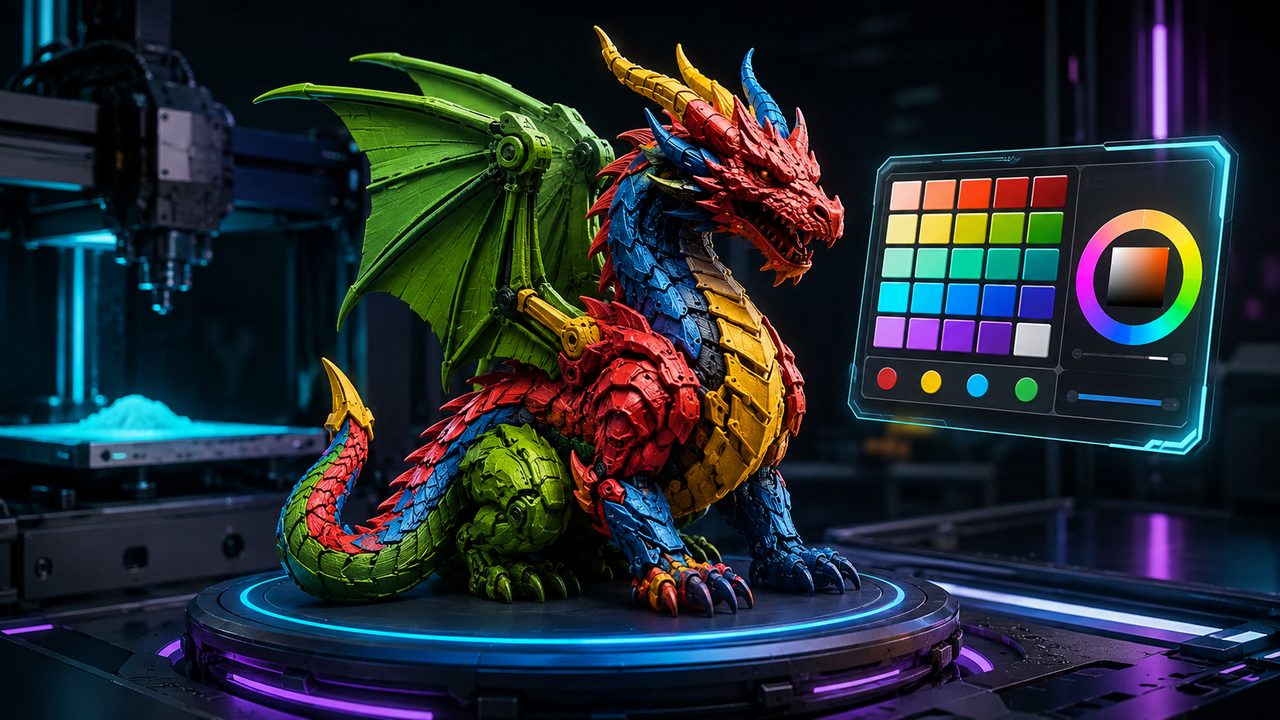
A multicolor 3D print file generator that keeps color faithful from textured model to printed part.
Reads the textured surface of your model and recognizes every colored region automatically.

Generate a 4-color scheme with Smart Color or apply a saved 1-8 color palette from My Colors.

Download the complete model carrying the final color scheme as a 3MF or GLB file.
Four steps from textured model to a color-ready 3MF or GLB export.
Pick a textured 3D model from your Neural4D assets. The Multicolor tool works on models that carry PBR textures, so every color region is readable for the printing scheme.
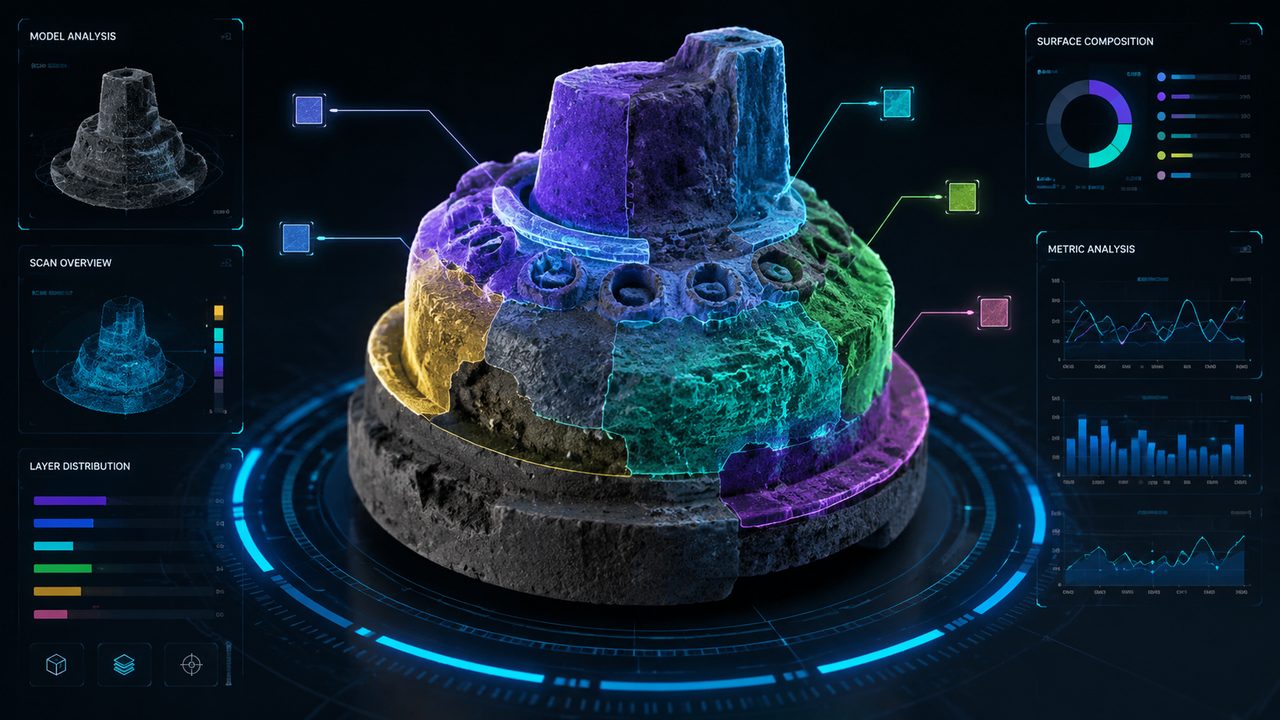
The AI analyzes the model surface and recognizes each colored region. It builds an initial color scheme sorted by the proportion of every region, so the print layout stays faithful to your design.
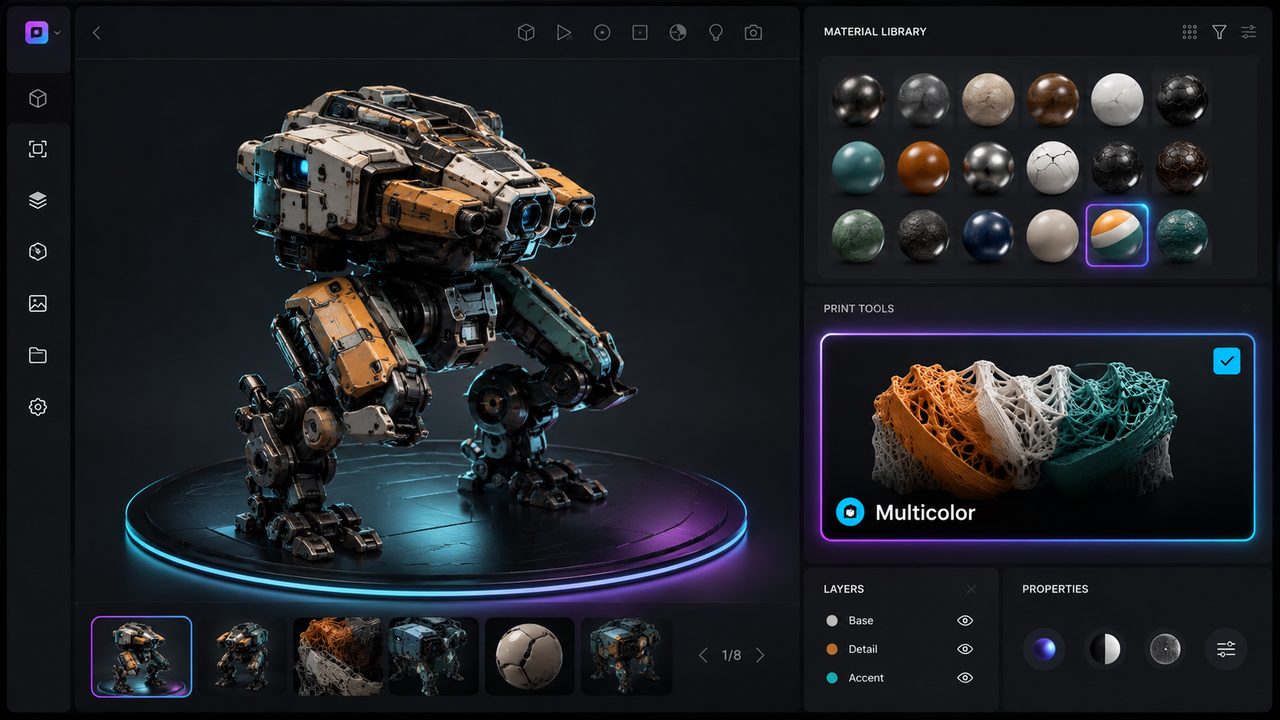
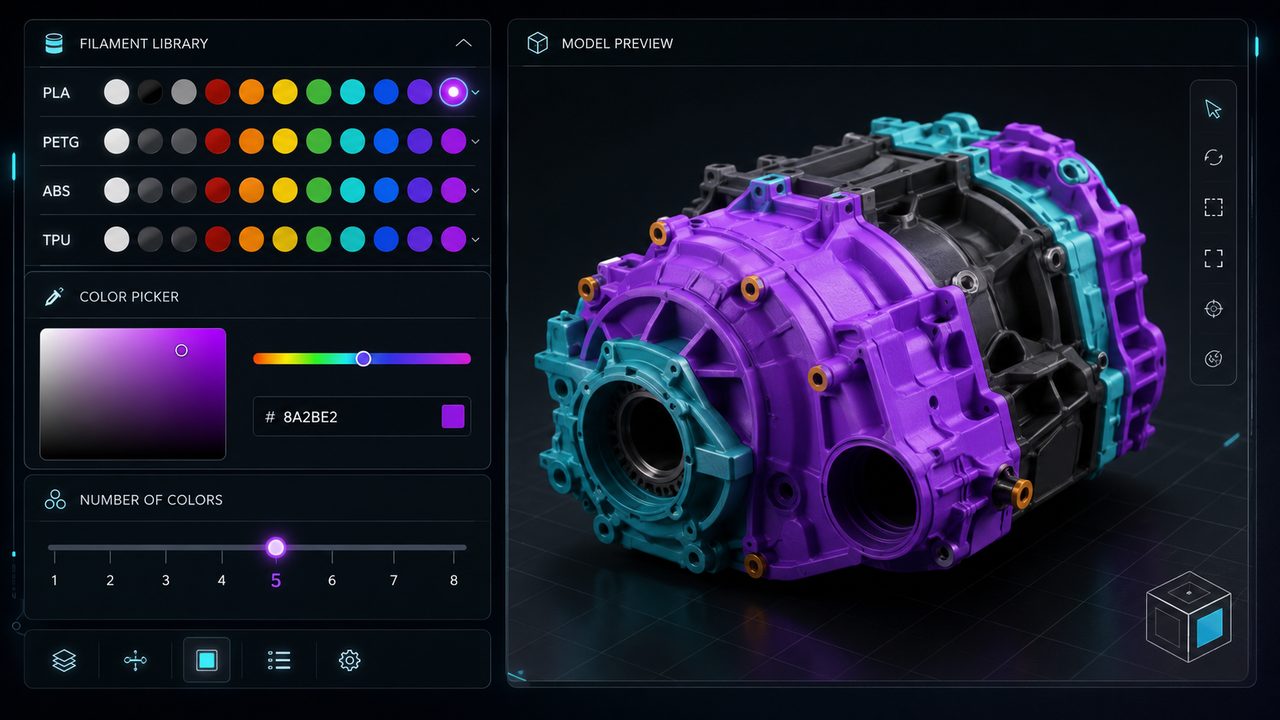
Switch between Smart Color and My Colors, adjust the color count from 1 to 8, swap filament materials from the library, or type a custom 6-digit hex color. Every color is listed with the share of the region it covers.
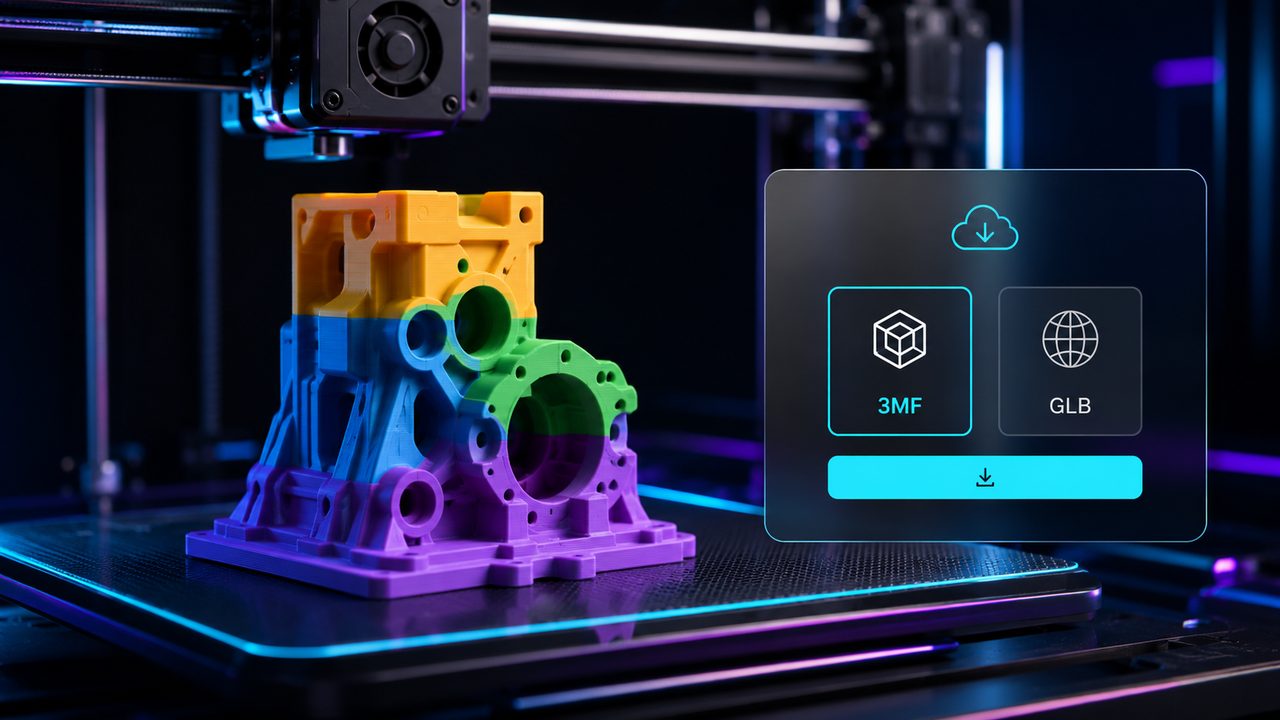
Confirm and save your active scheme, then download the complete colored model. The default export is 3MF, and GLB is also available, so the model keeps its color scheme through the full printing pipeline.
Two ways to build the color scheme behind your multicolor 3D print file.
| Compare | Smart Color | My Colors |
|---|---|---|
| How the scheme is created | AI detects color regions and returns a 4-color scheme by default | Applies your personal saved color scheme to the model |
| Palette size | Set by AI based on the detected regions | 1-8 colors that you define |
| Reuse | A new scheme each time you generate | Saved once and reused across models and sessions |
| Best for | Quick multicolor preview | Consistent branding or personal style |
Match the color scheme to your printer setup with built-in filament materials or custom hex colors.
| Option | Detail |
|---|---|
| PLA Basic | Standard PLA with a smooth matte finish, the most common choice for multicolor printing |
| PLA Matte | Low-gloss PLA that reduces layer-line visibility for uniform color surfaces |
| PETG | Durable and temperature-resistant, ideal for functional parts |
| ABS | Strong and heat-resistant, suited for engineering applications |
| TPU | Flexible and rubber-like, used for soft and grippy parts |
| Custom hex color | Any 6-digit hex code for exact brand or design colors |
Multicolor 3D printing for creators, designers, and small production runs.
Produce multicolor prototypes and figurines from clean, watertight models that slice and print without extra color painting.

Print furniture details and decor pieces in multiple colors straight from the AI color scheme.

Offer customers multicolor custom products with consistent brand colors reused across every order.
Create color-segmented tabletop miniatures and terrain props that keep the design intact.

A multicolor 3D print file generator turns a textured 3D model into a colored model ready for multicolor 3D printing. Neural4D's Multicolor tool detects color regions on the model, builds a color scheme, and exports the complete colored model as a 3MF or GLB file.
The Multicolor tool analyzes the PBR textures of your Neural4D 3D model and recognizes the colored regions. It then generates a color scheme, sorts the colors by the proportion of each region, and applies the scheme to the model for a printable output.
You can color any textured 3D model in your Neural4D assets library. The tool reads the color regions from the model textures and converts them into a multicolor printing scheme, so the model should carry PBR textures before you start.
The Multicolor tool supports color schemes from 1 to 8 colors. Smart Color automatically returns a 4-color scheme based on the detected regions, and you can fine-tune the count in the palette editor.
The built-in filament library covers PLA Basic, PLA Matte, PETG, ABS, and TPU. You can also enter any custom 6-digit hex color code. Colors are listed by the proportion of the colored region they cover, with one decimal place.
You can download the complete colored model in 3MF format by default, or choose GLB. Both formats carry the final color scheme, so the model prints in color without extra configuration.
%22%3E%3Cg%3E%3Cpath%20d%3D%22M14.22126%2C2L16.980341%2C2L10.922359%2C8.365314L18%2C17.000000999999997L12.44585%2C17.000000999999997L8.0973005%2C11.7527676L3.1189604%2C17.000000999999997L0.35988006%2C17.000000999999997L6.7777414%2C10.1918821L0%2C2L5.6921029%2C2L9.6207924%2C6.7933583L14.22126%2C2ZM13.255582%2C15.505536L14.785071%2C15.505536L4.88837%2C3.4391145L3.2449181%2C3.4391145L13.255582%2C15.505536Z%22%20fill%3D%22%23ffffff%22%20fill-opacity%3D%221%22%20style%3D%22mix-blend-mode%3Apassthrough%22%2F%3E%3C%2Fg%3E%3C%2Fg%3E%3C%2Fsvg%3E)
%22%3E%3Cg%3E%3Cg%3E%3Cpath%20d%3D%22M17.776579953674315%2C4.238972914697266C18.530987953674316%2C2.8357112146972656%2C17.668764953674316%2C1.0000038146972656%2C17.668764953674316%2C1.0000038146972656C15.728984953674317%2C1.0000038146972656%2C14.327326953674316%2C2.2953194146972655%2C14.327326953674316%2C2.2953194146972655C13.572919953674317%2C1.8635447646972656%2C11.093512553674316%2C1.8635447646972656%2C11.093512553674316%2C1.8635447646972656C11.093512553674316%2C1.8635447646972656%2C8.614197253674316%2C1.8635447646972656%2C7.859790753674316%2C2.2953194146972655C7.859790753674316%2C2.2953194146972655%2C6.4587898536743165%2C1.0000038146972656%2C4.518257353674317%2C1.0000038146972656C4.518257353674317%2C1.0000038146972656%2C3.6561312536743165%2C2.8350313146972654%2C4.410538953674316%2C4.238972914697266C4.410538953674316%2C4.238972914697266%2C2.6862124236743163%2C5.858135714697266%2C3.332825653674316%2C9.312969214697265C3.9408041536743164%2C12.559363814697265%2C6.782133553674316%2C13.415479814697266%2C8.614197253674316%2C13.415479814697266C8.614197253674316%2C13.415479814697266%2C7.859790753674316%2C14.063154814697265%2C7.967603653674316%2C15.142524814697266C7.967603653674316%2C15.142524814697266%2C6.889853453674316%2C15.790198814697266%2C5.812196053674317%2C15.358415814697265C4.734538553674316%2C14.926723814697265%2C4.1956536536743165%2C13.847263814697266%2C4.1956536536743165%2C13.847263814697266C4.1956536536743165%2C13.847263814697266%2C3.1179590536743165%2C12.443964814697265%2C2.0402743556743164%2C12.983694814697266C2.0402743556743164%2C12.983694814697266%2C1.7169677936743164%2C13.307532814697266%2C2.9024282136743165%2C13.847263814697266C2.9024282136743165%2C13.847263814697266%2C3.7645722536743165%2C15.142524814697266%2C4.087878753674316%2C15.898144814697266C4.411195253674316%2C16.653767814697268%2C6.135446553674316%2C17.301444814697266%2C7.860446953674316%2C16.869661814697267L7.860446953674316%2C19.352327814697265C7.860446953674316%2C19.352327814697265%2C7.860446953674316%2C19.568219814697265%2C7.4293847536743165%2C19.676166814697265C6.998322453674317%2C19.784110814697264%2C6.998322453674317%2C20.000003814697266%2C7.213853853674316%2C20.000003814697266L14.974576953674317%2C20.000003814697266C15.190109953674316%2C20.000003814697266%2C15.190109953674316%2C19.784110814697264%2C14.759046953674316%2C19.676166814697265C14.327983953674316%2C19.568219814697265%2C14.327983953674316%2C19.352327814697265%2C14.327983953674316%2C19.352327814697265L14.327983953674316%2C16.869661814697267C14.327983953674316%2C16.869661814697267%2C14.337451953674316%2C15.575053814697265%2C14.327983953674316%2C15.142524814697266C14.304263953674317%2C14.057753814697266%2C13.573576953674316%2C13.415479814697266%2C13.573576953674316%2C13.415479814697266C15.405640953674316%2C13.415479814697266%2C18.246925953674317%2C12.559363814697265%2C18.854893953674317%2C9.312969214697265C19.501579953674316%2C5.858135714697266%2C17.777234953674316%2C4.238972914697266%2C17.776579953674315%2C4.238972914697266L17.776579953674315%2C4.238972914697266Z%22%20fill%3D%22%23ffffff%22%20fill-opacity%3D%221%22%20style%3D%22mix-blend-mode%3Apassthrough%22%2F%3E%3C%2Fg%3E%3C%2Fg%3E%3C%2Fg%3E%3C%2Fsvg%3E)


%22%2F%3E%3C%2Fsvg%3E)

%22%2F%3E%3C%2Fsvg%3E)