

Rig a Studio Asset, apply a preset motion, and create an animated 3D model
Turn a Studio Asset into an animated 3D model with Neural4D. Rig the model, apply a preset motion, and download the result as a GLB file.

A focused path from an existing Studio Asset to a rigged model with a preset motion and GLB output.
Choose an existing model from Studio Assets. Models above 300K polygons must be remeshed before rigging.

Prepare the selected model for motion through rigging inside Animate. Rigging is part of this workflow, not a separate tool.

Apply a motion from the preset library, then download the animated model in the currently supported GLB format.
Use preset 3D character animation to test movement, shape scenes, and prepare animated assets for further production.

Apply a preset motion to a character model and review how the design reads in movement before the next production stage.

Turn a static model into a moving subject for short videos, product stories, and other creator led visual concepts.

Give avatars and digital characters a preset movement without building a separate rigging workflow outside Neural4D.

Compare a static model with an applied motion to evaluate poses and movement before committing to a larger animation workflow.
Move from a saved 3D model to an animated GLB in four clear steps.
Open Animate and choose an existing model from Studio Assets. If the limit is exceeded, Neural4D displays: The polycount is over 300K. Please remesh before rigging.
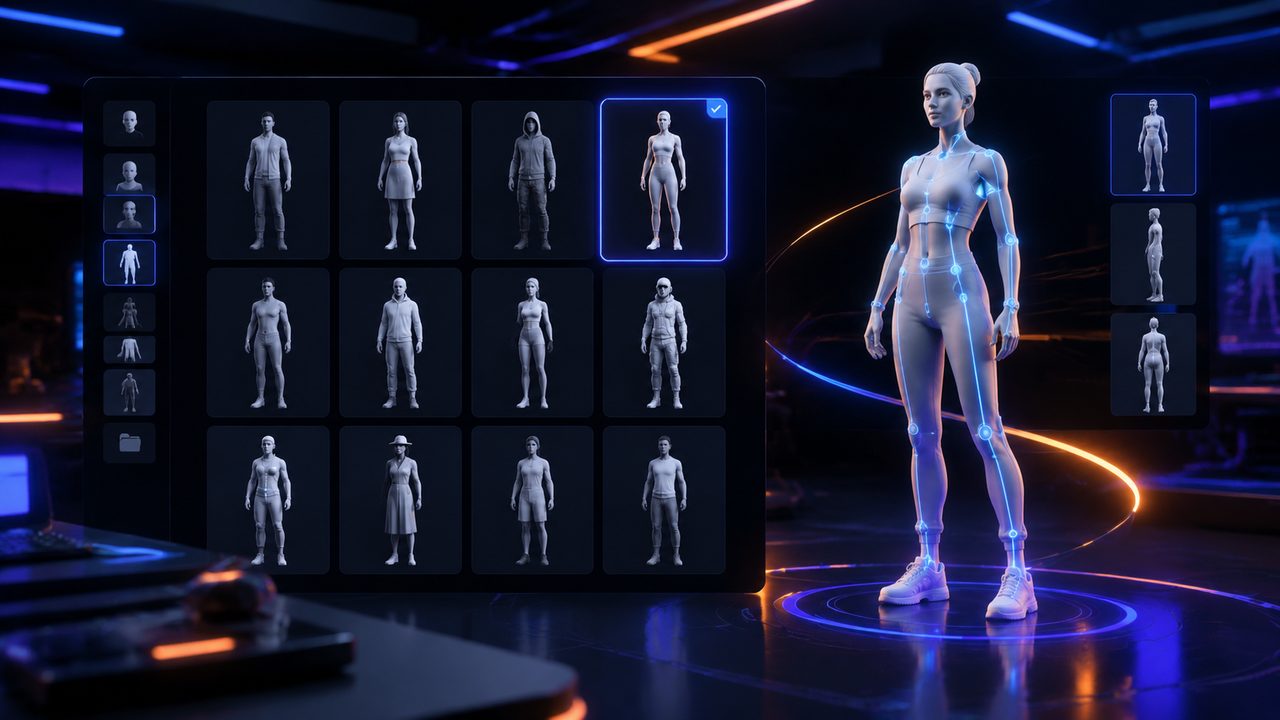
Models at 300K polygons or below can continue to rigging. When the limit is exceeded, use remeshing to reduce the polycount, then return to Animate.

Start rigging inside Animate to prepare the selected model for motion. This is the required bridge between the static asset and the motion library.

Choose a motion from the preset library, apply it to the rigged model, and download the animated result as a GLB file.


Neural4D's AI 3D Animation Generator is a Studio workflow for turning a static 3D model into an animated asset. Select a model from Studio Assets, rig it, apply a preset motion, and download the animated result as a GLB file.
You can select an existing 3D model from Studio Assets. Direct local upload is not available in the current Animate workflow.
The Animate workflow accepts models with a polycount of 300K or less. If the limit is exceeded, Neural4D displays: The polycount is over 300K. Please remesh before rigging.
No. Rigging is currently an integrated step inside the Animate workflow, not a separate Neural4D tool.
No. The current Animate workflow supports preset motions only. Select a motion from the available library and apply it to the rigged model.
Animated models can currently be downloaded in GLB format. Other animation export formats are not available in the current workflow.

'%3e%3cg%3e%3cpath%20d='M14.22126,2L16.980341,2L10.922359,8.365314L18,17.000000999999997L12.44585,17.000000999999997L8.0973005,11.7527676L3.1189604,17.000000999999997L0.35988006,17.000000999999997L6.7777414,10.1918821L0,2L5.6921029,2L9.6207924,6.7933583L14.22126,2ZM13.255582,15.505536L14.785071,15.505536L4.88837,3.4391145L3.2449181,3.4391145L13.255582,15.505536Z'%20fill='%23ffffff'%20fill-opacity='1'%20style='mix-blend-mode:passthrough'/%3e%3c/g%3e%3c/g%3e%3c/svg%3e)
'%3e%3cg%3e%3cg%3e%3cpath%20d='M17.776579953674315,4.238972914697266C18.530987953674316,2.8357112146972656,17.668764953674316,1.0000038146972656,17.668764953674316,1.0000038146972656C15.728984953674317,1.0000038146972656,14.327326953674316,2.2953194146972655,14.327326953674316,2.2953194146972655C13.572919953674317,1.8635447646972656,11.093512553674316,1.8635447646972656,11.093512553674316,1.8635447646972656C11.093512553674316,1.8635447646972656,8.614197253674316,1.8635447646972656,7.859790753674316,2.2953194146972655C7.859790753674316,2.2953194146972655,6.4587898536743165,1.0000038146972656,4.518257353674317,1.0000038146972656C4.518257353674317,1.0000038146972656,3.6561312536743165,2.8350313146972654,4.410538953674316,4.238972914697266C4.410538953674316,4.238972914697266,2.6862124236743163,5.858135714697266,3.332825653674316,9.312969214697265C3.9408041536743164,12.559363814697265,6.782133553674316,13.415479814697266,8.614197253674316,13.415479814697266C8.614197253674316,13.415479814697266,7.859790753674316,14.063154814697265,7.967603653674316,15.142524814697266C7.967603653674316,15.142524814697266,6.889853453674316,15.790198814697266,5.812196053674317,15.358415814697265C4.734538553674316,14.926723814697265,4.1956536536743165,13.847263814697266,4.1956536536743165,13.847263814697266C4.1956536536743165,13.847263814697266,3.1179590536743165,12.443964814697265,2.0402743556743164,12.983694814697266C2.0402743556743164,12.983694814697266,1.7169677936743164,13.307532814697266,2.9024282136743165,13.847263814697266C2.9024282136743165,13.847263814697266,3.7645722536743165,15.142524814697266,4.087878753674316,15.898144814697266C4.411195253674316,16.653767814697268,6.135446553674316,17.301444814697266,7.860446953674316,16.869661814697267L7.860446953674316,19.352327814697265C7.860446953674316,19.352327814697265,7.860446953674316,19.568219814697265,7.4293847536743165,19.676166814697265C6.998322453674317,19.784110814697264,6.998322453674317,20.000003814697266,7.213853853674316,20.000003814697266L14.974576953674317,20.000003814697266C15.190109953674316,20.000003814697266,15.190109953674316,19.784110814697264,14.759046953674316,19.676166814697265C14.327983953674316,19.568219814697265,14.327983953674316,19.352327814697265,14.327983953674316,19.352327814697265L14.327983953674316,16.869661814697267C14.327983953674316,16.869661814697267,14.337451953674316,15.575053814697265,14.327983953674316,15.142524814697266C14.304263953674317,14.057753814697266,13.573576953674316,13.415479814697266,13.573576953674316,13.415479814697266C15.405640953674316,13.415479814697266,18.246925953674317,12.559363814697265,18.854893953674317,9.312969214697265C19.501579953674316,5.858135714697266,17.777234953674316,4.238972914697266,17.776579953674315,4.238972914697266L17.776579953674315,4.238972914697266Z'%20fill='%23ffffff'%20fill-opacity='1'%20style='mix-blend-mode:passthrough'/%3e%3c/g%3e%3c/g%3e%3c/g%3e%3c/svg%3e)


