

Text to 3D creates a 3D model from a written description. It is useful when you have an idea but do not have a reference image. This guide covers prompt writing, topology and material settings, generation, inspection, and download.
Go to the Text to 3D Studio, or open Neural4D Studio and select Text to 3D.
Describe one main object and place the most important visual requirements first. A useful structure is subject + shape and parts + material + style.
| Prompt | Why it helps |
|---|---|
| "A compact desk lamp with a round base, curved arm, wide metal shade, and matte black finish." | Identifies one object and gives visible shape, parts, and material. |
| "A low-poly treasure chest with a rectangular wooden body, rounded lid, iron bands, and a large front lock." | States the style and names the parts that define the silhouette. |
| "Make something cool and detailed." | This is too broad. The model has no clear object, structure, or material to follow. |
For more examples, see 10 Neural4D Prompts You Should Try for 3D Assets.
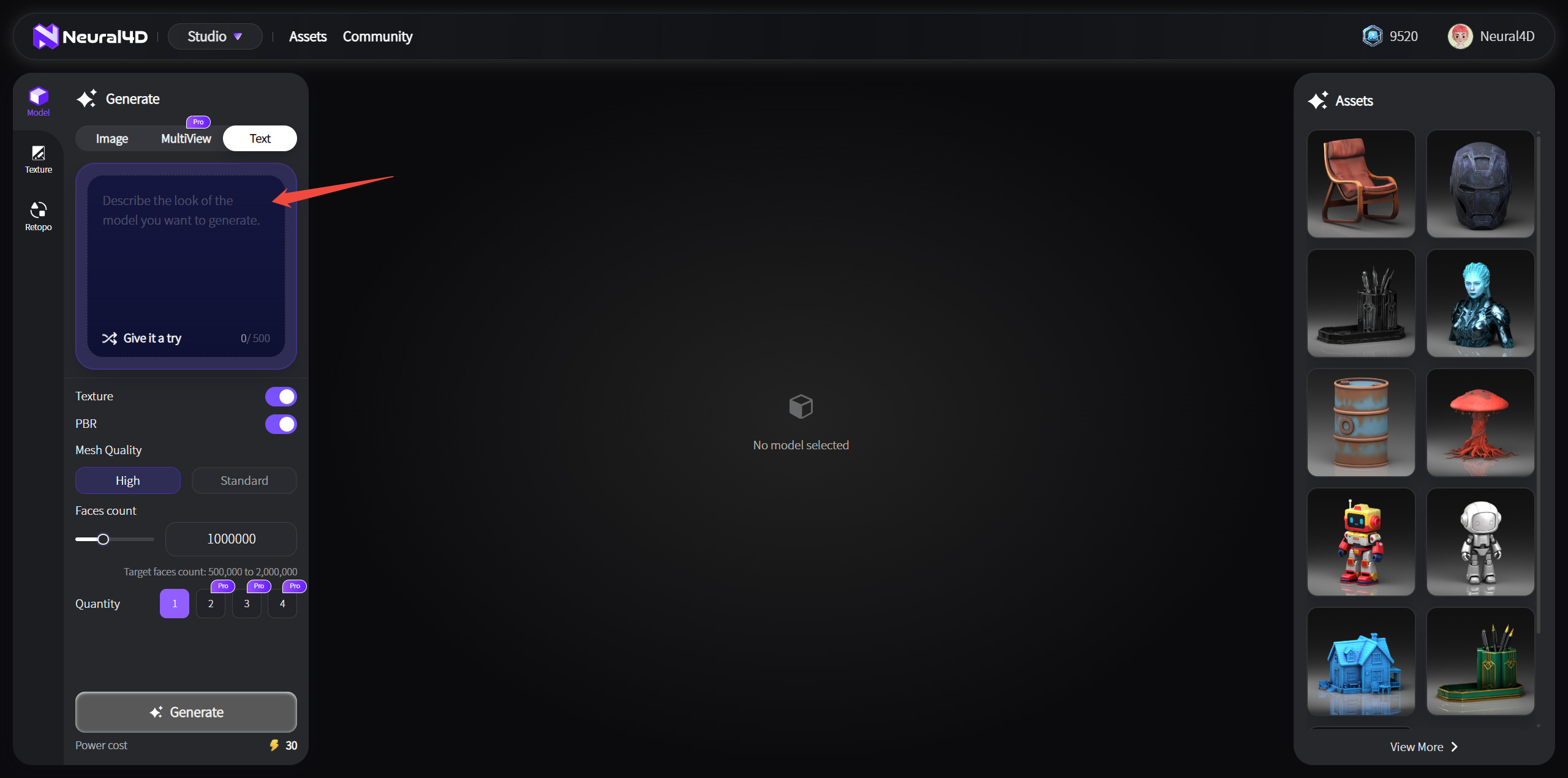
Choose the settings that match how you plan to use the model.
| Setting | Options | How to choose |
|---|---|---|
| Topology | Triangle or Quad. Triangle is selected by default. | Triangle retains more surface detail. Quad is useful for later editing and animation workflows. |
| Polycount | Triangle: 10,000 to 100,000. Quad: 1,000 to 100,000. Default: 50,000. | Use a higher value for more detail or a lower value for a lighter asset. |
| Texture | Optional | Adds visible surface color to the model. |
| PBR | Optional | Adds material maps for physically based rendering workflows. |
| Pose | Auto, A-Pose, or T-Pose. Auto is selected by default. | A-Pose and T-Pose are subscription options for humanoid characters intended for rigging or animation. |
Each selected option is charged separately. A Quad base mesh costs 15 Credits, Texture costs an additional 10 Credits, and PBR costs an additional 10 Credits. Quad with both Texture and PBR costs 35 Credits in total.
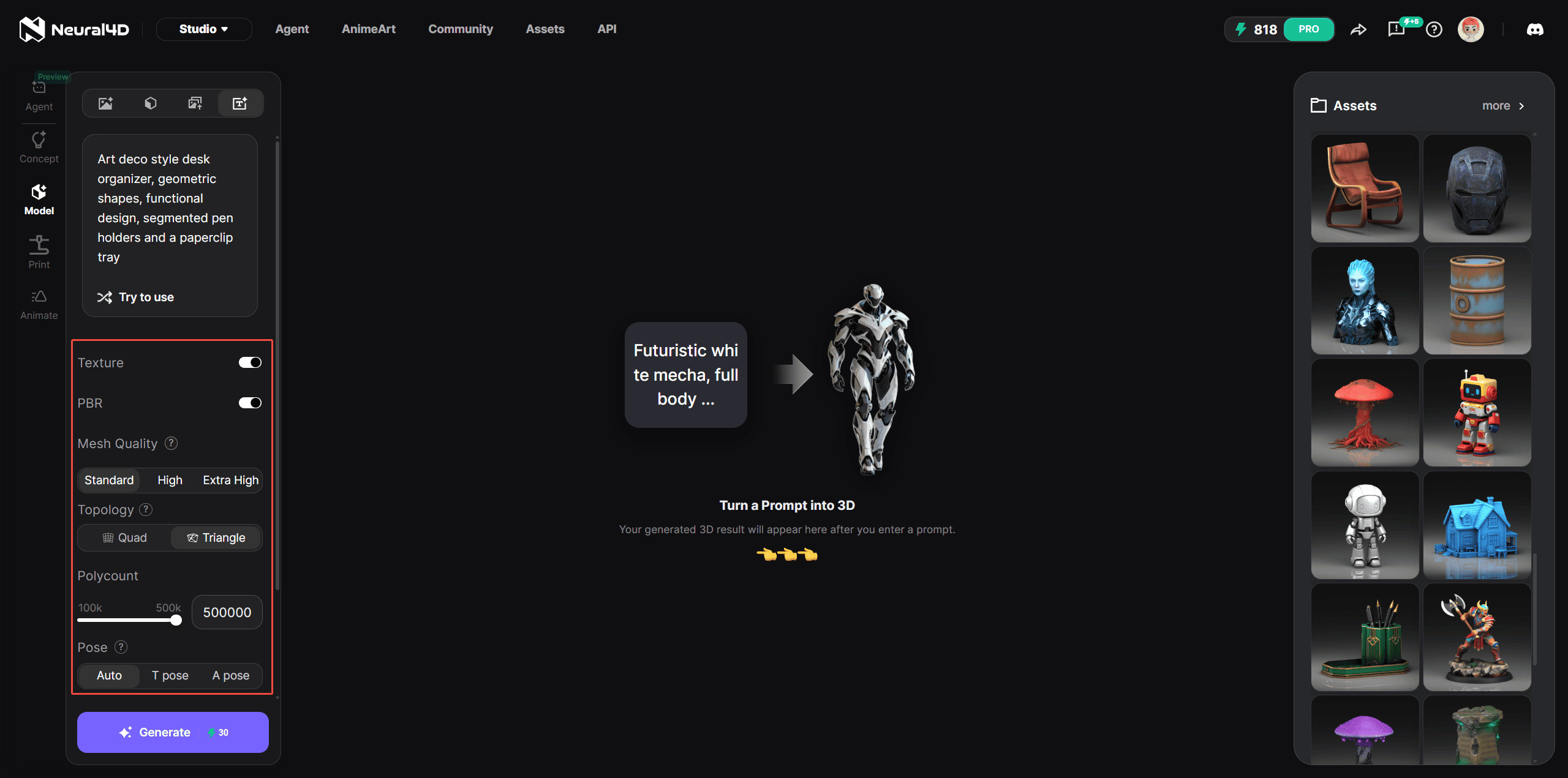
Click Generate. An untextured base mesh takes about 90 seconds. Texture and PBR are additional processing steps, so a complete textured model normally takes more than two minutes.
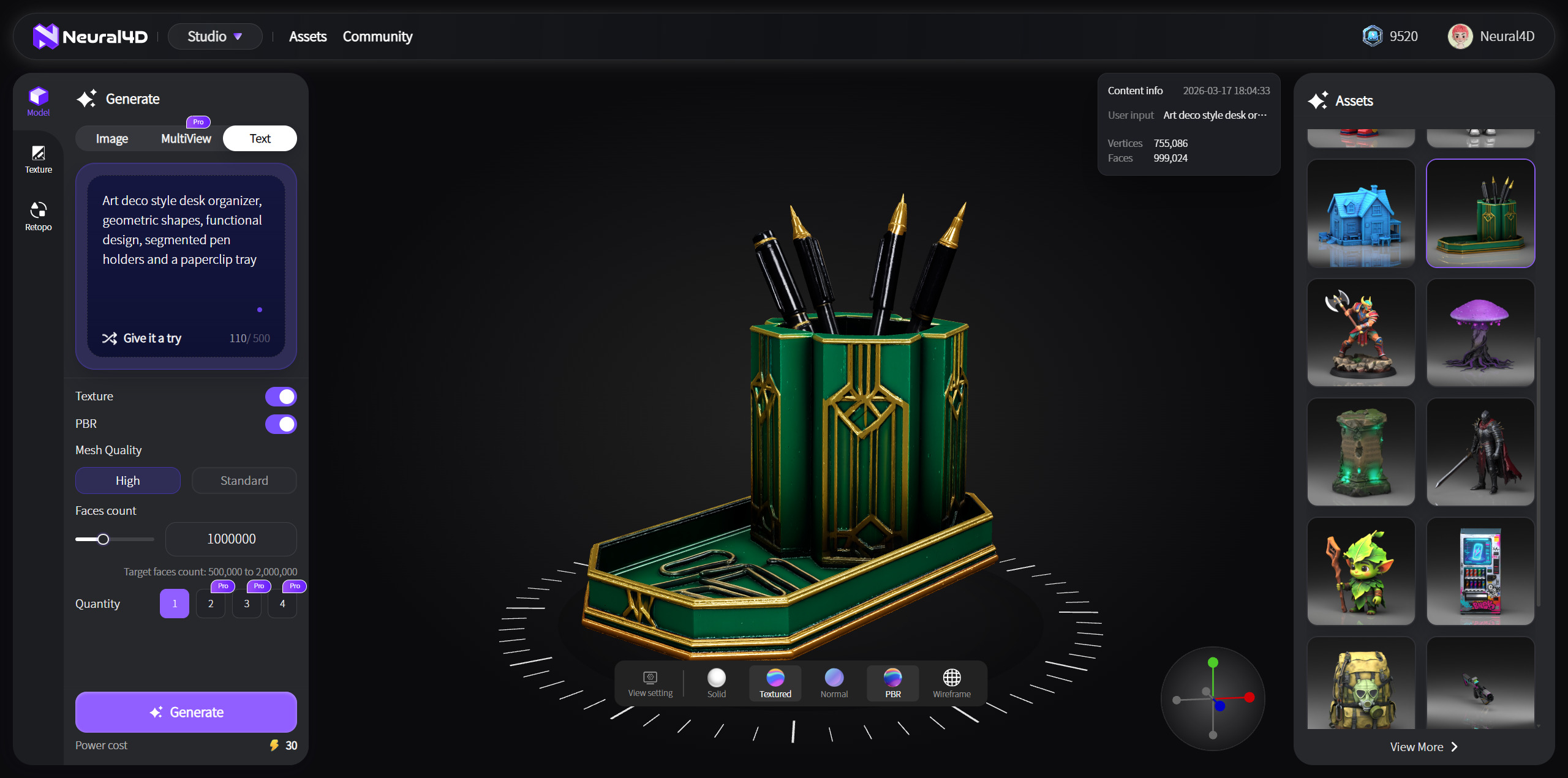
Rotate and zoom around the completed model. Check the silhouette, proportions, thin parts, hidden areas, holes, and texture alignment. If the result misses an important requirement, revise the prompt or settings and submit a new task.
A regular Text to 3D result cannot be transferred to Neural4D-2o for conversational editing. Neural4D-2o can edit only a model generated inside its current session.
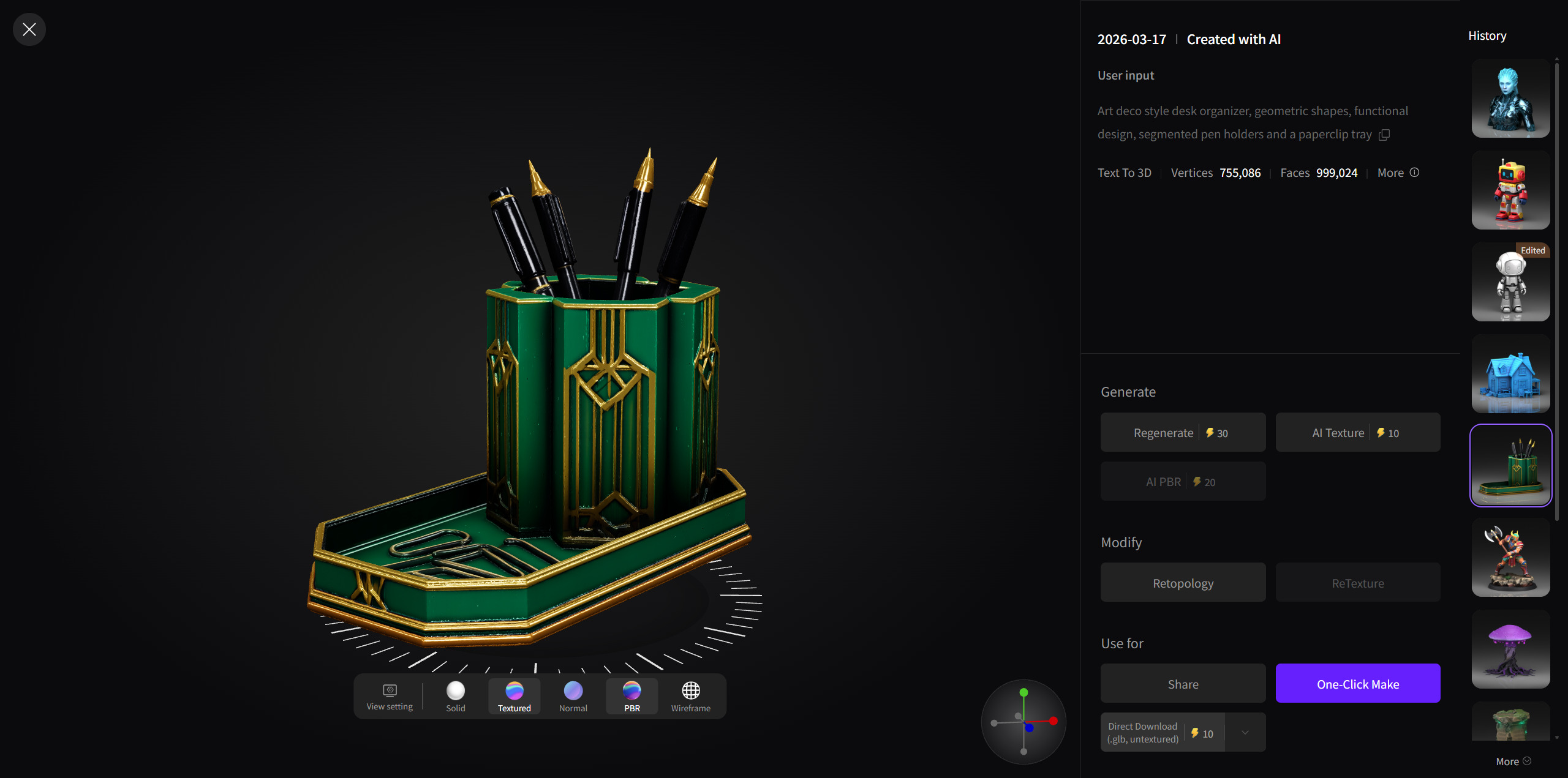
Click the Download icon and choose GLB, OBJ, FBX, USDZ, STL, or BLEND. Quad models support all six formats. OBJ is only the default selection in the Quad download dialog.
Your completed model remains available in the Assets Library. See the Neural4D format guide if you are unsure which format to use.
Should I use Text to 3D or Image to 3D?
Use Text to 3D when you are starting from an idea. Use Image to 3D when the result should follow an existing visual reference. See the input comparison guide.
Can I edit the result in Neural4D-2o?
No. Neural4D-2o edits only models generated in the current Neural4D-2o session.
What if generation takes longer than expected?
Read Why Did My Generation Take Longer Than 90 Seconds? and avoid submitting the same task again before checking its status.
%22%3E%3Cg%3E%3Cpath%20d%3D%22M14.22126%2C2L16.980341%2C2L10.922359%2C8.365314L18%2C17.000000999999997L12.44585%2C17.000000999999997L8.0973005%2C11.7527676L3.1189604%2C17.000000999999997L0.35988006%2C17.000000999999997L6.7777414%2C10.1918821L0%2C2L5.6921029%2C2L9.6207924%2C6.7933583L14.22126%2C2ZM13.255582%2C15.505536L14.785071%2C15.505536L4.88837%2C3.4391145L3.2449181%2C3.4391145L13.255582%2C15.505536Z%22%20fill%3D%22%23ffffff%22%20fill-opacity%3D%221%22%20style%3D%22mix-blend-mode%3Apassthrough%22%2F%3E%3C%2Fg%3E%3C%2Fg%3E%3C%2Fsvg%3E)
%22%3E%3Cg%3E%3Cg%3E%3Cpath%20d%3D%22M17.776579953674315%2C4.238972914697266C18.530987953674316%2C2.8357112146972656%2C17.668764953674316%2C1.0000038146972656%2C17.668764953674316%2C1.0000038146972656C15.728984953674317%2C1.0000038146972656%2C14.327326953674316%2C2.2953194146972655%2C14.327326953674316%2C2.2953194146972655C13.572919953674317%2C1.8635447646972656%2C11.093512553674316%2C1.8635447646972656%2C11.093512553674316%2C1.8635447646972656C11.093512553674316%2C1.8635447646972656%2C8.614197253674316%2C1.8635447646972656%2C7.859790753674316%2C2.2953194146972655C7.859790753674316%2C2.2953194146972655%2C6.4587898536743165%2C1.0000038146972656%2C4.518257353674317%2C1.0000038146972656C4.518257353674317%2C1.0000038146972656%2C3.6561312536743165%2C2.8350313146972654%2C4.410538953674316%2C4.238972914697266C4.410538953674316%2C4.238972914697266%2C2.6862124236743163%2C5.858135714697266%2C3.332825653674316%2C9.312969214697265C3.9408041536743164%2C12.559363814697265%2C6.782133553674316%2C13.415479814697266%2C8.614197253674316%2C13.415479814697266C8.614197253674316%2C13.415479814697266%2C7.859790753674316%2C14.063154814697265%2C7.967603653674316%2C15.142524814697266C7.967603653674316%2C15.142524814697266%2C6.889853453674316%2C15.790198814697266%2C5.812196053674317%2C15.358415814697265C4.734538553674316%2C14.926723814697265%2C4.1956536536743165%2C13.847263814697266%2C4.1956536536743165%2C13.847263814697266C4.1956536536743165%2C13.847263814697266%2C3.1179590536743165%2C12.443964814697265%2C2.0402743556743164%2C12.983694814697266C2.0402743556743164%2C12.983694814697266%2C1.7169677936743164%2C13.307532814697266%2C2.9024282136743165%2C13.847263814697266C2.9024282136743165%2C13.847263814697266%2C3.7645722536743165%2C15.142524814697266%2C4.087878753674316%2C15.898144814697266C4.411195253674316%2C16.653767814697268%2C6.135446553674316%2C17.301444814697266%2C7.860446953674316%2C16.869661814697267L7.860446953674316%2C19.352327814697265C7.860446953674316%2C19.352327814697265%2C7.860446953674316%2C19.568219814697265%2C7.4293847536743165%2C19.676166814697265C6.998322453674317%2C19.784110814697264%2C6.998322453674317%2C20.000003814697266%2C7.213853853674316%2C20.000003814697266L14.974576953674317%2C20.000003814697266C15.190109953674316%2C20.000003814697266%2C15.190109953674316%2C19.784110814697264%2C14.759046953674316%2C19.676166814697265C14.327983953674316%2C19.568219814697265%2C14.327983953674316%2C19.352327814697265%2C14.327983953674316%2C19.352327814697265L14.327983953674316%2C16.869661814697267C14.327983953674316%2C16.869661814697267%2C14.337451953674316%2C15.575053814697265%2C14.327983953674316%2C15.142524814697266C14.304263953674317%2C14.057753814697266%2C13.573576953674316%2C13.415479814697266%2C13.573576953674316%2C13.415479814697266C15.405640953674316%2C13.415479814697266%2C18.246925953674317%2C12.559363814697265%2C18.854893953674317%2C9.312969214697265C19.501579953674316%2C5.858135714697266%2C17.777234953674316%2C4.238972914697266%2C17.776579953674315%2C4.238972914697266L17.776579953674315%2C4.238972914697266Z%22%20fill%3D%22%23ffffff%22%20fill-opacity%3D%221%22%20style%3D%22mix-blend-mode%3Apassthrough%22%2F%3E%3C%2Fg%3E%3C%2Fg%3E%3C%2Fg%3E%3C%2Fsvg%3E)


%22%2F%3E%3C%2Fsvg%3E)

%22%2F%3E%3C%2Fsvg%3E)